Strong Passwords Made Simple: A Complete Guide for Staying Safe Online
This article may contain affiliate links. If you make a purchase through these links, we may earn a small commission at no extra cost to you. This helps us keep creating free content.
A strong password is your front door lock for the internet, and most break-ins happen because that lock was easy to pick. The good news is that you do not need to be a computer expert to fix this. With a few simple habits, you can make your email, your bank, and your photos far harder for a stranger to reach. This guide walks you through everything in plain language, at your own pace.
Hackers rarely sit and guess your password by hand. They use computer programs that try millions of common words and number combinations every second. That is why a password like "password123" or your dog's name and birth year falls in moments. The length and unpredictability of your password is what slows those programs down to the point where they give up.
You will not need to memorise dozens of long codes either. By the end of this guide you will understand a simple system that lets a computer remember the hard passwords for you, so your only job is to remember one good one. Nothing here will cost money, and nothing you do can permanently break your accounts.
What actually makes a password strong
Length matters more than anything else. A password of 12 characters is dramatically harder to crack than one of 8, even if the shorter one has a few symbols thrown in. Each extra character multiplies the number of guesses a program has to make. If you remember only one thing from this guide, make your passwords long.
Unpredictability comes next. Computers know all the common tricks, such as swapping the letter o for a zero or adding an exclamation mark at the end. A word from the dictionary with a "1" tacked on is barely stronger than the word alone. What works far better is a string of random or unrelated words strung together, because the program cannot lean on patterns it already knows.
Uniqueness is the third pillar, and the one people ignore most. Using the same password everywhere means that if one website is hacked, the thieves can walk straight into all your other accounts with the same key. Every account that matters deserves its own password.
Common mistakes that put you at risk
The most common mistake is reusing one favourite password across many sites. It feels convenient, but it turns a single break-in at any company into a break-in everywhere you use that password. Websites get hacked regularly, and there is nothing you can do to prevent a company's own security failing. What you can control is making sure their failure does not become yours.
Another frequent slip is building a password from personal facts. Your birthday, your street name, your late husband's initials, the name of your first pet: all of these can often be found on social media or guessed by someone who knows you. Keep personal details out of your passwords entirely.
Writing passwords on a sticky note attached to the monitor is risky too, though writing them in a private notebook kept in a drawer at home is far safer than reusing one weak password everywhere. The danger of the sticky note is mainly visitors and tradespeople, not far-off hackers. Later in this guide you will see a tidier option that removes the need for paper at all.
| Password | Why it is weak or strong | Rough crack time |
|---|---|---|
| spot2015 | Pet name plus year, short, guessable | Seconds |
| P@ssw0rd! | Common word with predictable swaps | Minutes |
| Summer2026 | Dictionary word plus year | Under an hour |
| copper-violet-anchor-meadow | Four unrelated words, long | Centuries |
The table above shows why a long passphrase wins so decisively. The crack times are estimates based on how fast modern programs work, but the gap between the top and bottom rows is real and enormous.
How to create a password you can actually remember
Pick four or five words that have no logical connection to each other, then join them with a dash or a space. Open a book to random pages and grab a word from each, or glance around your room and pick objects that are not near one another. The lack of connection is exactly what makes the result strong. "lamp-otter-pencil-cloud" is something you can picture, yet no program will guess that combination.
If a website demands a capital letter, a number, and a symbol, add them in a way you will recall, such as capitalising the first word and putting a number and symbol at the very end: "Lamp-otter-pencil-cloud-7!". This keeps the strength of the passphrase while satisfying fussy rules. Avoid putting the number in the middle where you will forget its position.
For the handful of passwords you really must memorise, your email password above all, take time to rehearse the passphrase a few times until it sticks. Your email is the master key, because most other accounts let someone reset their password by sending a link to your email. Protect that one above everything.
Let a password manager do the hard work
A password manager is a small program that stores all your passwords in a locked vault and fills them in for you automatically. You remember one strong master password, and it remembers all the rest. This solves the hardest problem in this guide, which is having a different long password for every single account without keeping track of them yourself.
When you visit a website to log in, the password manager offers to type the correct password for you. When you create a new account, it can invent a long random password on the spot and save it, so you never even see it. Everything is locked behind your one master password and protected by strong encryption, which scrambles the data so it is unreadable to anyone without the key.
Several trustworthy options exist, and a few are free for personal use. Bitwarden is free and well regarded. 1Password costs around 3 dollars a month and is very easy to use. Apple's iCloud Keychain is built into iPhones and iPads at no cost, and Google has a similar free tool in its Chrome browser. Any of these is far safer than reusing passwords, so the best choice is the one you will actually use. For a grandparent who mostly uses an iPhone, the built-in Apple option is the gentlest place to start.
| Password manager | Rough cost | Best for |
|---|---|---|
| Apple iCloud Keychain | Free | iPhone and iPad users |
| Google Password Manager | Free | Android and Chrome users |
| Bitwarden | Free (paid extras) | Anyone wanting one tool everywhere |
| 1Password | ~3 USD/month | Families wanting simple sharing |
Add a second lock with two-step verification
Two-step verification is the single most effective way to stop someone breaking into your account even if they steal your password. After you type your password, the website sends a short code to your phone, and you must enter that code to get in. A thief on the other side of the world has your password but not your phone, so the locked door holds.
You turn it on in the security settings of each account, usually under a heading like "Two-factor authentication" or "Two-step verification". The website walks you through it, and you only set it up once per account. Turn it on for your email first, then your bank, then any account holding money or personal photos.
The codes usually arrive by text message, which is fine for most people. A slightly stronger option is a free app such as Google Authenticator or Authy that generates the codes on your phone without needing a signal. Either way, this one extra step blocks the large majority of account break-ins, which is why it is worth the small effort.
A simple action plan to start today
Begin with your email, because it is the master key to everything else. Give it a fresh, long passphrase that you use nowhere else, and turn on two-step verification. With those two changes alone, you have closed the door that most attacks try to walk through.
Next, install one password manager and let it take over your other accounts gradually. Each time you log into a site over the coming weeks, let the manager save the password, and replace any weak or reused ones as you go. There is no need to do all of them in one afternoon. Steady progress over a couple of weeks gets you to a safe place comfortably.
Finally, fix your bank and any shopping accounts that store your card details. These hold real money, so they deserve unique passwords and two-step verification just like your email. Once those are done, you are in better shape than the great majority of people online.
- Change your email password to a long, unique passphrase.
- Turn on two-step verification for your email.
- Install one password manager and learn its master password.
- Let the manager save passwords as you log into sites over the coming weeks.
- Give your bank and shopping accounts unique passwords plus two-step verification.
How thieves try to trick you into handing over your password
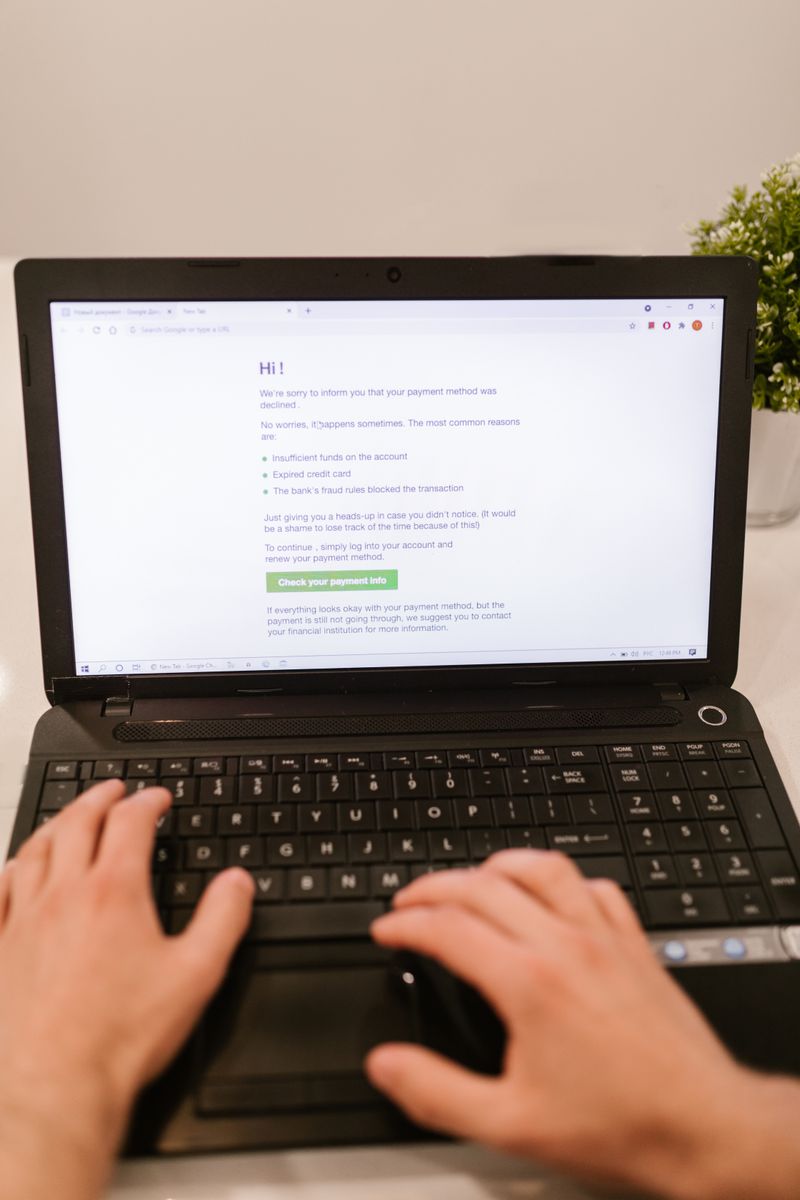
Many stolen passwords are not cracked at all. They are simply given away by the owner, who was fooled by a convincing fake message. This trick is called phishing, where a criminal sends an email or text pretending to be your bank, Amazon, or even a grandchild in trouble, then steers you to a copycat website that captures whatever you type. A strong password gives no protection if you type it into the wrong place.
The warning signs are worth learning, because once you know them they jump out at you. A message that creates urgency, such as "Your account will be closed in 24 hours", is a classic pressure tactic. So is any message asking you to "confirm" or "verify" your password by clicking a link. Spelling mistakes, an odd sender address, and a greeting that does not use your real name are further clues that something is wrong.
The safe habit is simple and never fails you. When a message asks you to log in or fix a problem, do not tap the link. Instead, open the website yourself by typing its address into your browser, or use the app you already have installed, and check your account there. If the warning was real, you will see it inside your account; if it was fake, you will find nothing wrong and you will have given the thief nothing.
A password manager quietly helps here too. Because it fills in your password only on the exact website it was saved for, it will stay silent on a copycat site with a slightly wrong address. If your manager does not offer to fill in a login on a page you expected it to, treat that as a red flag that you may be on a fake site, and stop before typing anything.
Frequently asked questions
How long should a password be?
Aim for at least 12 characters, and longer is better. A passphrase of four or five unrelated words easily clears that and is much easier to remember than a jumble of symbols.
Do I really need a different password for every account?
For accounts that matter, yes. If you reuse one password and any single site is hacked, thieves can try that password on your other accounts. A password manager makes having unique passwords effortless.
Are password managers safe?
Reputable ones are very safe. They lock everything behind your master password and strong encryption, so even the company running the service cannot read your stored passwords. The bigger risk is reusing weak passwords, which a manager fixes.
What if I forget my master password?
Choose a master passphrase you can recall, rehearse it, and write it once in a private place at home such as a notebook in a drawer. Most managers cannot reset it for you by design, which is part of what keeps your vault secure.
Is it safe to let my web browser save passwords?
The built-in password tools in Chrome and Safari are reasonably safe and far better than reusing passwords. Just make sure the account itself, your Google or Apple account, has a strong password and two-step verification, since it now guards all the others.
How often should I change my passwords?
You no longer need to change strong, unique passwords on a schedule. Change a password only if a site reports a breach, if you suspect someone has it, or if it is weak or reused. Constant forced changes tend to push people toward weaker, easier passwords.
Take the first step today by updating your email password and switching on two-step verification. Those two actions take about ten minutes and remove most of the everyday risk. Everything else in this guide can follow at a pace that suits you.
🛠️ Free tools for this topic
No sign-up. They do the calculating and checking for you.
Published by the TechGranddad editorial team. Published July 6, 2026.
Editorial responsibility: see Imprint.
Spotted an error or have something to add? corrections@techgranddad.com
Simple Tech Tips, Weekly
One practical tip every week — video calls, smartphone tricks, and how to stay safe online. No jargon, no overwhelm.
🎁 Free bonus: The Senior Tech Starter Guide (PDF)
You might also like
The iPhone Security Settings Checklist Worth 20 Minutes of Your Time
Eleven iPhone settings control how safe your phone, accounts and money are. This plain-English checklist tells you exactly where to tap, in about 20 minutes.
Android Security Settings Checklist: 12 Things to Turn On Today
Twelve Android security settings to switch on today, explained step by step, to protect your accounts, photos and money in about twenty minutes.
Two-Step Verification Explained: Simple Setup for Seniors
What two-step verification is, why it protects you even if your password leaks, and how to switch it on for email, bank, Apple, and Google.
📖 All articles on TechGranddad →
Browse our other articles