Two-Step Verification Explained: Simple Setup for Seniors
This article may contain affiliate links. If you make a purchase through these links, we may earn a small commission at no extra cost to you. This helps us keep creating free content.
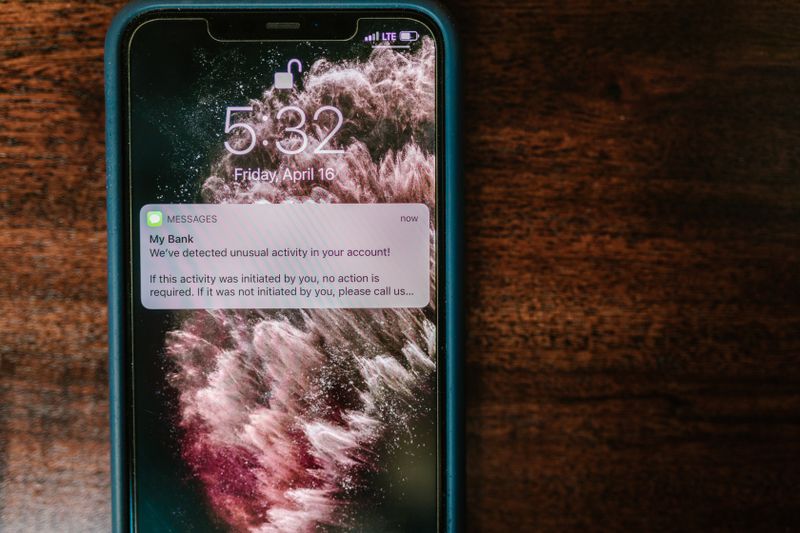
Two-step verification is the single most effective way to stop someone breaking into your email, your bank, or your photos. It adds a second check after your password, so that even if a thief somehow learns your password, they still cannot get in. They would also need the phone in your pocket, and they do not have that.
Banks, Apple, Google, and most email companies all offer it for free. Turning it on takes about three minutes per account, and you only have to do it once. After that, it quietly protects you in the background and rarely bothers you again.
You may also see it called "two-factor authentication", "2FA", or "2-step verification". These are all the same idea: your password is step one, and a short code or a tap on your phone is step two.
What two-step verification actually is
Think of your front door. A password is a single key. If someone copies that key, they are inside. Two-step verification adds a second lock that only opens with something you carry, usually your mobile phone. A burglar with a copied key still cannot pass the second lock.
In practice it works like this. You type your password as usual. Then the service sends a six-digit code to your phone by text message, or it asks you to approve a little pop-up notification. You enter the code or tap "Yes, that's me", and you are in. The code changes every time and expires within a few minutes, so an old one is useless to anyone else.
Why it stops break-ins even if your password leaks
Passwords leak constantly, and usually through no fault of your own. A shop or website you once used gets hacked, and millions of email addresses and passwords end up on a list that criminals buy and trade. If you reused that password anywhere, those accounts are suddenly at risk.
This is where the second step saves you. A criminal sitting at a computer far away may have your email address and your password from one of those leaked lists. When they try to log in, the service asks for the code that was just sent to your phone. The criminal does not have your phone, so they are stopped at the door. Your account stays safe even though your password is out there.
That is the whole point. You do not have to be a computer expert, and you do not have to invent a perfect password. The second step does the heavy lifting for you.
How to turn it on, step by step
The wording differs slightly from one company to another, but the path is always similar: open your account settings, find the security section, and look for "two-step verification" or "two-factor authentication". Here is where to look for the accounts that matter most.
- Email (Gmail): Open your web browser, go to myaccount.google.com, and tap "Security" on the left. Find "2-Step Verification" and tap "Get started". It will ask for your password, then your phone number, then send you a test code to confirm it works.
- Apple ID (iPhone or iPad): Open the grey Settings app, tap your name at the very top, then tap "Sign-In & Security". Tap "Two-Factor Authentication" and follow the prompts. On most newer Apple devices this is already switched on.
- Google account on a phone: Open the Settings app, scroll to "Google", tap "Manage your Google Account", then "Security", then "2-Step Verification".
- Your bank: Log in to the bank's app or website, find "Settings" or "Security", and look for two-step or two-factor options. Many banks already turn this on by default and simply text you a code at login.
If you get stuck at any point, you have not broken anything. You can close the app, take a breath, and start again. Nothing you tap in the security settings will delete your emails or your money. The worst that happens is you back out and try later.
Authenticator apps versus text-message codes
There are two common ways to receive that second step, and both are far better than no protection at all. The first is a text message: the service sends a six-digit code to your phone number, and you type it in. This is the simplest option and the one most people start with.
The second is an authenticator app, such as Google Authenticator or Microsoft Authenticator, both free to download. Instead of waiting for a text, the app shows a fresh code on your screen that changes every 30 seconds. It works even when you have no mobile signal, and it cannot be intercepted the way a text occasionally can.
| Method | How it reaches you | Best for |
|---|---|---|
| Text-message code | A text to your phone number | Anyone starting out; simplest to set up |
| Authenticator app | A code shown inside an app on your phone | Slightly stronger; works with no signal |
| Tap-to-approve | A pop-up you tap "Yes" on | The easiest of all when offered by Google or Apple |
Our advice: start with text-message codes because they are the easiest to understand. Once you are comfortable, an authenticator app is a small step up in safety. There is no rush, and either one protects you well.
What to do if you lose your phone
This is the worry that stops many people from switching it on, so let us settle it. Losing your phone does not lock you out forever. Every service that offers two-step verification also gives you a backup way in, as long as you set it up in advance.
When you first turn the feature on, the service usually offers a set of "backup codes" or "recovery codes". These are several one-time codes you can print out and keep in a drawer or your wallet. If your phone is lost, you log in with your password and type one of these codes instead. Each works once, then you cross it off.
If you ever do lose your phone with no backup ready, you are still not stuck. Each company has an account-recovery process: you answer some identity questions, and after a short wait they restore your access. It is slower, which is exactly the point, because that same slowness blocks criminals too.
Frequently asked questions
Does two-step verification cost anything? No. It is free on every major service, including Gmail, Apple, your bank, and Google. The text messages with your code are free to you as well.
Will it ask me for a code every time I check my email? Usually not on your own phone or home computer. Once a device is trusted, it only asks again when a sign-in looks unusual or after a long time has passed.
What if I do not have a smartphone? You can still receive codes by text on a basic mobile phone, and many services can read the code aloud in an automated phone call to a landline instead.
Is an authenticator app safe to download? Yes, as long as you get it from your phone's official app store. Google Authenticator and Microsoft Authenticator are free, trusted, and cannot accidentally cost you money.
Can I turn it off again later? Yes. You can switch it off in the same security settings where you turned it on. We would gently suggest leaving it on, because it is your strongest single protection.
Once it is set up, you can relax. The few extra seconds at login are a small price for knowing that a leaked password alone can no longer hand your accounts to a stranger.
🛠️ Free tools for this topic
No sign-up. They do the calculating and checking for you.
Published by the TechGranddad editorial team. Published July 14, 2026.
Editorial responsibility: see Imprint.
Spotted an error or have something to add? corrections@techgranddad.com
Simple Tech Tips, Weekly
One practical tip every week — video calls, smartphone tricks, and how to stay safe online. No jargon, no overwhelm.
🎁 Free bonus: The Senior Tech Starter Guide (PDF)
You might also like

The iPhone Security Settings Checklist Worth 20 Minutes of Your Time
Eleven iPhone settings control how safe your phone, accounts and money are. This plain-English checklist tells you exactly where to tap, in about 20 minutes.
Android Security Settings Checklist: 12 Things to Turn On Today
Twelve Android security settings to switch on today, explained step by step, to protect your accounts, photos and money in about twenty minutes.

Online Banking Safety: A Calm, Plain-English Guide for Over-50s
A calm, plain-English guide to staying safe with online banking, covering passwords, two-step verification, spotting scams, and what to do if something goes wrong.
📖 All articles on TechGranddad →
Browse our other articles