Android Security Settings Checklist: 12 Things to Turn On Today
This article may contain affiliate links. If you make a purchase through these links, we may earn a small commission at no extra cost to you. This helps us keep creating free content.
A modern Android phone has about a dozen security settings that protect your money, your photos and your accounts, and most of them are switched off or half-configured when the phone leaves the shop. Turning them on takes around twenty minutes, you only do it once, and nothing here can break your phone or cost you a penny. Work through these six areas in order, tap along on your own phone as you read, and you will end up with a device that is far harder for a thief or a scammer to get into.
One note before you start: Android phones from Samsung, Google, Motorola and others arrange their Settings menu slightly differently, so a setting might sit under a slightly different heading than the one named here. If you cannot find something, pull down from the top of the screen and tap the search icon (a small magnifying glass) inside Settings, then type the word. The phone will jump you straight to it.
1. Lock the phone properly
Use a six-digit PIN, not a swipe
The screen lock is the single thing standing between a thief and everything on your phone. Open Settings, tap Security (sometimes shown as "Security and privacy" or "Lock screen"), then tap Screen lock. Choose PIN and pick six digits rather than four, since six digits give a would-be guesser ten thousand times more combinations to try. Avoid 123456, your year of birth or anything printed on a card in your wallet.
A swipe-only lock, where you just drag a finger across the glass, offers no protection at all and should never be used on a phone that holds your email or banking apps. A pattern lock (joining dots) is better than nothing, but smudges on the glass can reveal it, so a PIN remains the more solid choice.
Add your fingerprint
Once a PIN is set, you can add a fingerprint so you do not have to type the PIN forty times a day. In the same Security menu, tap Fingerprint, enter your PIN, then rest the same finger on the sensor again and again until the phone says it has finished learning it. The sensor sits either on the back of the phone, on the side power button, or under the glass at the front, depending on your model.
Fingerprint unlocking is both faster and safer than typing a PIN in public, because nobody can read your finger over your shoulder the way they can watch you tap numbers. The PIN still stays as a backup for when your hands are wet or cold, so you are never locked out.

2. Set up the safety net for a lost phone
Samsung Galaxy A16 5G
An affordable, easy Android phone with a large screen and years of updates.
As an Amazon Associate we earn from qualifying purchases.
Turn on Find My Device
Find My Device lets you see your phone on a map, make it ring at full volume, or wipe it clean from any computer if it is lost or stolen. Go to Settings, tap Security, then Find My Device, and make sure the switch is on (showing colour rather than grey). This service is free and runs quietly in the background without draining your battery.
To use it later, you simply open a web browser on any computer or borrowed phone, go to android.com/find, and sign in with the same Google account. Test it once now so you know it works: from a computer, sign in and press the button to make your phone ring. Hearing it ping in your pocket is reassuring proof the safety net is live.
Set an emergency contact and medical note
Android can show your name, a medical note and an emergency contact on the lock screen, so that a paramedic or a kind stranger can reach your family without unlocking the phone. Go to Settings, search for "Emergency" or "Safety and emergency", and fill in your medical information and emergency contacts. This is reachable from the lock screen by tapping Emergency, then the relevant button.
This is a security feature in the broadest sense, since it protects you, not just your data. It takes two minutes and could matter enormously on the one day it is needed.
3. Lock down your accounts
Switch on two-step verification for Google
Two-step verification is the most effective single way to stop someone breaking into your Google account, even if they somehow learn your password. With it on, anyone signing in also needs a code sent to your phone, so a stolen password alone is useless to them. Open Settings, tap Google at the top, then "Manage your Google Account", then the Security tab, and find 2-Step Verification.
Follow the prompts and the phone will set itself up as the second step automatically, usually by tapping a Yes button when you sign in somewhere new. Keep your phone number listed as a backup so a text message can also deliver the code. This one setting blocks the overwhelming majority of account break-ins.
Use a different password for every important account
Reusing one password across email, banking and shopping means that a leak at any single site hands a criminal the keys to all of them. Your phone has a built-in password manager that creates and remembers a strong, unique password for each site, so you only have to recall your phone PIN. Find it in Settings under "Passwords" or inside the Google menu under "Password Manager".
When the phone offers to save or suggest a password, let it. It stores them safely behind your screen lock and fills them in for you, which means strong passwords stop being a memory test.
4. Keep the software current
Leave automatic updates running
Software updates fix the security holes that criminals use to get in, so an up-to-date phone is a much harder target. Go to Settings, scroll to System, then System update, and tap Check for update to install anything waiting. Then open the Play Store (the app with the colourful triangle), tap your profile picture in the top corner, go to Settings, then "Network preferences", and set apps to update automatically over Wi-Fi.
Updates over Wi-Fi do not use your mobile data allowance, so this costs nothing extra on your phone bill. Letting them install overnight, while the phone charges, means you are always protected without ever having to think about it.
Do a yearly clear-out of old apps
Every app on your phone is a possible way in, especially one you stopped using and never updated. Once a year, open the Play Store, tap your profile picture, then "Manage apps and device", and review the list. Uninstall anything you no longer recognise or use by tapping it and choosing Uninstall, which frees up space and shrinks the number of doors into your phone.
Removing an app you do not need cannot harm the phone, and you can always reinstall it from the Play Store later if you change your mind. A tidy phone is a safer phone.
5. Control what apps can see and where they come from
Review location, camera and microphone permissions
Every app you install asks for permissions, and many request far more than they need, such as a torch app wanting your contacts. Go to Settings, tap Privacy, then Permission manager, and tap through Location, Camera, Microphone and Contacts in turn. For each one, set anything you do not recognise or trust to "Don't allow", and set location to "Allow only while using the app" rather than "all the time".
Nothing here will stop a legitimate app working when you actually open it, because Android simply asks again at that moment if it needs the permission. Trimming these back is free and reversible, and it stops apps quietly tracking you in the background.
Install apps only from the Play Store
The Google Play Store checks apps for malware before listing them, which is why installing from anywhere else is the most common way phones get infected. Stick to the Play Store for everything, and be wary of links in emails or texts that urge you to "download our app" from a website. If a message pushes you to install something from outside the store, treat it as a scam.
Android does block outside installations by default, and you should leave that protection in place. If a setting called "Install unknown apps" is ever switched on for your browser or messaging app, switch it back off in Settings under Apps.
6. Close the everyday gaps
Hide sensitive notifications from the lock screen
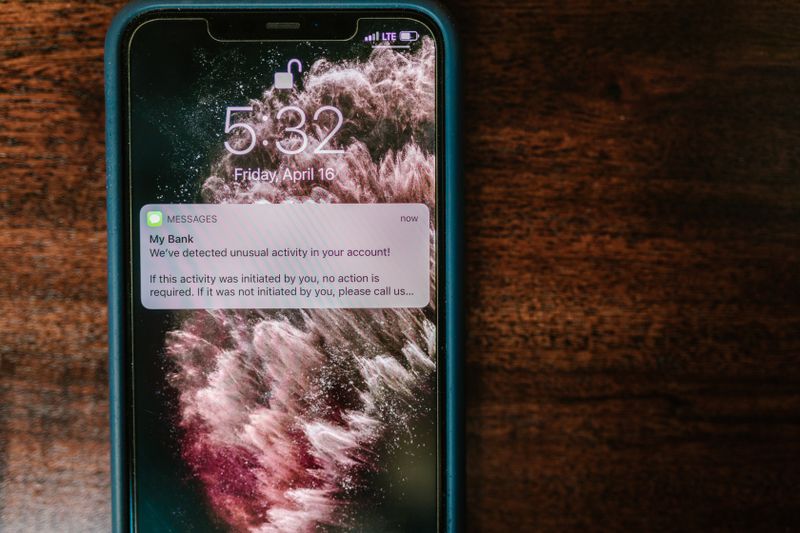
By default, the text of incoming messages and banking alerts can appear on your lock screen, where anyone glancing at your phone on a table can read them. Go to Settings, tap Notifications, then "Notifications on lock screen", and choose the option that hides sensitive content. The phone will still show that you have a message, just not what it says, until you unlock.
This matters most for one-time codes from banks, which sometimes arrive by text and would otherwise be visible to a thief who has your phone but not your PIN. Hiding the content closes that small but real gap.
Be cautious on public Wi-Fi
Free Wi-Fi in cafes and airports is convenient, but you cannot be sure who set it up or who is watching the traffic on it. Avoid logging into your bank or entering card details while connected to a public network. If you must do something sensitive, switch the Wi-Fi off and use your phone's own mobile data instead, which is encrypted by the network and far harder to snoop on.
Modern banking and shopping apps already encrypt their connections, so the risk is smaller than it once was. Even so, saving the private tasks for your home network or mobile data is a sensible habit.
Where to start if this feels like a lot
If the whole list feels daunting, do just three things today and you will already be ahead of most people: set a six-digit PIN, turn on Find My Device, and switch on two-step verification for your Google account. Those three between them cover a lost phone, a stolen phone and a stolen password, which are the three things most likely to actually happen.
Come back next week and do the rest at your own pace. None of these settings expire, none of them cost money, and every one you turn on is permanent progress. A phone is only as private and safe as the few minutes you spend setting it up, and you have just spent them well.
🛠️ Free tools for this topic
No sign-up. They do the calculating and checking for you.
Published by the TechGranddad editorial team. Published July 22, 2026. Updated October 4, 2026.
Editorial responsibility: see Imprint.
Spotted an error or have something to add? corrections@techgranddad.com
Simple Tech Tips, Weekly
One practical tip every week — video calls, smartphone tricks, and how to stay safe online. No jargon, no overwhelm.
🎁 Free bonus: The Senior Tech Starter Guide (PDF)
You might also like
The iPhone Security Settings Checklist Worth 20 Minutes of Your Time
Eleven iPhone settings control how safe your phone, accounts and money are. This plain-English checklist tells you exactly where to tap, in about 20 minutes.

Facebook Privacy Settings: A Plain-English Walkthrough
A plain-English walkthrough of the Facebook privacy settings that matter most: default post audience, friend requests, tag review, hiding personal details, and two-factor login.
Two-Step Verification Explained: Simple Setup for Seniors
What two-step verification is, why it protects you even if your password leaks, and how to switch it on for email, bank, Apple, and Google.
📖 All articles on TechGranddad →
Browse our other articles