Public Wi-Fi Safety: What It Is and How to Use It Without Worry
This article may contain affiliate links. If you make a purchase through these links, we may earn a small commission at no extra cost to you. This helps us keep creating free content.
Public Wi-Fi is the free internet connection offered in cafes, airports, hotels, and libraries, and the risk it carries is real but easy to manage. The danger is not that connecting will instantly empty your bank account. It is that, on a network anyone can join, a dishonest person nearby has more chances to snoop on what you do or trick you into handing over information. Once you understand what those chances actually are, public Wi-Fi becomes something you can use comfortably most of the time.
This explainer covers what public Wi-Fi is, the handful of things that can go wrong, and the simple habits that remove almost all of the risk. None of it requires buying gadgets or being technical.
What public Wi-Fi actually is
Wi-Fi is the wireless signal that lets your phone, tablet, or laptop reach the internet without a cable. Your home Wi-Fi is private: it needs a password, and you control who joins. Public Wi-Fi is offered by a business or place for visitors to use, and it is shared by every customer who connects, often without any password at all.
That shared, open nature is the whole issue. On your home network, only your household is connected. On a coffee shop network, you are sharing the same connection with every other customer in range, and you have no idea who they are. Most are simply checking email like you. The safety advice exists to protect you from the rare one who is not.
The things that can actually go wrong
TP-Link RE315 Wi-Fi Range Extender
A simple plug-in extender removes the weak-signal dead spots that drop video calls.
As an Amazon Associate we earn from qualifying purchases.
The biggest real risk is the fake network, sometimes called an evil twin. A scammer sets up their own hotspot and gives it a trustworthy name like "Airport Free WiFi" or "Coffee Guest". If you connect to theirs by mistake, everything you type can pass through their equipment. The defence is simple: ask a staff member for the exact network name rather than guessing from the list.
A second risk is snooping on unsecured connections. Years ago this was easy, but modern websites and apps now scramble their traffic automatically, which has shrunk this threat a great deal. You can spot a protected website by the little padlock next to the web address and the letters https at the start. Banking apps and shopping apps do this scrambling on their own, so they are safe to use even on shared Wi-Fi.
The third risk is the oldest one: shoulder surfing, where a person simply watches your screen or your fingers as you type a password. No technology defends against this. Sitting with your back to a wall and shielding the screen when you enter anything sensitive handles it.
The simple habits that keep you safe
A short routine removes most of the danger without slowing you down. Follow these whenever you join a network you do not own.
- Confirm the network name with staff. Read the exact spelling and connect only to that one. Ignore official-sounding names you cannot verify.
- Look for the padlock and https. Before typing anything private into a website, check for the padlock symbol near the address. No padlock means do not enter passwords or card numbers there.
- Save online banking and shopping for later. Reading the news on cafe Wi-Fi is fine. If you can wait until you are home or on your phone's own data to move money, do.
- Tell your device to forget the network when you leave. This stops your phone automatically reconnecting to a same-named network somewhere else.
- Turn off automatic connection. In your Wi-Fi settings, switch off the option to join open networks automatically, so you always choose deliberately.
When your phone's own data is the better choice
Your mobile phone plan includes its own internet connection, called mobile data or cellular data, and it is private to you. Nobody else shares it, which makes it safer than any public network for sensitive tasks. The trade-off is that heavy use, like watching video for hours, can use up your monthly allowance.
For quick, important jobs such as checking your bank balance or paying a bill while you are out, your own mobile data is the safer pick over cafe Wi-Fi, every time. Save the free Wi-Fi for everyday browsing and for large downloads that would otherwise eat into your data. You can also turn your phone into a private hotspot for your laptop, which is far safer than the cafe network and only takes a moment to switch on in your phone's settings.
What a VPN does, in plain terms
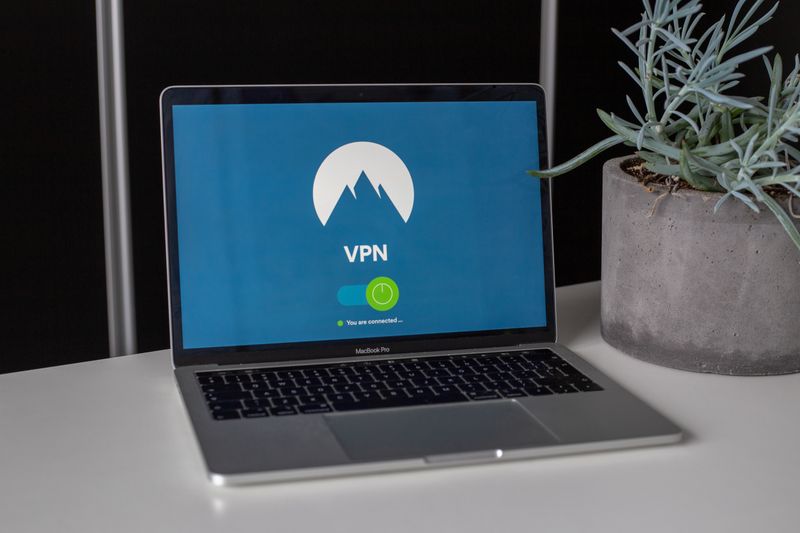
A VPN, short for virtual private network, is an app that wraps all your internet traffic in an extra layer of scrambling and routes it through a secure tunnel. On public Wi-Fi, this means even a snooper on the same network sees only jumbled, unreadable data. It is the single strongest protection if you often work or bank from cafes and airports.
You do not need one for casual browsing, since modern websites already scramble their own traffic. If you decide a VPN is worth it, reputable paid services cost roughly $3 to $12 a month, and well-known names include Proton VPN, Mullvad, and ExpressVPN. Avoid free VPNs that you have never heard of, because some of them quietly collect and sell the very data they claim to protect.
| Task on public Wi-Fi | Risk level | Best approach |
|---|---|---|
| Reading news, browsing recipes | Low | Public Wi-Fi is fine |
| Checking email | Low to medium | Fine if the app shows the padlock |
| Online shopping | Medium | Use mobile data or a VPN |
| Online banking, moving money | Higher | Use your own mobile data, not shared Wi-Fi |
Public Wi-Fi is a useful, mostly safe convenience once you treat it with the same ordinary caution you would use anywhere among strangers. Verify the network name, look for the padlock, keep your most sensitive money tasks on your own mobile data, and close any pop-up that asks you to install something. Do those few things and you can use the free internet at your hotel or favourite cafe without a second thought.
The worst common outcome for a careful user is simply slow internet, not a drained account. Scammers rely on people who connect without looking and type passwords into any site. By reading this far, you have already stepped out of that group, and a little awareness will carry you the rest of the way.
Settings to change on your own device
A few one-time changes in your phone or tablet settings make every future trip to a cafe safer, and you never have to think about them again. The first is turning off automatic joining of open networks, which lives in your Wi-Fi settings under a name like Auto-Join or Ask to Join Networks. With it off, your device stops silently hopping onto any open hotspot it passes, including fake ones.
The second is switching off file and printer sharing, which some laptops have on by default. On a Windows laptop, when you first connect to a network it asks whether it is a Home or Public network. Always choose Public for cafe and hotel Wi-Fi, because that setting automatically hides your laptop from others on the network. A Mac handles this for you, but it is worth turning off AirDrop to Contacts Only while you are out.
The third habit is keeping your device updated. Those update messages that ask to install the latest version are not a nuisance to ignore; they patch the very holes a snooper would try to use. A phone running last year's software on an open network is a softer target than one kept current. Tap accept on system updates when you are home on your own Wi-Fi.
Spotting a scam while you are connected
Even on a safe network, the most common way people lose money is a convincing fake message rather than any clever hacking. A text or email claiming your bank account is locked, with a link to "verify" it, is the classic. Never tap the link. If you are worried, close the message and phone your bank using the number printed on your card.
Be equally wary of any website that suddenly asks you to re-enter your password or card details when you did not expect it. Scammers can redirect you to a copycat page that looks identical to the real one. Check the web address at the top carefully for tiny misspellings, and if anything feels off, stop and try again later from home. Trusting that small feeling of doubt is one of your best defences.
🛠️ Free tools for this topic
No sign-up. They do the calculating and checking for you.
Published by the TechGranddad editorial team. Published September 3, 2026. Updated October 4, 2026.
Editorial responsibility: see Imprint.
Spotted an error or have something to add? corrections@techgranddad.com
Simple Tech Tips, Weekly
One practical tip every week — video calls, smartphone tricks, and how to stay safe online. No jargon, no overwhelm.
🎁 Free bonus: The Senior Tech Starter Guide (PDF)
You might also like
The iPhone Security Settings Checklist Worth 20 Minutes of Your Time
Eleven iPhone settings control how safe your phone, accounts and money are. This plain-English checklist tells you exactly where to tap, in about 20 minutes.
Android Security Settings Checklist: 12 Things to Turn On Today
Twelve Android security settings to switch on today, explained step by step, to protect your accounts, photos and money in about twenty minutes.
Two-Step Verification Explained: Simple Setup for Seniors
What two-step verification is, why it protects you even if your password leaks, and how to switch it on for email, bank, Apple, and Google.
📖 All articles on TechGranddad →
Browse our other articles