How to Make Text Bigger on Android (Step by Step)
This article may contain affiliate links. If you make a purchase through these links, we may earn a small commission at no extra cost to you. This helps us keep creating free content.
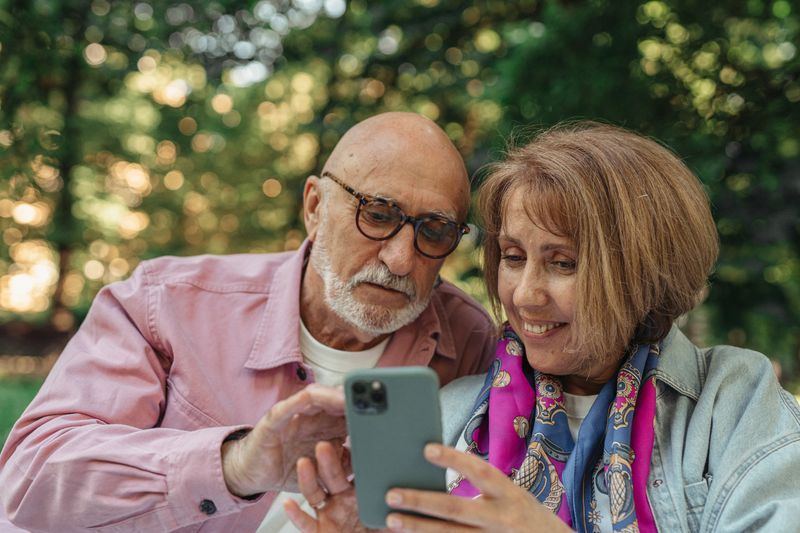
Android lets you enlarge text across the whole phone in about thirty seconds, and the change sticks until you decide to alter it. There are two separate settings that work together: Font size, which enlarges the words, and Display size, which enlarges everything including icons and buttons. Turning up both gives you the most comfortable, readable screen. This walkthrough shows exactly where to tap, what you will see, and how to fix the small annoyances that sometimes follow.
Nothing here can damage your phone or cost a penny. Every setting reverses with a single slider, so feel free to experiment until a sentence reads easily at the distance you normally hold the phone.
Make the font bigger in Settings
The font setting lives in the same place on nearly every Android phone, though the exact wording varies a little between Samsung, Google Pixel, and other brands. Follow these steps and adjust the names slightly if yours differ.

- Find the Settings app. Its icon is a grey gear or cog wheel, usually on your home screen or in the app drawer you reach by swiping up from the bottom.
- Tap Settings to open it, then tap Display. On Samsung phones this is Display; on some others it sits under Accessibility.
- Tap Font size and style, or simply Font size.
- You will see a slider with a sample sentence above it. Drag the dot to the right to enlarge the text. The sample updates instantly so you can see the result before committing.
- When the sample reads comfortably, tap the back arrow at the top left. The change is saved automatically. There is no Save button to hunt for.
Make everything bigger with Display size
Samsung Galaxy A16 5G
An affordable, easy Android phone with a large screen and years of updates.
As an Amazon Associate we earn from qualifying purchases.
Font size changes only the words. If the icons and buttons still feel small, Display size enlarges the whole interface so that buttons grow alongside the text. The two settings sit next to each other and are designed to be used together.
- Stay in Settings, then Display.
- Tap Display size, sometimes labelled Display size and text or Screen zoom.
- Drag the slider right. Watch the preview icons grow. A larger display size means fewer items fit on screen at once, which is the trade-off for everything being bigger and easier to tap.
- Tap the back arrow to save. Open a few apps to see how the new size feels in real use.
If a button ever slides off the edge of the screen at the largest size, turn the Display size down one notch. Most people find the second or third step gives a good balance of size and fit.
Make web pages and messages larger too
The phone-wide font setting covers menus and most apps, but a few apps control their own text size. Your web browser is the main one. In Chrome, tap the three dots at the top right, then Settings, then Accessibility, and drag the Text scaling slider. That enlarges every web page without affecting the rest of the phone.
WhatsApp and several messaging apps mostly follow your system font, so they grow automatically once you raise the phone-wide setting. If a particular app stays small, look inside that app's own settings for a text or font option. Most of the time the system setting is all you need.
Making text bigger inside specific apps
A handful of everyday apps keep their own text controls, separate from the phone-wide font setting. Adjusting them takes a few taps each, and the change stays put inside that app even if you later reset your system font.
In WhatsApp, open the app, tap the three dots at the top right, then Settings, then Chats. Tap Font size and choose Small, Medium, or Large. Large is the most readable for tired eyes, and it enlarges the text in every chat at once without changing your photos or buttons.
In Gmail, the message text follows your phone-wide font, so raising the system Font size already enlarges your emails. If a single email still reads small, spread two fingers apart on the message to zoom into it, the same pinch gesture you use on a photo. To make the message list itself roomier, tap the three lines at the top left, then Settings, then General settings, and turn on a larger conversation view if your version offers it.
The Chrome browser has its own zoom on top of the Text scaling slider mentioned above. To enlarge a single page, pinch outward with two fingers to zoom in, then pinch inward to zoom back out. To force every website to allow zooming, tap the three dots, then Settings, then Accessibility, and tick Force enable zoom. That stops stubborn sites from blocking the pinch gesture.
In Facebook, the app honours your phone-wide Font size for most text, so raising the system setting enlarges your feed and posts. For a quick boost on one post, pinch outward to zoom into a photo or article preview. If the feed text still feels cramped, increasing the system Display size as well makes the whole Facebook layout, buttons included, noticeably larger.
Use Magnification to zoom anything
For the rare moments when something is still too small, like text inside a photo or a tiny label in an older app, Android has a magnifier that zooms any part of the screen on demand. You turn it on once and trigger it with a quick triple-tap whenever you need it.
- Open Settings, then Accessibility.
- Tap Magnification.
- Turn the switch on, and choose Triple-tap screen as the trigger so it is easy to remember.
- Now, on any screen, tap three times quickly to zoom in. Drag two fingers to move around, and triple-tap again to zoom back out.
This magnifier is separate from your normal text size. It is a temporary zoom for one tricky moment, not a permanent change, so your phone looks normal again the instant you tap out of it.
If the bigger text does not look right
When the text looks blurry rather than just small, that is usually screen brightness, not font size. Pull down from the top of the screen to reveal the brightness slider and raise it. Reading is easier with a brighter screen, especially in daylight or for tired eyes.
If the larger font seems to have switched itself back, check that you did not change phones or perform a reset, since both return settings to default. Reapply the steps above and the size holds. The setting does not drift on its own during normal use.
Frequently asked questions
Will bigger text use more battery?
No. Font and display size have no measurable effect on battery life. Screen brightness is what drains the battery, so if you raise brightness for easier reading, that is the part that costs a little power, not the larger text.
Can I make just the keyboard letters bigger?
Yes, separately. Open your keyboard, often Gboard, look in its settings for a height or size option, and increase it. A taller keyboard gives bigger, easier-to-hit letters without changing the rest of the phone.
My phone's menus look different from these steps. Why?
Phone makers rename a few menus. Samsung, Google, Motorola, and others each style Android slightly differently. The words may differ but the settings exist on every Android phone. Use the search bar at the top of Settings and type font or display size to jump straight there.
Once your text is the size you want, leave it. The setting stays through restarts and daily use, and you only ever revisit it if your eyesight changes or you get a new phone. Bigger text is the single change that makes the biggest difference to comfort, and you have just made it.
🛠️ Free tools for this topic
No sign-up. They do the calculating and checking for you.
Published by the TechGranddad editorial team. Published July 7, 2026. Updated October 4, 2026.
Editorial responsibility: see Imprint.
Spotted an error or have something to add? corrections@techgranddad.com
Simple Tech Tips, Weekly
One practical tip every week — video calls, smartphone tricks, and how to stay safe online. No jargon, no overwhelm.
🎁 Free bonus: The Senior Tech Starter Guide (PDF)
You might also like
How to Turn On Accessibility Features on Android
Every Android phone has a free Accessibility menu for bigger text, better contrast, a magnifier and louder sound. Here is how to turn each one on, step by step.
How to Make Text Bigger on Your iPhone (3 Easy Ways)
Three easy ways to enlarge iPhone text: the Text Size slider, Larger Accessibility Sizes, and Bold Text, plus keyboard, pinch-to-zoom and brightness tips.
How to Back Up an Android Phone So You Never Lose a Photo
A clear, step-by-step guide to backing up an Android phone, covering photos, contacts, texts, and WhatsApp, plus how to restore everything onto a new phone.
📖 All articles on TechGranddad →
Browse our other articles