Should You Use a Password Manager? A Simple Guide
This article may contain affiliate links. If you make a purchase through these links, we may earn a small commission at no extra cost to you. This helps us keep creating free content.
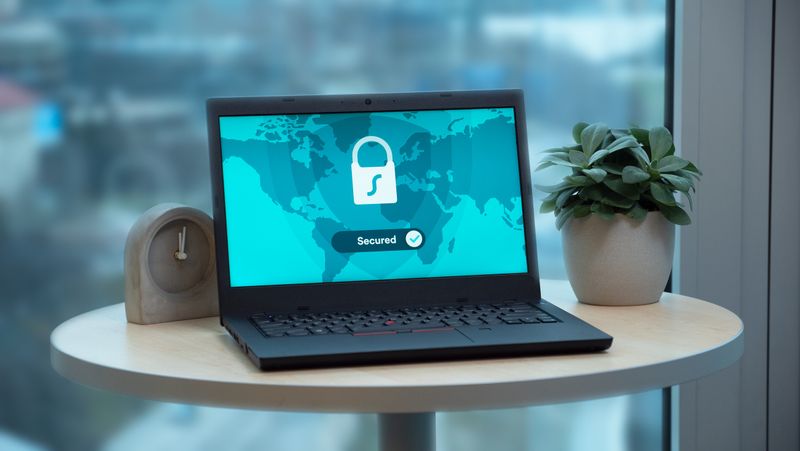
A password manager is a secure app that remembers all your passwords for you, so you only have to remember one. You type that single master password to unlock it, and the app fills in your login details on each website automatically. The information inside is scrambled with strong encryption, which means it is turned into unreadable code that nobody can open without your master password.
The worry many people have is that storing all your passwords in one place sounds risky. It feels safer to keep them in your head or on a scrap of paper. In practice, a good password manager is far more secure than reusing the same easy password everywhere, which is what most people do without one. The sections below explain how these tools work, whether one is right for you, and which options suit someone who wants simple over flashy.
Why one strong vault beats a notebook
Most people reuse one or two passwords across many sites because remembering a different one for each is impossible. The danger is that if a single website is broken into and your password leaks, criminals try that same password on your email and your bank. Reusing passwords turns one small leak into a master key to your whole online life.
A password manager fixes this by creating and storing a long, random, unique password for every single site, none of which you have to remember. If one site leaks, that password is useless anywhere else. A paper notebook can hold unique passwords too, but it cannot type them for you, it can be lost or read by a visitor, and it does not warn you when a password has appeared in a known leak.
How a password manager works day to day
Using one is simpler than it sounds. When you visit a website where you have an account, the manager recognises the site and offers to fill in your username and password with a single tap. You confirm, and you are logged in without typing anything. When you sign up somewhere new, it offers to invent a strong password and save it for you, so you never have to think one up.
The one thing you must remember is the master password that unlocks the manager itself. Make it long but memorable, such as a short phrase of three or four unrelated words, and never use it anywhere else. Many managers also let you unlock with your fingerprint or face, so day to day you rarely type even the master password.

Comparing the main options
There are several well-known password managers, and the right one depends on how much you want to spend and whether you mix Apple and Android devices. The table below compares four trustworthy choices, including the free built-in ones, with rough US prices at the time of writing.
| Option | Rough US price | Works across | Best for |
|---|---|---|---|
| Apple Passwords (built in) | Free | iPhone, iPad, Mac | People who use only Apple devices |
| Google Password Manager | Free | Chrome on any device | People who live in the Chrome browser |
| Bitwarden | Free, or about $10/year | Apple, Android, Windows | Mixing device types on a budget |
| 1Password | About $36/year | Apple, Android, Windows | Wanting the most polished, guided app |
For someone who owns only an iPhone and an iPad, the built-in Apple Passwords is the easiest choice and costs nothing. If your family uses a mix of iPhones and Android phones, Bitwarden is the best value because it works everywhere and its free version covers what most people need. Pay for 1Password only if you want the friendliest, most hand-holding setup and do not mind the yearly fee.
Setting up your first password manager
Getting started with the built-in Apple option takes a few minutes. The steps below show the general shape, and other managers follow a similar path through their own app.
- Open Settings on your iPhone and tap your name at the top.
- Find Passwords in the Settings list and tap it.
- Let the phone offer to save passwords as you log in to sites.
- The next time you sign in somewhere, tap Save Password when asked.
- From then on, tap the suggested login the manager shows above the keyboard.
With a separate app such as Bitwarden, you first download it from the App Store or Play Store, create your account with a master password, and then add your logins as you sign in to sites. There is no need to enter every password in one sitting. The manager fills up naturally over a few weeks as you visit your usual websites.
Staying safe while you use one
A password manager removes most of the risk of weak passwords, but a couple of habits keep it strong. Turn on two-step verification, also called two-factor authentication, for the manager and for your email. This adds a one-time code on top of your password, so a stranger who somehow learns your master password still cannot get in without your phone in their hand.
Be cautious of any email or text that asks you to log in urgently or claims your account is locked, because these are often scams designed to steal a password. A real password manager only fills in your details on the genuine website, never inside an email. If the manager does not offer to fill a login that it usually fills, treat that page with suspicion and check the web address carefully.
So, is a password manager right for you?
For nearly everyone over 50 who uses online banking, shopping, or email, a password manager is worth the small effort to set up. It is more secure than memorised passwords, kinder than a paper list, and it removes the daily frustration of forgotten logins. The free built-in option on your phone is a sensible place to begin, and you can move to a paid app later if you want more features.
If you only ever use one or two websites and already keep strong, different passwords for them, you can manage without one. For everyone else, the peace of mind of one secure vault, unlocked by a single password or your fingerprint, is hard to beat. Start with the free option this week, save a handful of logins, and let it build from there.
Frequently asked questions
Is it really safe to keep all my passwords in one app?
Yes, when the app uses strong encryption, which all the ones named here do. Your passwords are scrambled into unreadable code that only your master password can unlock. This is far safer than reusing one weak password across many sites, which is the most common way accounts get broken into.
What happens if the company gets hacked?
Reputable managers store only the scrambled version of your data, and not even the company can read your passwords without your master password. So a break-in at the company does not hand over your logins. This is exactly why you must keep your master password safe and never share it.
Can I share passwords with my spouse?
Most managers let you share selected logins with a family member securely, such as a shared streaming or shopping account. The paid family plans make this simple, and even some free versions allow limited sharing. This is safer than texting a password, which can be read by anyone who picks up the phone.
What if I switch to a new phone later?
Your passwords are stored in your account, not just on one device, so they follow you to a new phone. When you sign in to the manager on the new phone with your master password, every saved login appears again. The built-in Apple and Google options do this automatically once you sign in with the same account you used before.
Do I still need to change my passwords now and then?
You no longer need to change every password on a schedule, which old advice used to recommend. Instead, change a password only when the manager warns it has been leaked, or when a company tells you to. Because each password is already long, random, and used on just one site, routine changes add little and the manager handles the rest.
🛠️ Free tools for this topic
No sign-up. They do the calculating and checking for you.
Published by the TechGranddad editorial team. Published October 8, 2026.
Editorial responsibility: see Imprint.
Spotted an error or have something to add? corrections@techgranddad.com
Simple Tech Tips, Weekly
One practical tip every week — video calls, smartphone tricks, and how to stay safe online. No jargon, no overwhelm.
🎁 Free bonus: The Senior Tech Starter Guide (PDF)
You might also like

How to Turn On Accessibility Features on Android
Every Android phone has a free Accessibility menu for bigger text, better contrast, a magnifier and louder sound. Here is how to turn each one on, step by step.

How to Turn On Accessibility Features on Your iPhone (Step by Step)
A plain, step-by-step walkthrough of the most useful iPhone Accessibility features: bigger text, the magnifier, screen reading aloud and clearer sound. All free and reversible.
Facebook Privacy Settings: A Plain-English Walkthrough
A plain-English walkthrough of the Facebook privacy settings that matter most: default post audience, friend requests, tag review, hiding personal details, and two-factor login.
📖 All articles on TechGranddad →
Browse our other articles