How to Turn On Accessibility Features on Android
This article may contain affiliate links. If you make a purchase through these links, we may earn a small commission at no extra cost to you. This helps us keep creating free content.

Every Android phone has a free Accessibility menu that can make text bigger, the screen easier to read, and sounds louder, and turning these on takes about five minutes. Nothing you change here costs money, and you can switch any setting back exactly as it was if you do not like it. These tools are built in for everyone, not just people with a diagnosed disability.
Android phones vary a little by brand. A Samsung looks slightly different from a Google Pixel or a Motorola, so the wording below may not match yours word for word. The path is almost always the same: open Settings, then find Accessibility. The pictures and section names will be close enough to follow.
Below are the changes most people over 50 find useful, in the order worth doing them: larger text, a bigger display, bolder contrast, a magnifier, louder and clearer sound, and a quick shortcut so you can reach your favourite tool fast.

How to open the Accessibility menu
The Accessibility menu is where all of these tools live, so finding it once makes everything else easy. You only need to learn this path one time.
- Find the Settings app. Its icon is a grey gear or cog wheel. It is usually on your home screen or in the app drawer (the full list of apps you reach by swiping up from the bottom).
- Tap Settings to open it. You will see a long list of options.
- Scroll down and tap Accessibility. On some Samsung phones it may be lower down or inside a section, so if you cannot see it, tap the small magnifying-glass search icon at the top and type "accessibility."
Once you are in the Accessibility menu, you will see groups such as Vision, Hearing, and Interaction. Everything below lives in one of these groups. You can come back here any time to adjust or undo a setting.
Make the text bigger and easier to read
Samsung Galaxy A16 5G
An affordable, easy Android phone with a large screen and years of updates.
As an Amazon Associate we earn from qualifying purchases.
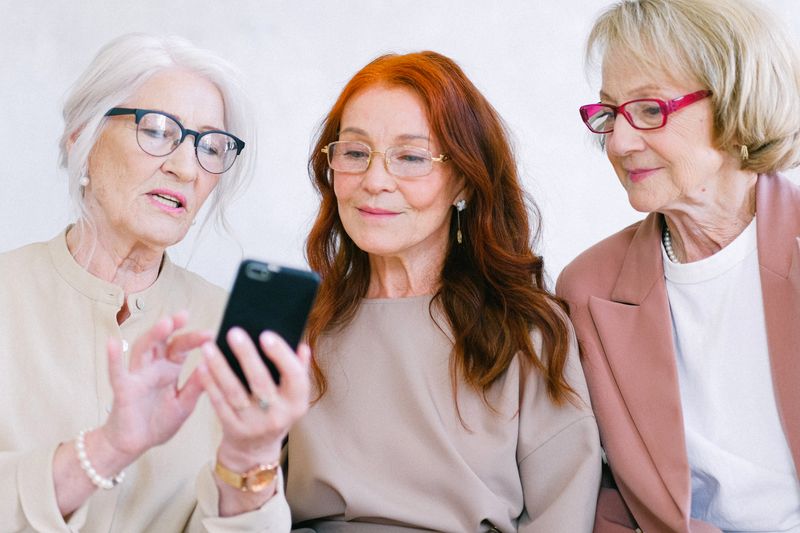
Larger text is the single change most people notice immediately, and it applies across nearly every app, from messages to your web browser. You control the size with a simple slider.
- In the Accessibility menu, tap Visibility enhancements on Samsung, or Display size and text on a Pixel.
- Tap Font size. Drag the slider to the right to make text bigger. A preview at the top shows you the new size as you drag.
- Below that, look for Bold font and turn it on. Bolder letters are easier to read for most eyes.
- If pages still feel cramped, find Display size (sometimes called Screen zoom) and increase it. This makes buttons and icons larger too, not just the words.
Improve contrast and colours
If text looks faint or washed out, a few contrast settings make letters stand out sharply against their background. These help a lot in bright rooms and for tired eyes at the end of the day.
In the same Visibility or Display section, look for High contrast fonts or High contrast text and turn it on. This adds a subtle outline to letters so they separate cleanly from the background. Many phones also offer High contrast theme, which darkens menus and boosts the difference between text and background across the system.
There is also a Colour correction option for people who find certain colours hard to tell apart, and a Colour inversion option that flips the screen to light text on a dark background, which some people find restful and easier to read at night. Try one, and if it does not suit you, switch it straight back off.
Turn on the magnifier for small print
The Magnifier lets you zoom into any part of the screen, which is handy for a tiny button, a small photo, or fine print in an app that ignores your font setting. You switch it on once, then trigger it whenever you need it.
- In the Accessibility menu, tap Magnification (under the Vision group).
- Turn on the Magnification shortcut. Choose how you want to start it: usually a floating button on the side of the screen, or a triple-tap on the screen.
- When you want to zoom, tap that floating button (or triple-tap), then the screen magnifies. Drag with two fingers to move around, and pinch to change the zoom level.
- To turn the zoom off again, tap the button once more.
Make sounds louder and clearer
Several settings help if calls or videos are hard to hear, or if a phone ringing in another room never reaches you. These live in the Hearing group of the Accessibility menu.
If you use a hearing aid, look for Hearing aid support or Hearing devices, which lets compatible aids pair directly with the phone so call audio plays through them. For everyone, Mono audio combines the left and right channels into one, which helps if your hearing is stronger in one ear or if you only use one earbud. There is also a Sound balance slider to send more volume to your weaker side.
For people who are deaf or hard of hearing, Live Caption automatically puts subtitles on almost any video or call playing on the phone, even ones without their own captions. You can turn it on under the Hearing group, and a small caption box then appears whenever sound plays.
Set up a quick shortcut to your favourite tool
Once you find a tool you use often, such as the Magnifier or text-to-speech, you can attach it to a shortcut so it is always one gesture away instead of buried in menus. This saves you digging through Settings every time.
Most Android phones offer an Accessibility button or Accessibility shortcut near the bottom of the Accessibility menu. Turn it on and choose which tool it controls. You then get a small floating icon on the edge of the screen, or you press and hold both volume keys together, to launch that tool instantly from anywhere.
Set the shortcut to the one feature you reach for most. If your eyes are the main issue, point it at the Magnifier. If hearing is the priority, point it at Live Caption. You can change which tool the shortcut controls whenever you like.
Have your phone read text aloud
Android can read text out loud for you, which rests your eyes during a long article or helps when small print is a struggle. There are two tools for this, and most people prefer the simpler one called Select to Speak.
Select to Speak lets you point at text and have it read aloud, without changing how the rest of the phone behaves. In the Accessibility menu, tap Select to Speak and turn it on. A small person-shaped icon then appears on the screen. Tap it, then tap a paragraph or drag a box around the text you want, and the phone reads it in a clear voice. Tap the icon again to stop. You can slow the voice down in the same settings if it speaks too fast.
The second tool, TalkBack, is a full screen reader built for people who cannot see the screen at all. It reads everything and changes how taps work, so it takes practice. Most sighted readers who simply want help with small print are better off with Select to Speak. If you ever turn TalkBack on by accident and the phone behaves oddly, press and hold both volume keys for three seconds to switch it off.
Frequently asked questions
Will these settings cost me anything or use up my data? No. Every Accessibility feature is built into Android and completely free. None of them uses your mobile data; they all work on the phone itself.
I changed something and now the screen looks strange. How do I undo it? Go back into Settings, then Accessibility, find the setting you changed, and turn it off or drag the slider back. If a feature like a screen reader makes the phone behave oddly and you cannot navigate, you can usually press and hold both volume buttons to switch it off, or restart the phone by holding the power button.
My phone does not have a setting with the exact name you used. What now? Brand wording differs. Open Settings, tap the magnifying-glass search icon at the top, and type the feature you want, such as "font size" or "magnification." The search will jump you straight to it wherever your brand has hidden it.
🛠️ Free tools for this topic
No sign-up. They do the calculating and checking for you.
Published by the TechGranddad editorial team. Published September 15, 2026. Updated October 4, 2026.
Editorial responsibility: see Imprint.
Spotted an error or have something to add? corrections@techgranddad.com
Simple Tech Tips, Weekly
One practical tip every week — video calls, smartphone tricks, and how to stay safe online. No jargon, no overwhelm.
🎁 Free bonus: The Senior Tech Starter Guide (PDF)
You might also like

How to Turn On Accessibility Features on Your iPhone (Step by Step)
A plain, step-by-step walkthrough of the most useful iPhone Accessibility features: bigger text, the magnifier, screen reading aloud and clearer sound. All free and reversible.

Best Large-Button Phones for 2026 (Easy to See, Easy to Hear)
A buying guide to large-button phones for 2026, covering loud home phones and senior flip mobiles with emergency buttons, prices, and clear picks.
How to Make Text Bigger on Android (Step by Step)
A clear step-by-step guide to making text bigger on any Android phone, covering font size, display size, browser zoom, and the built-in magnifier.
📖 All articles on TechGranddad →
Browse our other articles