How to Make a Video Call on Facebook Messenger
This article may contain affiliate links. If you make a purchase through these links, we may earn a small commission at no extra cost to you. This helps us keep creating free content.
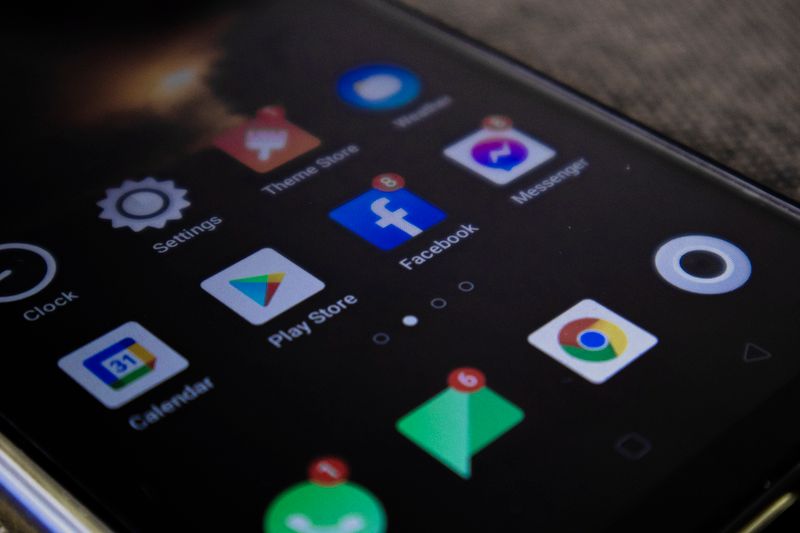
Facebook Messenger lets you make free video calls to anyone who has Facebook, using nothing but your phone and your internet connection. There is no number to dial and nothing to pay, even if the person is on the other side of the world. If you already use Facebook to see family photos, you are most of the way there. This guide shows you exactly which buttons to tap.
Messenger is Facebook's messaging app, the separate blue-and-purple speech-bubble icon that handles your private chats and calls. A video call through it works much like FaceTime, but it reaches anyone with a Facebook account rather than only Apple users. That makes it handy for connecting with friends and family who use all sorts of different phones.
You can make these calls from a phone, a tablet, or a computer. The steps below focus on a phone or tablet, since that is what most people reach for, with a short note on computers at the end. Nothing here costs money, and you cannot accidentally call the wrong person without seeing exactly who it is first.

What you need before you start
You need the Messenger app installed and a Facebook account that you can sign into. If you can already read messages from family on your phone, you have both. If not, you can download Messenger free from the App Store on an iPhone or iPad, or the Play Store on an Android phone, by searching for "Messenger" and tapping Get or Install.
The person you want to call must also have Facebook and be one of your Facebook friends, or at least someone you have messaged before. A video call uses your internet connection rather than your phone minutes, so a Wi-Fi connection is ideal. On Wi-Fi at home, the call is completely free and uses none of your mobile data allowance.
It also helps to have a few minutes of quiet and good light on your face, since the other person will see you. Sitting near a window or a lamp makes a big difference to how clearly they can see you. None of this is essential, but it makes the call more pleasant for both of you.

Making a video call step by step
Adjustable Phone Stand
Props your phone up at the right angle so your hands are free during a video call.
As an Amazon Associate we earn from qualifying purchases.
Starting a video call takes just a few taps once Messenger is open. The steps below walk you through it from the moment you open the app. Take your time, and remember that nothing happens until you tap the call button, so you can back out at any point before then.
- Open the Messenger app (the blue-and-purple speech-bubble icon).
- Find the person you want to call in your list of recent chats, or tap the magnifying glass at the top and type their name to search.
- Tap their name to open your conversation with them.
- Look at the top right corner of the screen. Tap the video camera icon.
- The call starts ringing. Wait for the other person to answer, and their face will appear.
- When you are finished, tap the red phone icon at the bottom of the screen to hang up.
While the call is connecting, you will see your own face on the screen, which is normal and helps you check your camera and lighting. Once the other person answers, their face fills most of the screen and yours shrinks to a small corner box. If you only hear them but cannot see them, they may not have allowed their camera, which is on their end to fix.
The buttons you see during a call
During a call, a row of round buttons sits across the bottom of the screen. They may fade away after a few seconds to give you a clear view, and a single tap on the screen brings them back. Knowing what each one does means you stay in control of the call without any worry.
The microphone button mutes your sound, so the other person cannot hear you, which is useful if a dog barks or someone walks in. The camera button turns your video off so they hear you but no longer see you. The button that looks like two arrows or a flipping camera switches between the front camera, which shows your face, and the back camera, which shows whatever you point the phone at.

| Button | What it looks like | What it does |
|---|---|---|
| Mute | A microphone | Turns your sound off so they cannot hear you |
| Camera off | A video camera | Hides your video while sound continues |
| Flip camera | A camera with arrows | Switches between showing your face and the room |
| Hang up | A red phone | Ends the call |
The red phone button always ends the call, and pressing it by accident simply hangs up, with no harm done beyond having to call again. If you ever feel lost during a call, that red button is your safe exit. You can always call the person straight back if you end it too soon.
Answering a video call from someone else
When a family member calls you, your phone rings and the screen shows their name and photo along with two buttons. A green button answers the call, and a red one declines it. Tap the green button and you will see their face after a second or two as the call connects.
If your phone is locked when the call comes in, you may need to swipe the green icon across the screen instead of tapping it. Either way, the call opens just the same. If you miss a call, Messenger leaves you a small note in the chat so you can see who tried to reach you and call them back.
You do not have to answer on video if you are not ready to be seen. You can answer and then tap the camera button to turn your own video off, so you hear and see them while they only hear you. That is a handy trick if a call catches you before you have had your morning coffee.
Calling more than one person at once
Messenger lets several people join the same video call, which is perfect for a family catch-up where everyone wants to see the new baby at the same time. You start this from a group chat, a conversation that already includes more than one person, rather than a one-to-one chat. The video camera icon works the same way.
Open the group chat, tap the video camera icon at the top right, and Messenger calls everyone in that group. As each person answers, their face appears in its own box on your screen, and the boxes rearrange themselves as more people join. You can have a roomful of relatives all chatting together, even when they live far apart.
If you do not already have a group chat, you can create one by starting a new message, adding several names, and sending a quick "hello" first. Once the group exists, the video camera icon at the top is all you need for future calls. For a regular family get-together, keeping one group chat saved makes calling everyone a one-tap job.
Try a short practice call with one family member today, so the buttons feel familiar before a bigger occasion. Once you have done it once, you will see how simple it is, and the next call will feel as easy as picking up the phone.
🛠️ Free tools for this topic
No sign-up. They do the calculating and checking for you.
Published by the TechGranddad editorial team. Published October 26, 2026.
Editorial responsibility: see Imprint.
Spotted an error or have something to add? corrections@techgranddad.com
Simple Tech Tips, Weekly
One practical tip every week — video calls, smartphone tricks, and how to stay safe online. No jargon, no overwhelm.
🎁 Free bonus: The Senior Tech Starter Guide (PDF)
You might also like

How to Video Call Your Grandchildren: A Simple Guide
A warm, step-by-step guide to video calling your grandchildren using FaceTime, WhatsApp or Google Meet, with simple tips for clear sound, good lighting and steady picture.

How to Delete an App on Android (and Free Up Space)
Step-by-step help to delete apps on any Android phone, including which built-in apps to leave alone and how to check you freed up storage space.

Video Call Background Tips: Look Tidy and Bright Every Time
Free tips to look tidy and bright on video calls: choosing a background, getting the light right, camera height, and when a virtual background helps.
📖 All articles on TechGranddad →
Browse our other articles