Video Call Background Tips: Look Tidy and Bright Every Time
This article may contain affiliate links. If you make a purchase through these links, we may earn a small commission at no extra cost to you. This helps us keep creating free content.

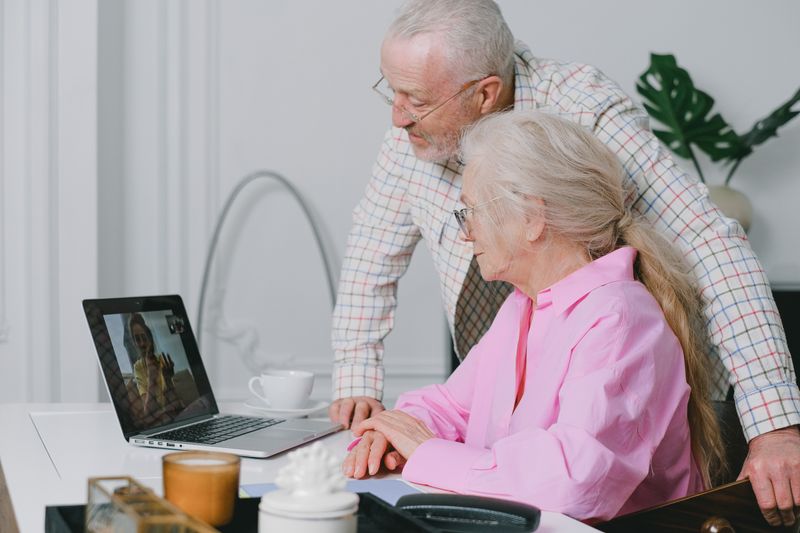
What sits behind you on a video call shapes the impression as much as your face does, and the fix is almost always free. A plain wall, a tidy bookshelf, or a closed door behind you reads as calm and put-together. A pile of laundry, a bright window, or a busy hallway pulls the eye away from you and makes the picture feel chaotic. You do not need new equipment to look good on camera; you need to think about three things, which are your background, your light, and where your camera sits.
Most of the difference comes from light and position, not from a fancy room. A few minutes of arranging before a call pays off every time someone sees you on screen. Here is how to set up a clean, flattering background using whatever room you already have.
Choose a simple, uncluttered backdrop
A blank or near-blank wall is the easiest reliable background. It keeps all the attention on you and never distracts the person you are talking to. If you have a plain wall in any room, turn a chair to face the camera with that wall behind you and you are most of the way there.
A tidy bookshelf or a houseplant adds a little warmth without becoming busy. The trick is restraint: a few books and one plant look considered, while a shelf crammed with clutter looks messy on camera. Clear away anything personal you would not want a stranger to see, since whatever is in frame is visible to everyone on the call.
Close doors behind you so people do not walk through the shot, and tuck away laundry, dishes, or paperwork. The camera flattens a room and makes mess more obvious than it looks to your own eye. A quick glance at your own picture before the call begins shows you exactly what others will see.
Get the light right
Adjustable Phone Stand
Props your phone up at the right angle so your hands are free during a video call.
As an Amazon Associate we earn from qualifying purchases.
Light from the front is the whole game. Sit so a window or lamp is in front of you, slightly to one side, casting light onto your face. This is why a desk facing a window works so well for video calls. Soft daylight from the front is the most flattering and natural light there is, and it costs nothing.
Avoid a strong light source directly behind you. A window at your back floods the camera with light and leaves your face in shadow, so you appear as a dark shape. If the only spot you can sit has a window behind it, close the curtains or blinds during the call and switch on a lamp in front of you instead.

When daylight is poor, a simple desk lamp pointed at a wall near you, rather than straight at your face, softens the look and lifts the gloom. Two modest lamps on either side beat one harsh light, because they fill in shadows from both directions. You do not need photography gear; ordinary household lamps do the job.
Position the camera at eye level
A camera below your face points up your nose and gives an unflattering angle, while a camera at eye level looks natural and engaged. On a laptop, the camera sits in the screen's top edge, so raising the whole laptop helps. A stack of books or a sturdy box under the laptop lifts the camera until it is level with your eyes.
On a phone or tablet, prop the device against something steady rather than holding it in your hand. Holding it makes the picture wobble and tires your arm, and it usually ends up too low. Lean the phone against a stack of books, a coffee mug, or a small stand so the camera reaches roughly eye height and stays still.
Sit close enough that your head and the top of your shoulders fill the frame, with a little space above your head. Too far away and you look small and distant; too close and your face fills the whole screen. A comfortable arm's length from a laptop is usually about right.
Common setups compared
| Your setup | How it looks | Quick fix |
|---|---|---|
| Window behind you | Dark silhouette | Turn around to face it, or close the blinds |
| Cluttered room behind | Distracting, untidy | Face a plain wall instead |
| Laptop on the desk | Camera points up your nose | Raise it on a stack of books |
| Phone held in hand | Wobbly and too low | Prop it against something steady |
| Ceiling light only | Shadows under the eyes | Add a lamp in front at face height |
When to use a virtual background
A virtual background replaces whatever is behind you with a picture the app supplies, such as a tidy office or a plain colour. It is useful when your real room cannot be made presentable, for instance when you are calling from a bedroom or a busy kitchen. Apps like Zoom, FaceTime, and Microsoft Teams all offer this feature in their settings during a call.
Virtual backgrounds work best against a plain, evenly lit wall, because the app has to guess where you end and the room begins. Against a busy background or in dim light, the edges of your head and shoulders can flicker or disappear, which looks worse than a tidy real room. Choose a calm, simple virtual image rather than an animated or distracting one, and test it before an important call.
For most calls, a real, tidy background beats a virtual one because it never glitches at the edges. Reach for a virtual background only when fixing the real room is not practical. When you do use one, plain daylight on your face still helps the app draw clean edges around you.
A two-minute checklist before any call
Running the same quick check before each call keeps you looking your best without much thought. Glance at your own video preview, which most apps show before you join, and you can correct everything below in under two minutes.
- Is the light on your face and not behind you?
- Is the background tidy, with doors closed?
- Is the camera at eye level, not pointing up?
- Are your head and shoulders in frame with a little space above?
- Is the device steady so the picture does not wobble?
Once your spot is set up well, you rarely have to think about it again. Sit in the same chair facing the same window, prop the camera the same way, and every call from that seat looks tidy and clear. The work is in setting it up once, and after that it simply becomes where you take your calls.
Frequently asked questions
Do I need to buy a ring light or webcam? No. A window in front of you and the camera you already have cover the basics. Spend money only if you take calls daily from a dark room, and even then a cheap desk lamp helps first.
Why do I look dark on camera? A bright window or light behind you is the usual cause. Turn around to face the light, or close the blinds and put a lamp in front of you, and you will brighten up at once.
Are virtual backgrounds a good idea? They are handy when your room cannot be tidied, but they can flicker at the edges in dim light. A tidy real wall with good front light usually looks cleaner.
How do I check what others see before joining? Most apps show a preview of your video with a "Join" button. Look at that preview, fix your light and background, then join. You can also turn your camera off until you are ready.
🛠️ Free tools for this topic
No sign-up. They do the calculating and checking for you.
Published by the TechGranddad editorial team. Published October 14, 2026.
Editorial responsibility: see Imprint.
Spotted an error or have something to add? corrections@techgranddad.com
Simple Tech Tips, Weekly
One practical tip every week — video calls, smartphone tricks, and how to stay safe online. No jargon, no overwhelm.
🎁 Free bonus: The Senior Tech Starter Guide (PDF)
You might also like

How to Mute and Unmute Yourself on Zoom
Find the mute button on Zoom on any device, learn the space-bar push-to-talk trick, and fix it when people cannot hear you.

Phone Too Slow? Here's How to Fix a Sluggish iPhone or Android
A slow phone almost never needs replacing. These free, safe steps for iPhone and Android usually make a sluggish phone feel quick again in minutes.

WhatsApp Privacy Settings: A Simple Guide to Staying Safe
A clear walkthrough of the WhatsApp privacy settings that matter: profile photo, last seen, read receipts, group controls, two-step verification, and blocking.
📖 All articles on TechGranddad →
Browse our other articles