How to Install an App on Your iPhone: A Calm, Step-by-Step Guide
This article may contain affiliate links. If you make a purchase through these links, we may earn a small commission at no extra cost to you. This helps us keep creating free content.
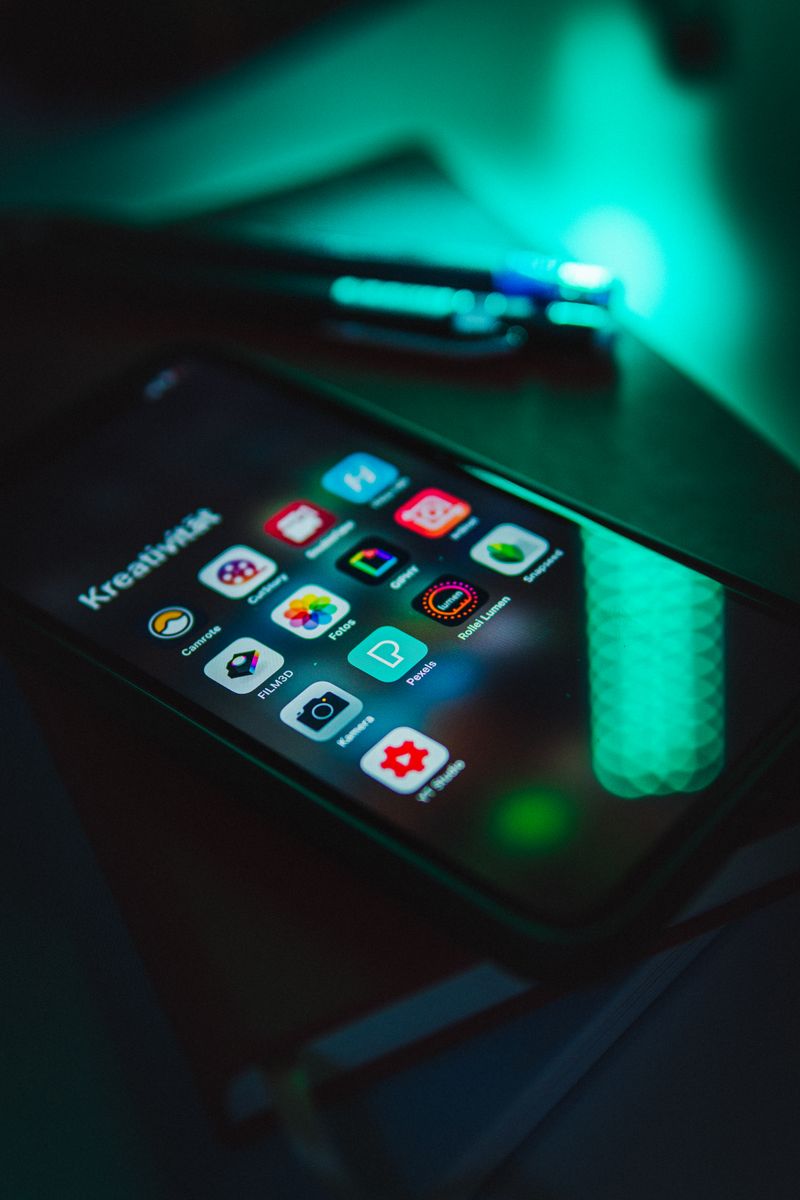
Every app on your iPhone comes from one place: the App Store, the blue icon with a white letter A made of drawing tools. You do not download apps from emails, text messages, or websites, and that single rule keeps you safer than almost anything else you can do. Once you know where the App Store lives and how to confirm a download, adding a new app takes under a minute.
The pages below cover finding the App Store, searching for the app you want, confirming it is the real one, downloading it, and opening it for the first time. They also answer the two questions that stop most people before they start: whether it costs money, and whether you can break anything. The short answers are no and no. Most everyday apps are free, and nothing you tap here can damage your phone.
Find the App Store on your phone
The App Store is already on your iPhone. Apple installs it at the factory and you cannot delete it, so it is always there waiting. Look on your home screen for a light-blue square icon with a white letter A in the middle. The word "App Store" usually sits just under the icon.
If you cannot spot it, do not hunt across every screen by hand. Swipe down with one finger from the middle of your home screen, and a search bar appears at the top. Type the word "store" and the App Store will show up in the results. Tap it once and it opens.
There is a second place apps come from that catches people out. Settings is for changing how your phone behaves, not for getting new apps. If you ever find yourself in Settings looking for a new app, back out and return to the App Store instead.
Search for the app you want
Apple iPhone SE
The most affordable iPhone, with a familiar feel and the longest software support.
As an Amazon Associate we earn from qualifying purchases.
At the bottom of the App Store screen you will see a row of small buttons. The one on the far right is a magnifying glass labelled "Search". Tap it, then tap the white search bar at the top and the keyboard slides up from the bottom of the screen.
Type the name of the app you are after, such as WhatsApp, Gmail, or FaceTime. You do not need to spell it perfectly. As you type, suggestions appear underneath; if you see the one you want, tap it rather than finishing the whole word. Then tap the blue "Search" key on the keyboard, or tap a suggestion directly.
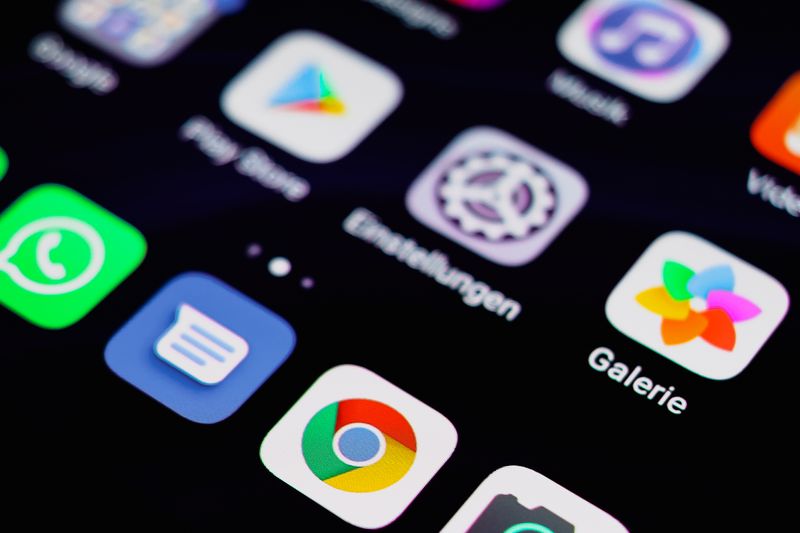
- Tap the magnifying glass at the bottom right of the App Store.
- Tap the search bar at the top of the screen.
- Type the app name, for example "WhatsApp".
- Tap the blue Search key, or tap a matching suggestion.
- Look through the results for the official app.
Make sure it is the real app
Some popular app names attract copycats that hope you will tap them instead. A few quick checks sort the real one from the fakes, and they take only a moment once you know what to look at.
Check the maker's name, which sits in small grey text just under the app's name. The real WhatsApp is made by "WhatsApp Inc.", and the real Gmail is made by "Google LLC". If a banking or messaging app lists a company you have never heard of, scroll past it. Look at the download count too: an app used by millions will say something like "100K Ratings" or more. A genuine major app rarely has only a handful of reviews.
Download and install it
When you have found the right app, look for the button on the right side of its row. A free app shows a blue "Get" button. A paid app shows the price instead, such as "$2.99". Tap that button to begin.
Your iPhone will ask you to confirm, because Apple wants to be sure it is really you. Depending on your phone, you confirm in one of three ways: you look at the screen so it can recognise your face, you rest your finger on the round button to read your fingerprint, or you type the passcode you use to unlock the phone. Once you confirm, a small circle appears and fills in as the app downloads. When the circle turns into an "Open" button, the app is installed and ready.
| What the button says | What it means | What to do |
|---|---|---|
| Get | The app is free | Tap it, then confirm |
| $2.99 (or any price) | The app costs money | Only tap if you want to pay |
| Open | It is already installed | Tap to launch it |
| Cloud icon | You had it before | Tap to download again free |
Open the app and sign in
Once the app finishes downloading, tap "Open" right there in the App Store, or close the App Store and find the new icon on your home screen. New apps land on the last home screen page, so swipe left a few times if you do not see it straight away.
The first time you open most apps, they ask you to either sign in or create an account. Messaging apps such as WhatsApp ask for your phone number and then text you a code to type back in. Email apps like Gmail ask for the email address and password you already have. Take your time here; there is no clock running, and you can close the app and come back later if you need to find a password.
Apps also ask permission for things like sending you notifications or using your camera. It is fine to tap "Allow" for an app you trust, such as letting WhatsApp use your camera so you can send photos. If you are unsure, tap "Don't Allow". You can always change your mind later in Settings, and saying no never breaks the app.
If something does not work
A download that seems stuck is almost always a weak internet connection rather than a fault with your phone. If the little circle is not filling in, check that you are connected to Wi-Fi. Swipe down from the top-right corner of the screen and make sure the Wi-Fi symbol, which looks like a fan of curved lines, is lit up in blue.
If the App Store asks for an Apple Account password and you cannot remember it, you are not locked out for good. Tap "Forgot Password" on that screen and Apple will walk you through resetting it using your email or phone number. This happens to plenty of people and it is a normal, fixable step, not a sign you have done anything wrong.
Should an app behave oddly after installing, the simplest cure is to close it fully and open it again. Swipe up slowly from the very bottom of the screen and pause in the middle; you will see small cards for your open apps. Flick the misbehaving app's card upward to close it, then tap its icon to start fresh.
Free apps, paid apps, and in-app purchases
Most of the apps you will ever want are free to download, including WhatsApp, FaceTime, Gmail, your bank's app, and weather and news apps. These are the apps that say "Get" rather than a price. You can install as many free apps as you like without spending a penny, and you can delete them just as freely.
A smaller number of apps cost money up front, shown by a price on the button instead of "Get". You pay once and the app is yours. Then there is a third kind, called in-app purchases, where the app is free to download but offers extras you can buy from inside it, such as removing adverts or unlocking premium features. The App Store flags these with the small line "In-App Purchases" under the app's name.
Organise your apps so you can find them
As you add apps, your home screen fills up, and a tidy layout means you can find what you need at a glance. Move an app by pressing and holding its icon until all the icons begin to jiggle. While they jiggle, drag the app with your finger to a new spot, or to the edge of the screen to slide it onto the next page. Press the round button or swipe up to stop the jiggling and lock everything in place.
You can group related apps into a folder to cut down clutter. Drag one app directly on top of another, and the iPhone creates a folder holding both, which you can name anything you like, such as "Family" or "Banking". Tap the folder to open it and reach the apps inside. This keeps your most-used apps on the first page and tucks the rest away neatly.
If your home screen feels overwhelming, there is a tidy safety net called the App Library. Swipe left past your last home screen page and you reach a screen that sorts every installed app into automatic groups. Even an app you cannot see on your home screen still lives here, so a downloaded app is never lost.
Keeping your apps up to date and safe
Updates matter because they fix security holes and bugs, and your iPhone handles them for you by default. As long as you are connected to Wi-Fi, apps quietly update themselves in the background, and you do not have to lift a finger. You can check this is switched on under Settings, then "App Store", where "App Updates" should be turned on.
If you ever want to update an app yourself, open the App Store, tap your photo in the top-right corner, and scroll down to see any apps waiting to update. Tap "Update All" and they refresh one after another. Doing this now and then is a good habit, especially for your banking and email apps, where the latest version is the most secure.
Sticking to the App Store is itself your strongest safety measure. Apple checks every app before it is allowed in, which is why you should never install apps from links in emails or text messages. If a message urges you to download something from outside the App Store, treat it as a warning sign and ignore it. The App Store is the safe front door, and it is the only one you need.
Does this work the same on an iPad?
An iPad installs apps in exactly the same way as an iPhone, using the same blue App Store icon and the same "Get" and price buttons. If you have learned the steps on one device, you already know them on the other. The screen is bigger, so the App Store shows more at once, but every tap is the same.
One handy bonus is that apps you bought on your iPhone are available on your iPad at no extra cost, as long as both use the same Apple Account. Open the App Store on the iPad, search for the app, and you will often see the cloud icon meaning you already own it. Tap the cloud to download it again free, and your purchase carries across both devices.
Frequently asked questions
Will I be charged money for downloading apps? No, not unless an app clearly shows a price and you choose to pay it. A "Get" button means free. You confirm every purchase with your face, fingerprint, or passcode, so nothing is bought without your say-so.
Can I delete an app if I do not like it? Yes, and it is easy to undo. Press and hold the app's icon until a menu appears, then tap "Remove App" and "Delete App". If you change your mind, you can download it again for free from the App Store any time.
What is an Apple Account and do I need one? An Apple Account, sometimes still called an Apple ID, is the email and password that unlocks the App Store and other Apple services. You almost certainly set one up when the phone was first switched on. If you did not, the App Store will offer to create one for you, which is free.
Why does an app keep asking for permissions? Apps ask once for each thing they want to use, such as your camera or location. After you answer, they usually stop asking. You can review and change every permission later under Settings, where each app has its own list of switches.
How do I find an app I downloaded before? Open the App Store, tap your photo or initial in the top-right corner, then tap "Purchased" or look for a cloud icon next to apps you owned. Tapping the cloud downloads them again without charging you a second time.
Do apps update by themselves? Yes, by default your iPhone updates apps quietly in the background when you are on Wi-Fi. You do not have to do anything. Updates fix problems and add features, and they are always free for apps you already have.
🛠️ Free tools for this topic
No sign-up. They do the calculating and checking for you.
Published by the TechGranddad editorial team. Published June 16, 2026. Updated October 4, 2026.
Editorial responsibility: see Imprint.
Spotted an error or have something to add? corrections@techgranddad.com
Simple Tech Tips, Weekly
One practical tip every week — video calls, smartphone tricks, and how to stay safe online. No jargon, no overwhelm.
🎁 Free bonus: The Senior Tech Starter Guide (PDF)
You might also like
How to Delete Apps You No Longer Need on iPhone
Clearing unused apps from your iPhone takes two taps and cannot harm the phone. A simple guide to deleting, offloading, and reinstalling apps for free.
How to Use YouTube: A Calm, Step-by-Step Guide for Beginners
A calm, step-by-step beginner's guide to using YouTube: opening the app, searching, playing videos, skipping adverts and saving the ones you love.
How to Use Apple Photos on iPhone and iPad
A clear, step-by-step guide to the iPhone Photos app: finding pictures, iCloud backup, editing, sharing albums and recovering deleted photos.
📖 All articles on TechGranddad →
Browse our other articles