How to Delete Apps You No Longer Need on iPhone
This article may contain affiliate links. If you make a purchase through these links, we may earn a small commission at no extra cost to you. This helps us keep creating free content.
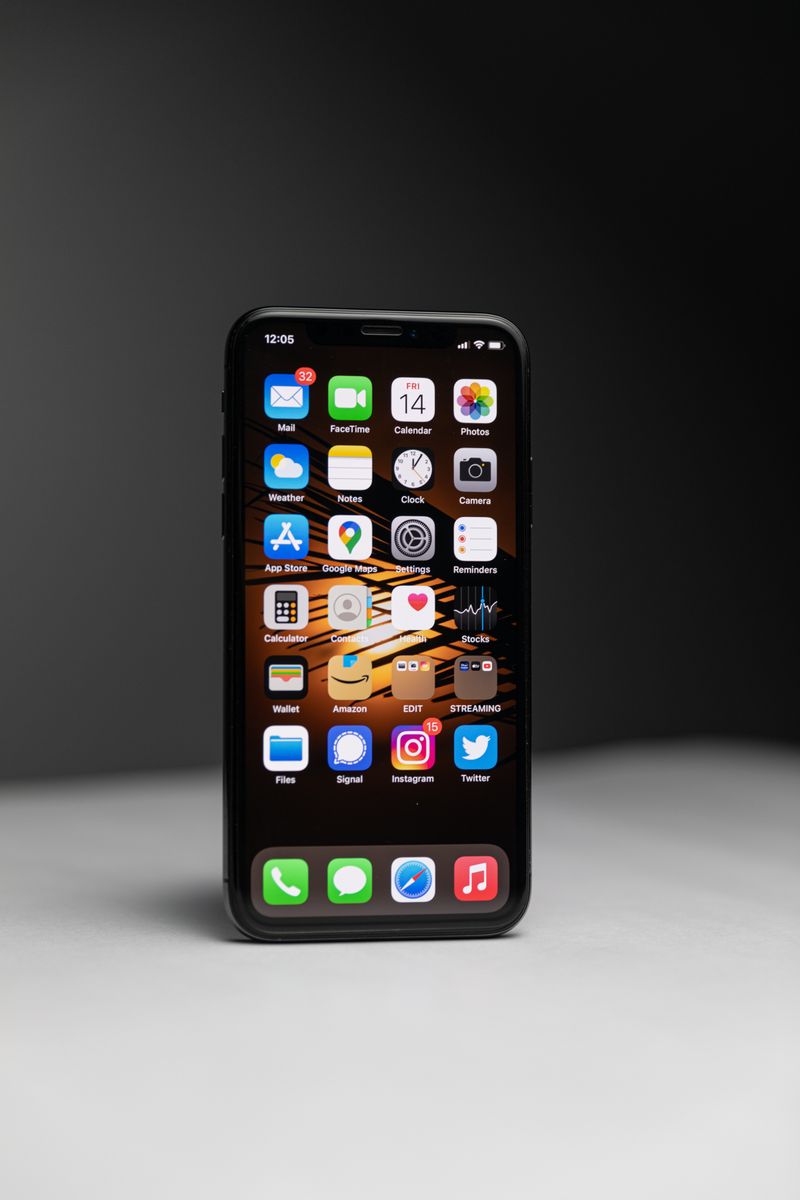
Deleting an app from your iPhone takes two taps and frees up space on the phone. An app is one of those small programs with its own square icon on your screen, and over time they pile up: games you finished, apps a shop asked you to install, things you tried once and never opened again. Removing the ones you do not use makes the phone tidier and easier to find your way around.
Nothing about deleting an app can harm your iPhone. The apps that come built in, such as Phone, Messages, and Camera, are protected, and the phone simply will not let you remove the important ones. Anything you delete by accident can be downloaded again for free from the App Store, the place where apps come from, so there is no lasting harm in clearing one out.
The quick way to delete an app
The fastest method works straight from your home screen, the page of app icons you see when you unlock the phone. You press and hold the app you want to remove until a little menu pops up, then choose to delete it. The whole thing takes a few seconds once you know the steps.
- Find the app you want to remove on your home screen.
- Press your finger on its icon and hold it there for about two seconds.
- A small menu appears. Tap Remove App near the bottom.
- Tap Delete App when the phone asks you to confirm.
- Tap Delete once more to finish.
The icon disappears and you are returned to your home screen. The phone asks you to confirm twice on purpose, so a single accidental tap never deletes anything. If you change your mind midway, tap anywhere outside the menu and nothing is removed.
What the wobbling icons mean
Apple iPhone SE
The most affordable iPhone, with a familiar feel and the longest software support.
As an Amazon Associate we earn from qualifying purchases.
When you hold down an app, you may notice all the icons start to wobble or jiggle. This is the phone's editing mode, and a small minus sign or an X appears in the corner of each app. Tapping that minus sign also deletes the app, the same as the menu method above. To stop the wobbling and return to normal, tap Done in the top corner or press the home button.
The wobbling can look alarming the first time, as though something has gone wrong, but it is completely normal. It is simply the phone letting you rearrange or remove icons. Once you tap Done, everything settles back into place exactly as it was.
Remove an app versus offload an app
The iPhone offers two ways to clear space, and they are not the same. Deleting an app removes it and all its information from the phone. Offloading an app removes the app itself but keeps its information, so if you reinstall it later, your data and settings come straight back. Offloading is the gentler choice when you might want the app again.
The table below sets out the difference so you can pick the right one for each app.
| Action | Removes the app? | Keeps your data? | Best for |
|---|---|---|---|
| Delete App | Yes | No | Apps you are sure you will not use again |
| Offload App | Yes | Yes | Apps you might return to later |
For most clear-outs, deleting is the right choice and the simplest to understand. Offloading is mainly useful for a large app, such as a game or a maps app, that you want gone for now but may reinstall on a trip. You reach the offload option in Settings, covered in the next section.
Deleting apps from the Settings menu
There is a second route to removing apps that also shows you how much space each one uses. Open the Settings app, the grey gear icon, then tap General, then iPhone Storage. After a moment, the phone lists every app with the amount of space it takes, largest first. This view is the best way to spot which apps are worth clearing if the phone is running low on space.
Tap any app in that list and you see two buttons: Offload App and Delete App. Tap the one you want, then confirm. This method is handy because you can see at a glance that a single unused game might be using more space than dozens of small apps combined.
Putting a deleted app back
If you remove an app and miss it, getting it back is easy and free for apps you have had before. Open the App Store, the blue icon with a white A made of drawing tools. Tap the search button at the bottom right, type the app's name, and tap search. When the app appears, tap the cloud-shaped icon with a downward arrow next to it, which means you have installed it before, and it downloads again with no charge.
Within a minute the app is back on your home screen, ready to use. If it was an app you had signed into, such as a banking or shopping app, you may need to sign in again with your usual username and password. Your account and any saved details on that company's side are untouched by deleting the app.
Frequently asked questions
Will deleting an app cancel a subscription I pay for?
No, and this catches many people out. Removing an app does not stop a paid subscription, such as a streaming or news service. To cancel the payment, go to Settings, tap your name at the top, then Subscriptions, and cancel it there before or after deleting the app.
Why can I not delete some apps?
A handful of built-in apps cannot be fully removed because the phone relies on them, though some can be hidden from the home screen. If an app shows no delete option, it is one Apple protects. This is by design and not a fault with your phone.
Does deleting apps speed up my phone?
Clearing unused apps frees up storage space, which can help if the phone was nearly full, but it does not directly make a healthy phone faster. The main benefits are a tidier home screen and more room for photos and updates. Restarting the phone now and then does more for general speed.
🛠️ Free tools for this topic
No sign-up. They do the calculating and checking for you.
Published by the TechGranddad editorial team. Published October 7, 2026.
Editorial responsibility: see Imprint.
Spotted an error or have something to add? corrections@techgranddad.com
Simple Tech Tips, Weekly
One practical tip every week — video calls, smartphone tricks, and how to stay safe online. No jargon, no overwhelm.
🎁 Free bonus: The Senior Tech Starter Guide (PDF)
You might also like
How to Use Apple Photos on iPhone and iPad
A clear, step-by-step guide to the iPhone Photos app: finding pictures, iCloud backup, editing, sharing albums and recovering deleted photos.
How to Use the Calendar App on Your iPhone
Step-by-step help with the iPhone Calendar app: adding appointments, setting reminder alerts so you never forget, switching views, and using Siri.
How to Set Up Email on Your iPhone: Gmail, Outlook, iCloud and More
A clear step-by-step guide to adding any email account to your iPhone, including the quick automatic way, manual server settings, app passwords and common fixes.
📖 All articles on TechGranddad →
Browse our other articles