How to Use Apple Photos on iPhone and iPad
This article may contain affiliate links. If you make a purchase through these links, we may earn a small commission at no extra cost to you. This helps us keep creating free content.
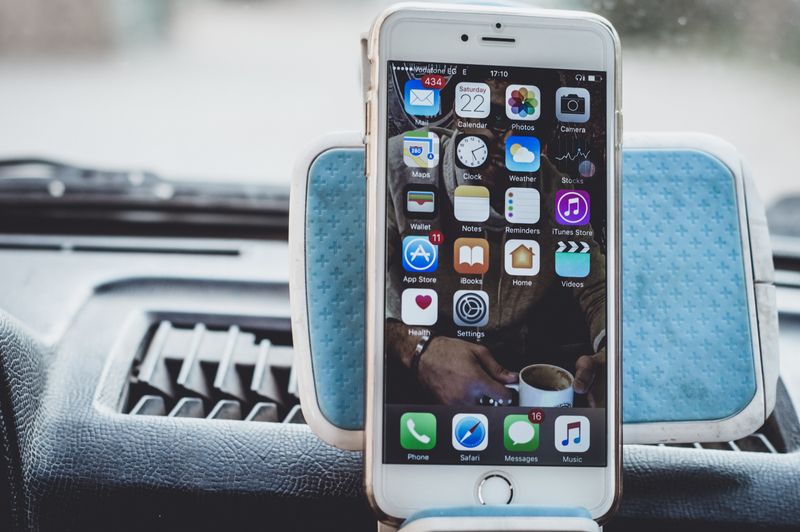
The Photos app comes already installed on every iPhone and iPad, shown as a white icon with a colourful flower. Every picture you take lands there automatically, so there is nothing to download and nothing to set up before you can see your photos. This walkthrough shows you how to find pictures, tidy them, edit them and share them, with each tap spelled out.
Apple Photos can also back up your pictures to iCloud, Apple's free online storage, so a copy is safe even if your iPhone is lost. The app is free, and tapping around inside it cannot cost you anything or break anything. Take your time and explore.
Opening Photos and understanding the tabs
Tap the Photos icon on your home screen, the white square with the rainbow flower. The app opens to your full collection, newest pictures at the bottom. On newer iPhones everything is on one scrolling screen; on older ones you see tabs along the bottom labelled Library, For You, Albums and Search.

Library shows every photo by date. Albums groups them into folders, including ones the phone makes for you like Selfies and Videos. Search lets you find a picture by typing a word. For You gathers memories and suggestions the phone puts together automatically.
Turning on iCloud Photos for safe backup
Apple iPhone SE
The most affordable iPhone, with a familiar feel and the longest software support.
As an Amazon Associate we earn from qualifying purchases.
iCloud Photos keeps a copy of every picture in your Apple account, so losing your iPhone never means losing your memories. To switch it on, open Settings (the grey cog icon), tap your name at the very top, tap iCloud, then tap Photos, and slide Sync this iPhone so it turns green.
Apple gives you 5 GB of iCloud storage free, which fills quickly if you take many photos. When it is full, your choices are to tidy old pictures or to upgrade. An iCloud+ plan with 50 GB costs about 1 US dollar a month, and 200 GB about 3 dollars a month. You only pay if you choose to upgrade.
| iCloud storage | Rough monthly cost | Good for |
|---|---|---|
| 5 GB (free) | Free | Light users, few photos |
| 50 GB | About $1 | Most casual phone users |
| 200 GB | About $3 | Lots of photos and videos, sharing with family |
| 2 TB | About $10 | Heavy photo and video users |
Finding and editing a photo
Tap Search (the magnifying glass) and type a plain word such as "cat", "beach", "cake" or a month and year. Apple Photos looks inside the pictures and lists the matches, even ones you never named. It can find people, pets, places and objects this way. If you have told the app the names of people in your photos, you can search by name too: tap a face the app has gathered under People, tap Add Name, and type who it is. After that, searching that name brings up every photo of them. All of this stays private on your phone unless you share a picture yourself.

Open any photo with a tap, then tap Edit at the top right. A row of tools appears along the bottom. The most useful for beginners is Auto, the magic-wand icon, which improves brightness and colour in one tap. If you like the result, tap the yellow Done button.
To straighten a crooked photo or cut off an unwanted edge, tap the Crop icon (a square with arrows) and drag the corners. To make a picture brighter, tap Adjust and slide Brilliance or Exposure. Nothing here is permanent. You can always reopen the photo, tap Edit, then Revert, to put it back exactly as it was.
- Tap a photo to open it full screen.
- Tap Edit at the top right.
- Tap the magic-wand Auto icon for a quick improvement.
- Use Crop to straighten or trim if needed.
- Tap Done to keep changes, or Cancel to leave the photo untouched.
Sharing photos and making albums
To send one picture, open it and tap the Share icon at the bottom left, the square with an arrow pointing up. Choose Messages, WhatsApp, Mail or AirDrop, pick the person, and tap send. To send several at once, tap Select at the top of the Library, tap each photo so a blue tick appears, then tap Share.

To gather pictures into an album, tap Albums, tap the plus sign at the top left, tap New Album, give it a name such as "Family 2026", and choose your photos. A Shared Album goes further: it lets the family members you invite view and add their own photos, building a collection together over time.
Marking favourites and keeping things tidy
When you open a photo you love, tap the small heart icon at the bottom. That photo now lives in a Favourites album as well as in your main Library, so the pictures that matter most are always one tap away. The heart does not move or copy the photo, it simply flags it, and tapping the heart again removes the flag.
To clear out the blurry shots and accidental screenshots that build up over time, tap Select at the top of the Library, tap each unwanted photo so a blue tick appears, then tap the bin icon at the bottom right. Doing a quick tidy now and then keeps your collection pleasant to scroll through and frees up space on the phone.
The app also gathers screenshots into their own album automatically, found under Albums. These pile up quickly because every time you snap a picture of your screen it lands here. Clearing this album every few weeks is an easy win that removes clutter without touching your real photos.
Recovering a photo you deleted by mistake
Deleting a photo does not remove it straight away. It goes to a Recently Deleted folder and stays there for 30 days before it is gone for good. This gives you a month to change your mind, which is a relief if you tap the bin by accident.
To get a photo back, tap Albums, scroll down to Recently Deleted, tap it, find the photo, tap it, then tap Recover. It jumps straight back into your Library where it was. If you ever want to free up space immediately, the same folder has a Delete All option for clearing it on purpose.
Frequently asked questions
Is Apple Photos free? Yes. The app is built into every iPhone and iPad at no cost. You only pay if you choose extra iCloud storage beyond the free 5 GB.
Will editing ruin my original photo? No. Every edit can be undone. Open the photo, tap Edit, then Revert, and the original returns unchanged.
Do my photos go online automatically? Only if you turn on iCloud Photos, and even then they stay private to your Apple account. Nobody else sees them unless you share a photo yourself.
What is the difference between iCloud and the Photos app? The Photos app is the place on your iPhone where you look at pictures. iCloud is Apple's online storage that keeps a safe copy of those pictures. Photos shows you the pictures; iCloud protects them in case the phone is lost. They work together, and most people leave both switched on.
Why does my iPhone say it is out of storage when I have iCloud? The phone itself has a fixed amount of space, separate from iCloud. If it fills up, deleting old apps and clearing the screenshots album usually helps. Turning on iCloud Photos with the option to Optimise iPhone Storage also lets the phone keep smaller versions on the device while the full photos stay safe online.
Can I move photos from an old phone to a new one? Yes. If iCloud Photos was on, simply sign in to the same Apple account on the new iPhone and your pictures download by themselves. There is nothing to copy across by hand, and the photos arrive in the same order with the same albums and favourites as before.
Is it safe to let grandchildren look through my Photos app? Yes, scrolling through photos cannot delete or change them by accident, and there is no way to spend money from inside the Photos app. The only button to be a little careful with is the bin icon, and even a deleted photo can be recovered for 30 days, so nothing is ever lost in a single tap.
🛠️ Free tools for this topic
No sign-up. They do the calculating and checking for you.
Published by the TechGranddad editorial team. Published August 6, 2026. Updated October 4, 2026.
Editorial responsibility: see Imprint.
Spotted an error or have something to add? corrections@techgranddad.com
Simple Tech Tips, Weekly
One practical tip every week — video calls, smartphone tricks, and how to stay safe online. No jargon, no overwhelm.
🎁 Free bonus: The Senior Tech Starter Guide (PDF)
You might also like
How to Use the Calendar App on Your iPhone
Step-by-step help with the iPhone Calendar app: adding appointments, setting reminder alerts so you never forget, switching views, and using Siri.
How to Delete Apps You No Longer Need on iPhone
Clearing unused apps from your iPhone takes two taps and cannot harm the phone. A simple guide to deleting, offloading, and reinstalling apps for free.

How to Use the Weather App on Your Phone (Step by Step)
A simple step-by-step guide to using the weather app on iPhone and Android, from reading the forecast to adding towns and turning on storm alerts.
📖 All articles on TechGranddad →
Browse our other articles