How to Use YouTube: A Calm, Step-by-Step Guide for Beginners
This article may contain affiliate links. If you make a purchase through these links, we may earn a small commission at no extra cost to you. This helps us keep creating free content.
YouTube is free to watch, and you do not need an account just to look at videos. It is a website (and an app) where people around the world post clips of almost everything: old music, cooking lessons, gardening tips, repair tutorials, full church services, news, and grandchildren's school concerts. You can start watching in under a minute, and nothing you do by accident will cost money or break anything.
Many people over 50 already use YouTube without realising it, because a family member sends them a link. Tapping that link opens YouTube and plays the video. Once you understand the handful of buttons on the screen, the whole thing stops feeling cluttered and starts feeling like a television you control yourself. This page walks you through opening it, searching, playing, and keeping the videos you like.
Opening YouTube for the first time
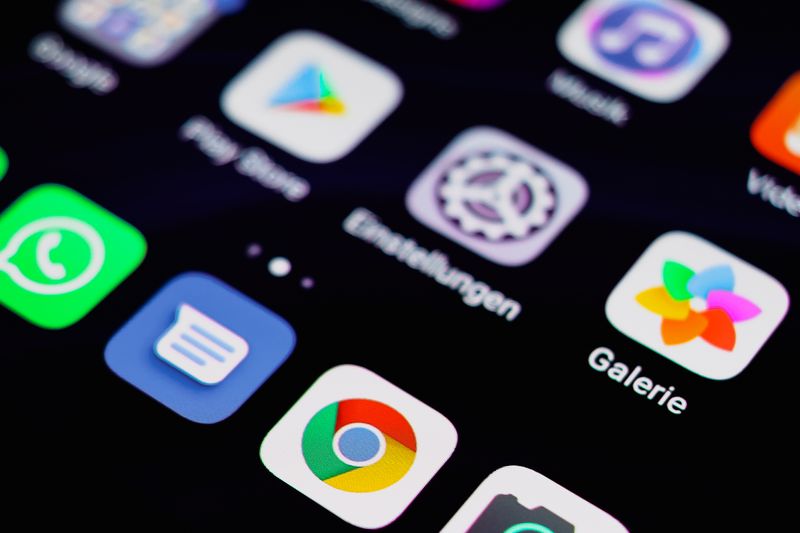
On a phone or tablet, look for the red-and-white play button icon on your home screen. That square icon, with a white triangle inside a red rounded shape, is the YouTube app. Tap it once and it opens. If you cannot find the icon, you have not installed the app yet, and you can get it free from the App Store on an iPhone or iPad, or the Play Store on an Android phone.
On a computer, you do not install anything. Open your web browser (the program you use for the internet, such as Safari, Chrome, or Edge), type youtube.com into the address bar at the top, and press Enter. The same YouTube opens in your browser window. Whether you use the app or the website, the layout and buttons are nearly identical, so the steps below apply to both.
The first screen shows a grid of video thumbnails, which are the small preview pictures. Each one has a title underneath and a length in the corner, such as 8:42, meaning eight minutes and forty-two seconds. You can simply scroll down with your finger or mouse wheel to browse, and tap any thumbnail that looks interesting to start playing it.
Searching for exactly what you want
The search bar is the most powerful button on the whole screen. At the top you will see a small magnifying-glass icon, or a long box with the word Search inside it. Tap it, and a keyboard appears. Type what you are looking for in plain words, exactly as you would say it to a person. For example, type "how to prune roses" or "Frank Sinatra My Way" and then tap the blue Search or magnifying-glass key.
- Tap the magnifying-glass icon at the top of the screen so the keyboard appears.
- Type a few plain words describing what you want, such as a song title, a recipe, or a question.
- Tap the blue search key on the keyboard (it may say Search, Go, or show a magnifying glass).
- Look at the list of results that appears, reading the titles and the small pictures.
- Tap the one you want and the video begins to play on its own.
If the results are not quite right, that is normal. Tap the search bar again, clear what you typed with the small X, and try slightly different words. YouTube also suggests popular searches as you type, and you can tap any suggestion instead of finishing the typing yourself. There is no wrong way to search, and nothing you type is shared with anyone.
The buttons on a playing video
Once a video is playing, tap once anywhere on the picture to make the controls appear, and tap again to hide them. The most important control is the play and pause button in the centre, shown as a triangle when paused and two vertical bars when playing. Tapping it stops and starts the video, which is handy if the doorbell rings or you want to take a closer look at a step.
Along the bottom of the video is a thin horizontal line called the progress bar. The filled part shows how much you have watched. You can drag the small dot along this line to jump backwards to rewatch something or forwards to skip ahead. To make the picture fill the whole screen, tap the small box icon in the bottom-right corner, and turn your phone sideways for a bigger view. Tap that same box again to shrink it back.
Understanding adverts and the paid option
Adverts pay for YouTube, which is why the service costs nothing to watch. You will see short ones before a video and sometimes a longer one partway through a long video. Watching the advert, or skipping it when the button appears, is all you ever need to do. You are never charged for an advert, and tapping one only opens that company's website, which you can close again immediately.
YouTube does sell a paid version called YouTube Premium for roughly 14 dollars a month in the United States, which removes the adverts entirely. You do not need it. The free version gives you every video on the site. Only consider Premium if the adverts really bother you and you watch every single day. For occasional viewing, stay with the free version and simply skip the ads.
Saving videos and using your account
You can watch YouTube forever without ever signing in. Signing in with a free Google account does add two nice features, though. The first is Subscriptions, which means following a channel (a person or organisation who posts videos) so their new videos appear together for you. The second is your Watch Later list, where you can save a video to come back to without losing it.
To save a video, look beneath the playing video for a row of small icons. Tap the one labelled Save, often shown as a small flag or a plus sign, and choose Watch Later. To follow a channel, tap the red Subscribe button under the video. Neither of these costs anything, and you can undo both at any time by tapping the same button again. Signing in only stores your preferences, nothing more.
| Button or icon | What it does |
|---|---|
| Magnifying glass | Opens the search box so you can type what you want |
| Triangle / two bars | Plays or pauses the video |
| Small box (corner) | Makes the video fill the whole screen |
| Red Subscribe | Follows a channel so its videos appear together |
| Save / flag | Stores a video in your Watch Later list |
| Skip Ad | Jumps past an advert after five seconds |
Watching on a bigger screen
A small phone screen is fine for a quick clip, but a recipe demonstration or a concert is far nicer on a television. If you have a smart TV, it very likely has a YouTube app already, shown among its other apps when you press the Home button on the TV remote. Open it the same way as on the phone, and use the remote's arrow buttons to move around and search. The layout matches what you already learned.
You can also send a video from your phone to the television, which is called casting. While a video is playing on your phone, look for a small rectangle icon with curved lines in the corner, tap it, and choose your TV from the short list that appears. The video then plays on the big screen while your phone becomes the remote control. Both devices must be on the same home Wi-Fi for this to work, and nothing about it costs extra.
If the casting icon does not appear, do not worry, because the TV's own YouTube app does the same job. Either route gives you the full picture and sound of your living-room television, which suits older eyes and ears far better than a handset. Many people find this is the moment YouTube stops being fiddly and starts being a pleasure.
Common worries, gently answered
People often worry that tapping the wrong thing will cost money or send something to a stranger. On YouTube, watching is always free, and you cannot accidentally buy anything because there is no purchase button on ordinary videos. If a screen ever asks for card details, that screen is an advert or the optional Premium offer, and you can close it by tapping the X or the back arrow. Your card is never needed to watch.
Another common worry is leaving comments by mistake. You can only post a comment by deliberately tapping into the comment box and typing, so it will never happen by accident. If you do want to enjoy other people's comments, scroll down below the video to read them, and simply do not tap the box. Take your time, tap slowly, and remember that closing the app loses nothing you wanted to keep.
The best way to grow comfortable is to watch one video a day on a topic you already love. Search for a favourite singer, a recipe you have always made, or a place you once visited. Within a week the buttons will feel familiar, and YouTube becomes a quiet, free window onto almost anything you can think to ask for.
🛠️ Free tools for this topic
No sign-up. They do the calculating and checking for you.
Published by the TechGranddad editorial team. Published September 10, 2026.
Editorial responsibility: see Imprint.
Spotted an error or have something to add? corrections@techgranddad.com
Simple Tech Tips, Weekly
One practical tip every week — video calls, smartphone tricks, and how to stay safe online. No jargon, no overwhelm.
🎁 Free bonus: The Senior Tech Starter Guide (PDF)
You might also like
How to Make a Video Call on Facebook Messenger
A simple step-by-step guide to making free video calls on Facebook Messenger from your phone or tablet, including the in-call buttons and group calls.

How to Video Call Your Grandchildren: A Simple Guide
A warm, step-by-step guide to video calling your grandchildren using FaceTime, WhatsApp or Google Meet, with simple tips for clear sound, good lighting and steady picture.
How to Delete an App on Android (and Free Up Space)
Step-by-step help to delete apps on any Android phone, including which built-in apps to leave alone and how to check you freed up storage space.
📖 All articles on TechGranddad →
Browse our other articles