Best Tablets for Seniors in 2026: 5 Easy Picks Compared
This article may contain affiliate links. If you make a purchase through these links, we may earn a small commission at no extra cost to you. This helps us keep creating free content.

A good tablet for an older user costs between $130 and $600, has a screen of at least 10 inches, and lets you make the text bigger with two taps. Those three things matter more than processor speed or camera megapixels. A tablet is a large touchscreen device, bigger than a phone, that you use for video calls, reading, photos, and browsing without ever needing a keyboard or mouse.
The five tablets below are sorted by what suits different needs and budgets. Every one of them can run WhatsApp, FaceTime or Zoom, show family photos, and read the news. The differences come down to screen size, how locked-down and simple the software is, and price.
What actually matters when choosing a tablet
Screen size decides how comfortable reading and video calls feel. A 10 to 11 inch screen is the sweet spot for most people: big enough to read a recipe at arm's length, small enough to hold in one hand. Anything below 8 inches feels cramped for older eyes. The very large 12 to 13 inch tablets are excellent on a stand but heavy to hold for long.
The operating system is the software that runs the tablet, and there are three families. Apple's iPad runs iPadOS and is the most consistent and well-supported. Android tablets from Samsung and others are more varied and often cheaper. Amazon's Fire tablets run a simplified version of Android and are the cheapest, with a few trade-offs covered below.
Battery life on every modern tablet is enough for a full day of normal use, so it rarely needs to be a deciding factor. Storage of 32GB is plenty if you mostly stream and video call; 64GB or more helps if you download lots of photos, books, or games. Pay more attention to screen quality and how simple the software feels than to raw specifications.
Weight is worth a thought too, because a tablet you hold for an hour of reading should not tire your wrists. Most 10 to 11 inch tablets weigh around a pound, which is comfortable. A lightweight stand or a folding case that props the tablet up at an angle solves the holding problem entirely and costs $15 to $30, so factor a case into your budget.
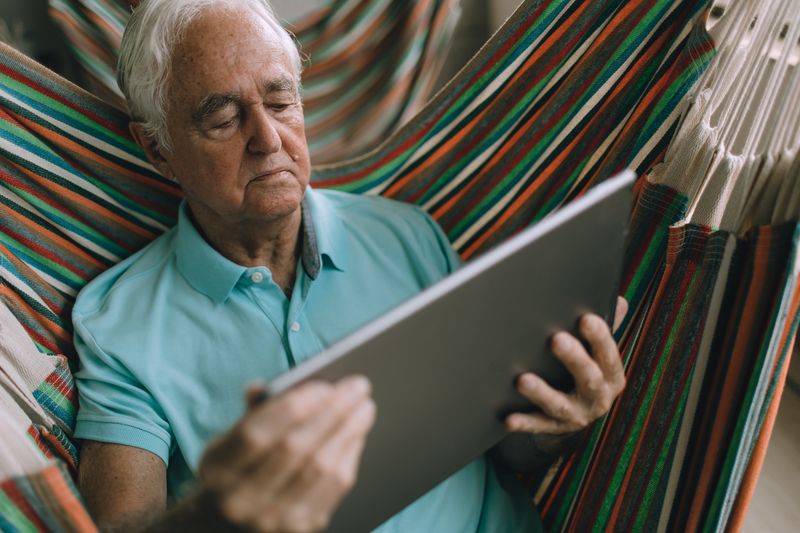
The five best tablets compared
Apple iPad (10th generation)
The standard iPad is the simplest, longest-lasting tablet for most people.
As an Amazon Associate we earn from qualifying purchases.
| Tablet | Screen | Rough US price | Best for |
|---|---|---|---|
| Apple iPad (10th/11th gen) | 10.9 in | $330–$430 | Most people; FaceTime users |
| Apple iPad Air | 11 in | $550–$600 | Faster, future-proof choice |
| Samsung Galaxy Tab A9+ | 11 in | $180–$220 | Affordable Android, big screen |
| Amazon Fire HD 10 | 10.1 in | $130–$150 | Tightest budget; reading and video |
| Samsung Galaxy Tab S9 FE | 10.9 in | $430–$480 | Premium Android with stylus |
Ad · Model names link to Amazon. As an Amazon Associate we earn from qualifying purchases.

If you only read one recommendation, pick the standard Apple iPad. It hits the best balance of price, screen quality, ease of use, and long software support of roughly five to six years. The one case where it is the wrong choice is a very tight budget, where the Fire HD 10 does the core jobs for a third of the price.
Apple iPad: the safe default
The standard iPad is the tablet to buy if you are unsure. The 10.9 inch screen is bright and sharp, the software gets updated for years, and FaceTime is built in for free video calls to anyone else with an iPhone or iPad. Setup walks you through every step in large, plain language.
At $330 to $430 depending on storage and sales, it is not the cheapest, but it is the one most family members can help you with, since iPads are everywhere. If a grandchild has an iPhone, FaceTime between you will work first time with no setup. Buy the 64GB or 128GB version rather than the smallest storage, which fills up fast with photos.
The budget choices: Galaxy Tab A9+ and Fire HD 10
The Samsung Galaxy Tab A9+ is the best value Android tablet at around $180 to $220. It has a generous 11 inch screen, runs all the usual apps from the Google Play Store, and feels more polished than its price suggests. Android works a little differently from an iPad but is just as capable for video calls, photos, and browsing.

The Amazon Fire HD 10 is the cheapest reasonable tablet at $130 to $150, and it goes on sale often. The catch is the software: it uses Amazon's own Appstore, which has fewer apps. FaceTime is not available, and you need to install the Google Play Store yourself to get some apps. For reading, watching video, and Zoom or WhatsApp calls it is fine, and the low price makes it a stress-free first tablet you will not worry about dropping.
The premium picks: iPad Air and Galaxy Tab S9 FE
The iPad Air at $550 to $600 is the choice if you want a tablet that stays fast for many years and never feels sluggish. It is more than you need for video calls and photos alone, but if you plan to keep it a long time or want to draw, edit photos, or use it heavily, the extra speed is worth it. It looks and works almost identically to the standard iPad, just quicker.
The Samsung Galaxy Tab S9 FE at $430 to $480 is the strongest premium Android option and includes the S Pen stylus in the box, which is pleasant for handwriting notes or marking up photos. It is water resistant, which is reassuring near the kitchen sink or a garden table. Pick it over the iPad Air only if you specifically prefer Android or want the included stylus.
What you can actually do with a tablet
Video calling is the reason many people buy a tablet, and the big screen makes faces easy to see. FaceTime works between Apple devices with nothing to install, WhatsApp video calls work across iPhone and Android, and Zoom works on everything for group calls with clubs or the doctor. A tablet propped on a stand turns a call into a hands-free chat while you make tea.
Photos are the next favourite use. Family can share pictures straight to your tablet through WhatsApp, email, or a shared album, and the large screen shows them off far better than a phone. Reading is excellent too: free apps like Kindle and Libby (which borrows ebooks from your local library at no cost) let you carry a whole bookshelf and make the print as large as you like.
Beyond that, a tablet handles the everyday internet comfortably. You can check the weather, read newspapers, watch YouTube or catch-up television, follow recipes in the kitchen, play card games and puzzles, and do your banking through your bank's own app. Each of these is a free app you add once, and none of it requires any computer knowledge.
Accessibility features that make a tablet easier
Every tablet has built-in tools to make the screen easier to read and use, and they are worth turning on from day one. Larger text is the most useful: it enlarges words in menus, messages, and most apps without changing anything else. You can also make the whole display zoom in, so icons and buttons grow bigger and easier to tap accurately.
Bold text sharpens letters for tired eyes, and higher contrast makes faint grey writing darker and clearer. On an iPad these live in Settings under Accessibility, then Display & Text Size. On Android they sit in Settings under Accessibility as well, usually under a heading like Visibility enhancements or Display size and text. None of these settings can harm anything, so try them and keep whatever feels comfortable.
Both iPad and Android can also read text aloud and let you type by speaking instead of tapping, which helps if typing on glass is fiddly. The voice typing button is the small microphone on the on-screen keyboard. Tap it, speak your message, and the words appear. These features are free and built in, with nothing extra to buy.
Tablet, smartphone, or laptop: which is right
A tablet is the best middle ground for someone who mainly wants video calls, photos, reading, and light browsing without the fuss of a computer. A smartphone does the same jobs on a smaller screen and fits in a pocket, but the small text and buttons are harder on older eyes. A tablet gives you the comfortable big screen without the keyboard, mouse, and folders of a laptop.
A laptop still wins if you write long letters, manage spreadsheets, or print a lot, because a physical keyboard and a desktop web browser make those tasks quicker. For most grandparents who want to see the family, follow the news, and play a few games, a tablet is the simpler and friendlier choice. You can always add a small clip-on keyboard to a tablet later if you find yourself typing a great deal.
| Device | Strength | Best for |
|---|---|---|
| Tablet | Big screen, simple, no keyboard needed | Video calls, photos, reading, browsing |
| Smartphone | Fits in a pocket, always with you | Calls and messages on the go |
| Laptop | Full keyboard and desktop browser | Long writing, spreadsheets, printing |
Setting up your new tablet safely
Every tablet asks you to sign in with an account during setup: an Apple Account on iPad, a Google Account on Android, or an Amazon account on Fire. This is free, and you can create one during setup if you do not have it. Write the email address and password down on paper and keep it somewhere safe, because you will need it again.
You cannot accidentally buy anything just by browsing. Purchases always ask for a password, a fingerprint, or your face first, so there is no way to spend money by tapping the wrong thing. Turn on automatic updates when offered, since these keep the tablet secure without you having to think about it.
- Connect to your home Wi-Fi when prompted, using your Wi-Fi password.
- Sign in with, or create, the relevant free account.
- Make the text bigger: on iPad go to Settings, then Display & Brightness, then Text Size; on Android go to Settings, then Display, then Font size.
- Install the apps you actually need, such as WhatsApp, your email, and a video-call app.
- Turn on automatic updates so security stays current on its own.
Frequently asked questions
Do I need to pay a monthly fee for a tablet? No, not for the Wi-Fi versions, which is what almost everyone buys. You use it over your home internet at no extra cost. Only the cellular models with a SIM card carry a monthly charge.
Is an iPad or an Android tablet easier for an older person? The iPad is the most consistent and the easiest to get help with, because iPads are so common. Android tablets like the Samsung models are also straightforward and cost less. If your family mostly uses iPhones, an iPad makes FaceTime effortless.
What screen size is best? Around 10 to 11 inches suits most people. It is large enough to read comfortably and watch video, yet light enough to hold. The 12 inch and larger tablets are better used on a stand.
Can I make the text and icons bigger? Yes, on every tablet. Both iPad and Android let you increase text size and zoom the whole display in the Settings menu, usually in two or three taps. This is one of the first things to set up.
Will I break it if I tap the wrong thing? No. You cannot damage a tablet by tapping around, and you cannot buy anything without confirming a password or fingerprint. Exploring is the best way to learn, and there is almost nothing you can do that cannot be undone.
How long will a tablet last before it needs replacing? A new iPad typically gets software updates for five to six years, and a good Samsung tablet for four to five. Cheaper Fire tablets get fewer years of updates. In practice a well-treated tablet lasts comfortably beyond that for everyday use.
Do I need to buy antivirus software or a warranty? No antivirus is needed on a tablet, since iPad and Android already block harmful software, and you only install apps from the official store. A protective case is the one accessory worth buying, around $20 to $40, because it guards against drops. An extended warranty is optional and rarely necessary for gentle everyday use.
Can my family help me set it up from far away? Yes. Both iPad and Android let a trusted relative share your screen or talk you through settings over a video call. On many tablets they can even guide you while looking at what you see, which makes a long-distance setup much less daunting and means you are never stuck alone.
🛠️ Free tools for this topic
No sign-up. They do the calculating and checking for you.
Published by the TechGranddad editorial team. Published June 2, 2026. Updated October 4, 2026.
Editorial responsibility: see Imprint.
Spotted an error or have something to add? corrections@techgranddad.com
Simple Tech Tips, Weekly
One practical tip every week — video calls, smartphone tricks, and how to stay safe online. No jargon, no overwhelm.
🎁 Free bonus: The Senior Tech Starter Guide (PDF)
You might also like
The Best iPad Games for Seniors (Free and Easy to Start)
The friendliest free iPad games for older players, plus how to download them safely and the settings that make every game easier to see and play.

iPad Accessibility Settings That Make It Easier to Use
A step-by-step guide to the iPad accessibility settings that make the screen easier to read and the device easier to tap, all free and reversible.

Best Smartphones for Seniors in 2026: 5 Easy Picks
Five easy-to-use smartphones for older users in 2026, with US prices, screen sizes, and clear advice on choosing between Android and iPhone.
📖 All articles on TechGranddad →
Browse our other articles