Best Apps for Seniors in 2026: 18 Picks That Earn Their Spot
This article may contain affiliate links. If you make a purchase through these links, we may earn a small commission at no extra cost to you. This helps us keep creating free content.
The right phone app can read your medication label out loud, magnify a restaurant menu, or put your grandchildren on the screen in two taps. The wrong one buries those features under ads and pop-ups. This is a sorted list of apps worth keeping on a phone or tablet in 2026, grouped by what they actually do for you, with the cost stated plainly so nothing surprises you later.
Every app below runs on both iPhone and Android unless noted. To install one, open the App Store (the blue icon with a white A on an iPhone) or the Play Store (the colourful triangle on Android), type the name in the search bar at the top, and tap Get or Install. None of these will charge you a penny without asking first, and you can delete any of them by pressing and holding the icon until a menu appears.
Staying in touch with family
WhatsApp is the app most families already use, which makes it the easiest place to start. It sends text messages, photos, and voice notes over Wi-Fi or mobile data, so there is no per-message charge the way old text messaging had. Voice and video calls are free too, even to relatives in another country. It is owned by Meta, the same company as Facebook, and it is free with no paid tier.
FaceTime is built into every iPhone and iPad, so there is nothing to download if everyone in the family uses Apple devices. You make a video call straight from the green Phone or the FaceTime app. For mixed households where some people have Android, Google Meet does the same job and works on any phone, tablet, or computer through a web link.
Zoom earns a place for one specific reason: group calls. When the whole family wants to be on one screen at the holidays, Zoom handles a dozen faces more gracefully than most rivals. The free version limits group calls to 40 minutes, which is usually plenty, and you can simply start a new call if you run over.
| App | Best for | Works on | Cost |
|---|---|---|---|
| Everyday messages and calls | iPhone, Android | Free | |
| FaceTime | Apple-to-Apple video calls | iPhone, iPad, Mac | Free |
| Google Meet | Video calls across any device | iPhone, Android, web | Free |
| Zoom | Big group family calls | iPhone, Android, web | Free (40-min group limit) |
Health and medication
Medisafe is a pill reminder that nudges you when a dose is due and lets a family member get an alert if you miss one. You enter each medication once, set the times, and the app does the remembering. It is free, with an optional Premium tier around $5 a month that most people never need.
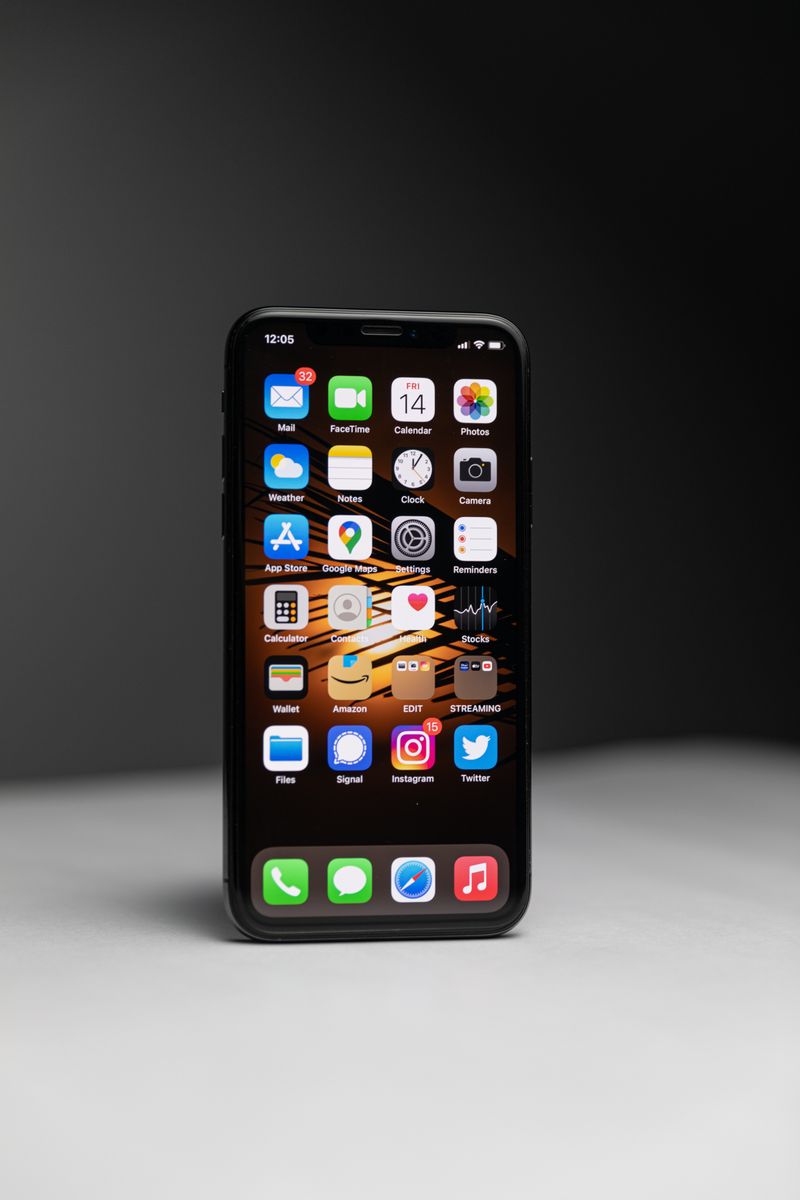
Your phone already has a Health app on iPhone or Google Fit on Android, and both quietly count your steps with no setup at all. If you carry your phone in a pocket, you get a daily step total that is a fair, gentle measure of how active you have been. Neither app costs anything.
GoodRx is worth installing before your next pharmacy trip. It shows the price of a prescription at nearby pharmacies and provides a free coupon that can cut the cash price sharply, which matters when a medication is not fully covered. There is nothing to pay to use the coupons.
Seeing and hearing better
Your phone is a powerful magnifying glass. On iPhone, the Magnifier app turns the camera into a zoomable, brightenable lens for menus, labels, and fine print. Android phones have the same feature inside the camera or in Accessibility settings. This costs nothing and it is already on your device.
Seeing AI, made by Microsoft and free, goes further: point the camera at a document and it reads the text aloud. It can also identify products by their barcode and describe a scene. It was built for people with low vision and it helps anyone tired of squinting at small print.
For hearing, Live Transcribe on Android turns spoken words into on-screen text in real time, which is a gift in a noisy room or for following a conversation. On iPhone, Live Listen pairs with AirPods to amplify the voice of whoever is across the table. Both are free and built in.
Getting around and getting things done
Google Maps gives spoken, turn-by-turn directions whether you are driving, walking, or catching a bus, and it shows you the bus or train times in most cities. You type a destination, tap Directions, and follow the voice. It is free and uses your location only while you are navigating.
Uber and Lyft both summon a car to your door without a phone call. You see the driver's name, photo, car, and the price before you confirm, and payment goes through the card you saved, so no cash changes hands. The apps are free; you pay only for the ride you take.
For everyday admin, your bank almost certainly has its own app that lets you check your balance and spot a wrong charge without a trip to the branch. Stick to the official app from your own bank, downloaded from the App Store or Play Store, and never one a stranger sends you a link to.
Reading, watching, and passing the time
Libby connects to your local library card and lets you borrow ebooks and audiobooks free, with the text size adjustable to whatever is comfortable. You enter your library card number once and then browse thousands of titles at no cost. It is one of the best-kept secrets in app stores.
YouTube is a bottomless well of how-to videos, old music, church services, and grandchildren's recitals. It is free to watch, supported by ads, and a paid Premium tier removes those ads for about $14 a month if they bother you. For television, the major streaming services such as Netflix and Prime Video each have an app, though those carry monthly subscriptions you should weigh against how much you watch.
For gentle brain exercise, simple apps like Sudoku.com or a crossword from your favourite newspaper keep the mind busy without the flashing, coin-collecting clutter of free game apps. Pick one that loads cleanly and does not nag you to buy things, and ignore the rest.
Staying safe while you use all of this
A password manager removes the impossible job of remembering dozens of passwords. Bitwarden is free, well regarded, and stores every login behind one master password you do choose to remember. It fills in your details automatically when you visit a site, which also helps you spot fake sites that the app does not recognise.
Your phone's own settings hold the most important safety tool of all: two-step verification, sometimes called two-factor. Once switched on for your email and bank, anyone trying to log in needs both your password and a code sent to your phone, which stops the vast majority of break-ins. It takes five minutes to turn on and it is free.
How to choose without getting overwhelmed
Start with one app from the family-contact group, because the payoff is immediate and someone you love can help you set it up. Add a health or magnifier app next, since those solve a daily friction you already feel. Resist installing ten apps in a weekend; a phone with eight apps you understand beats one crammed with forty you never open.
Before installing anything, glance at two things in the store listing: the rating (aim for 4.0 stars or higher) and the number of reviews (thousands, not dozens, means an established app). Stick to apps from names you recognise or that a trusted family member uses, and you will avoid almost every bad one.
Apps that help around the home
A few apps quietly make daily life smoother. Your phone's built-in Notes app is a free, endless notepad for shopping lists, the name of that film you wanted to watch, or questions to ask the doctor, and it syncs to your tablet so the list is on whichever device you pick up. The Reminders app on iPhone or Google Keep on Android will even nudge you at a set time, which is handy for appointments and bin days.
For the kitchen, a recipe app such as the free version of Paprika or simply the BBC Good Food and AllRecipes apps put thousands of recipes in your pocket with adjustable text size. Weather apps, including the one already on your phone, give you tomorrow's forecast and a rain warning before you head out. None of these costs anything to use in its basic form.
If you manage a garden or houseplants, a plant-identification app like PictureThis names a plant from a photo and tells you how to care for it, though its full features sit behind a paid tier of around $30 a year. The free identification on its own is often all you need, and you are never obliged to upgrade.
Smart speakers and voice assistants
A voice assistant lets you ask your phone or a small speaker to do things out loud, which sidesteps small buttons entirely. On an iPhone you hold the side button and speak to Siri; on Android you say "Hey Google". You can ask for the time, the weather, a timer for the oven, or to call a family member by name, and it answers in a clear voice.
A standalone smart speaker such as an Amazon Echo (from about $50) or a Google Nest Mini (around $50) sits on a kitchen counter and listens for its wake word. It can play the radio, read the news, set reminders, and on some models even make calls to family, all hands-free. These are optional extras rather than essentials, but many people find them a comfortable way to use technology without looking at a screen at all.
Frequently asked questions
Do these apps cost money?
Every app named here is free to download and free to use in its basic form. A few offer an optional paid "Premium" upgrade for extra features, which you never have to buy. The store will always ask before any charge, and you can refuse.
Will installing apps slow down or break my phone?
No. Apps are designed to be installed and removed freely. If one misbehaves, press and hold its icon, then choose Delete or Uninstall, and your phone is back exactly as it was. Nothing here can damage the device.
How do I delete an app I do not want?
Press and hold the app's icon on the home screen until a menu appears, then tap Remove App or Uninstall. On an iPhone you may need to confirm Delete App. Removing it frees up space and cannot harm anything else.
How do I know an app is safe?
Download only from the official App Store or Play Store, never from a link in an email or text. Check that the app has a high rating and thousands of reviews, and that the maker's name is one you recognise. Avoid any app that demands payment before it will even open.
What if an app asks for my location or contacts?
Apps ask permission for a reason, but you stay in control. A maps app needs your location; a messaging app needs your contacts. If a flashlight app asks for your contacts, that is a red flag, and you can tap Don't Allow. You can change any permission later in your phone's Settings.
Can my family help me from far away?
Yes. Several apps, including Medisafe and most video-call apps, let a relative check in or set things up remotely. For deeper help, both iPhone and Android allow screen sharing during a call so a family member can see what you see and guide you button by button.
Which app should I install first?
Start with whichever video-call app the rest of your family already uses, because they can help you set it up and you will have something to show for it the same day. WhatsApp is the safest first pick for most households since it works on every phone. Once that one feels comfortable, add a second app at your own pace rather than all at once.
Do I need a newer phone to run these apps?
Most of these apps run well on phones that are several years old, so there is usually no need to buy a new one. If an app refuses to install or runs slowly, your phone may need a free software update, which you can do in Settings under General or System. A family member can check this for you in a couple of minutes.
🛠️ Free tools for this topic
No sign-up. They do the calculating and checking for you.
Published by the TechGranddad editorial team. Published July 2, 2026.
Editorial responsibility: see Imprint.
Spotted an error or have something to add? corrections@techgranddad.com
Simple Tech Tips, Weekly
One practical tip every week — video calls, smartphone tricks, and how to stay safe online. No jargon, no overwhelm.
🎁 Free bonus: The Senior Tech Starter Guide (PDF)
You might also like

Best Smartphones for Seniors in 2026: 5 Easy Picks
Five easy-to-use smartphones for older users in 2026, with US prices, screen sizes, and clear advice on choosing between Android and iPhone.

Best Tablets for Seniors in 2026: 5 Easy Picks Compared
The five best tablets for older users in 2026, compared by screen size, price and simplicity, with a clear recommendation and a safe setup guide.
How to Make a Video Call on Facebook Messenger
A simple step-by-step guide to making free video calls on Facebook Messenger from your phone or tablet, including the in-call buttons and group calls.
📖 All articles on TechGranddad →
Browse our other articles