How to Send Photos to Family on WhatsApp
This article may contain affiliate links. If you make a purchase through these links, we may earn a small commission at no extra cost to you. This helps us keep creating free content.
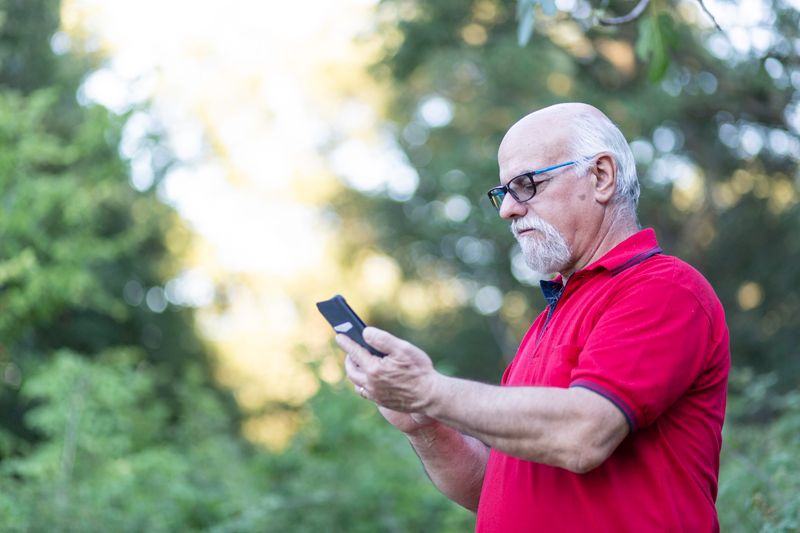
Sending a photo on WhatsApp takes about four taps and costs nothing over Wi-Fi. The picture arrives on the other person's phone within seconds, and they can keep it, save it to their own photo album, or send one back. It works the same way to one grandchild or to a whole family group at once.
WhatsApp is the green icon with a white telephone inside a speech bubble. If you can already send a text message in it, you have everything you need to send photos. The steps below work on both Android phones and iPhones, with the small differences noted where they matter.
Sending a photo you already took
Most of the time you want to send a picture that is already on your phone from a day out or a family event. Start by opening WhatsApp and tapping the name of the person, or the family group, you want to send it to. This opens your conversation with them, the same screen where you type messages.
- In that chat, look near the box where you type a message. Tap the paperclip icon (on Android) or the plus icon (on iPhone), found just left of the message box.
- A small menu pops up. Tap Gallery or Photos, which shows the pictures stored on your phone.
- Tap the photo you want to send. To send several at once, keep tapping more photos, and a small number appears on each chosen one.
- If you like, tap the empty caption line and type a few words, such as the names of who is in the picture.
- Tap the green send arrow (a paper-plane shape) at the bottom right. The photo flies off and appears in the chat.
A small clock symbol means the photo is still sending. One grey tick means it left your phone, two grey ticks mean it reached theirs, and two blue ticks mean they have opened the chat and seen it. None of this needs any action from you, it simply tells you how far the photo has travelled.
Taking a photo and sending it right away
Apple iPhone SE
The most affordable iPhone, with a familiar feel and the longest software support.
As an Amazon Associate we earn from qualifying purchases.
You can also take a brand-new photo from inside WhatsApp and send it in the same breath, which is perfect for showing the garden in bloom or a meal on the table. Open the chat with the person you want, then look for the small camera icon next to the message box. Tap it, and your camera opens.
Point the phone at whatever you want to capture and tap the large round button at the bottom to take the shot. If the picture looks good, tap the green send arrow to send it. If it did not come out, tap the back arrow or the X in the corner and try again. Nothing is sent until you tap that final green arrow, so there is no rush and no risk of sending a blurry one by accident.

Sending several photos at once
For a batch of holiday pictures, you do not have to send them one by one. When you open the gallery from the paperclip or plus icon, tap the first photo, then tap each of the others you want. A blue number appears on each chosen photo showing the order. WhatsApp lets you send up to 30 in a single go, which is plenty for a day's worth of family snaps.
Once you have ticked all the photos you want, you can add one caption that applies to the whole set, then tap the green send arrow. The pictures arrive together as a tidy little album in the chat rather than flooding the screen. The other person can swipe through them one at a time at their own pace.
Saving photos that family send to you
When a relative sends you a photo, it appears in your chat with them. On most phones, WhatsApp saves received photos to your phone's main photo album automatically, so you can find them later in your Photos or Gallery app without doing anything. If you want to be sure a particular picture is kept, tap it to open it full screen, then tap the three dots or the share icon and choose Save.
Saved photos sit alongside the ones you take yourself, so a grandchild's school picture ends up in the same album as your own. From there you can set one as your phone's background, print it at a chemist or supermarket photo machine, or forward it on to someone else. The original stays in the chat too, so saving it never removes it from the conversation.

| What you see in the chat | What it means |
|---|---|
| Clock symbol on your photo | Still sending. Wait a moment, especially on a slow connection. |
| One grey tick | Sent from your phone successfully. |
| Two grey ticks | Delivered to the other person's phone. |
| Two blue ticks | They have opened the chat and seen the photo. |
| Download arrow on a received photo | Tap it to load the photo if it has not appeared by itself. |
Keeping the picture sharp and quick to send
WhatsApp shrinks photos a little so they send fast and do not eat up storage, and for viewing on a phone this is fine. If you want a relative to have the full-quality version, perhaps to print large, there is a way to send it without that shrinking. When you pick the photo, look for an HD button at the top and tap it, then choose HD quality before sending.
For everyday family sharing, the standard quality is the better choice because the photo arrives almost instantly and looks clear on any phone screen. Save the HD option for the special shots someone plans to enlarge and frame. Sending dozens of HD photos at once on a weak connection can be slow, so use it sparingly.
Frequently asked questions
Does sending photos cost money? No. Over Wi-Fi it is free, and on mobile data it only uses a small part of your data allowance, never phone minutes or text charges.
Will sending a photo delete it from my phone? No. You always send a copy. The original photo stays safely in your own album.
How many photos can I send at once? Up to 30 in a single batch. They arrive grouped together so they are easy to swipe through.
Can I send a photo to several people at the same time? Yes. Send it to a family group chat and everyone in that group gets it at once. You can also use the Broadcast feature to send to several individuals separately.
The photo someone sent me will not open. What do I do? Tap the small download arrow on the photo to load it. If nothing happens, check you are connected to Wi-Fi or mobile data, then try again.
Where do received photos go? They usually save to your phone's Photos or Gallery app automatically, sitting alongside the pictures you take yourself.
Can I send a photo from my email or another app into WhatsApp? Yes. Open the photo in your Photos, Gallery, or email app, tap the share icon (a box with an upward arrow, or three connected dots), and choose WhatsApp from the list of apps that appears. Then pick who to send it to and tap send. This is handy for forwarding a picture a friend emailed you.
Why did my photo look slightly blurry to the other person? WhatsApp shrinks photos a little to send them quickly, which can soften fine detail. For an important picture, tap the HD button before sending and choose HD quality, so it arrives at full sharpness.
Once you have sent a photo or two, it becomes the easiest way to share a moment with the family the second it happens. Open the chat, tap the paperclip or camera, pick or take your picture, and tap the green arrow. The picture is on its way, and your original never leaves your phone.
🛠️ Free tools for this topic
No sign-up. They do the calculating and checking for you.
Published by the TechGranddad editorial team. Published August 27, 2026. Updated October 4, 2026.
Editorial responsibility: see Imprint.
Spotted an error or have something to add? corrections@techgranddad.com
Simple Tech Tips, Weekly
One practical tip every week — video calls, smartphone tricks, and how to stay safe online. No jargon, no overwhelm.
🎁 Free bonus: The Senior Tech Starter Guide (PDF)
You might also like

Phone Storage Full? How to Free Up Space Without Losing Photos
A calm, step-by-step fix for a full phone: clear videos and screenshots, back up photos to the cloud safely, remove unused apps, and stop the warning coming back.

How to Back Up an Android Phone So You Never Lose a Photo
A clear, step-by-step guide to backing up an Android phone, covering photos, contacts, texts, and WhatsApp, plus how to restore everything onto a new phone.

Doro Phone Review: Are These Senior-Friendly Phones Worth Buying?
A plain-English Doro phone review covering button phones and Android smartphones, US prices, the emergency button, strengths, weaknesses, and who each model suits.
📖 All articles on TechGranddad →
Browse our other articles