How to Set Up Email on an Android Phone
This article may contain affiliate links. If you make a purchase through these links, we may earn a small commission at no extra cost to you. This helps us keep creating free content.
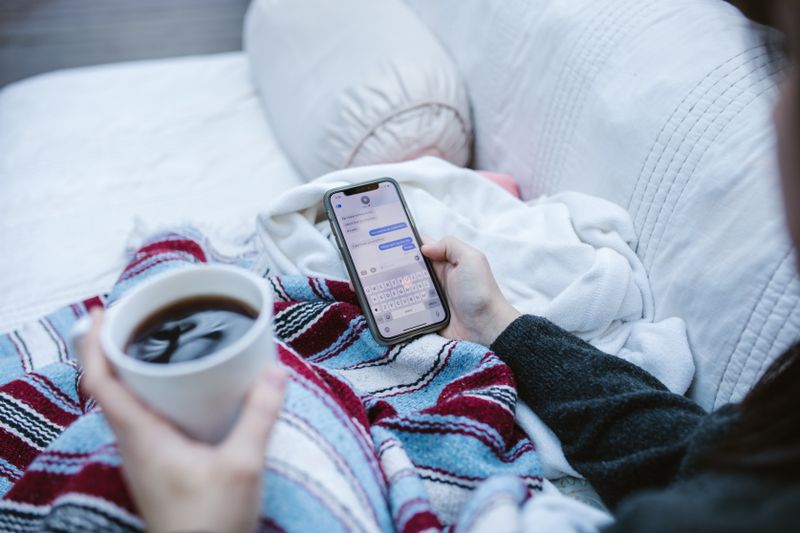
Most Android phones already have email working the moment you sign in with a Google account, because the Gmail app comes installed and reads that account automatically. So before you add anything, open the Gmail app (the white envelope with the red, yellow, green and blue M) and check whether your messages are already there. Very often the job is half done already.
Where people get stuck is adding a second address, such as a work email, an internet-provider email, or an old Yahoo or Outlook account. The good news is that the same Gmail app handles all of them in one tidy inbox, so you never have to learn a different program for each address. Adding one takes two or three minutes.
Check what is already there
Find the Gmail app. It is usually on your home screen or in the App drawer, which you open by swiping up from the bottom of the screen. Tap it open. If you see your name or email address at the top right and a list of messages below, your main account is already set up and you can start reading and replying straight away.
If the app asks you to sign in, type your Gmail address and password. If you do not have a Gmail address yet, tap Create account and follow the prompts. A Gmail address is free, and it doubles as the account that lets you download apps, so it is worth having one.
Adding another email account
Samsung Galaxy A16 5G
An affordable, easy Android phone with a large screen and years of updates.
* Affiliate link. We may earn a commission at no extra cost to you.
To bring a second address into the same app, follow these steps. They work for Gmail, Outlook, Yahoo, iCloud and most provider addresses.
- Open Gmail and tap your picture or initial. It sits at the top right corner of the screen.
- Tap Add another account. This appears in the little menu that drops down.
- Choose the type. You will see a list: Google, Outlook/Hotmail, Yahoo, Exchange, and Other. Pick the one that matches your address. If your address ends in something unusual from your internet provider, choose Other.
- Type the email address. Enter the full address, then tap Next.
- Type the password. Use the password for that email account, not your phone's screen lock. Tap Next.
- Wait while it checks. The phone talks to the email service and sets everything up. When it finishes, you are returned to your inbox.
From now on, tap your picture at the top right any time to switch between accounts, or scroll down to All inboxes to see everything together in one list.
Which account type should you pick?
The list of account types can look confusing, so here is what each one is for in plain terms. Pick by the ending of your email address.
| If your address ends in | Choose |
|---|---|
| @gmail.com | |
| @outlook.com, @hotmail.com, @live.com | Outlook/Hotmail |
| @yahoo.com | Yahoo |
| @icloud.com, @me.com | Other (or iCloud if shown) |
| your internet provider's name | Other |
| a work address with Microsoft | Exchange |
If you choose Other and the phone cannot work it out on its own, it may ask for an "incoming server" and "outgoing server". Those details come from your email provider, and a quick search for your provider's name plus "email settings Android" brings up the exact lines to type. There is no harm in trying; a wrong server setting will not damage anything.
Sending a test email
Once an account is added, prove it works by sending one message to yourself. Tap the Compose button, the round button with a pencil in the bottom right corner. In the To box type your own email address, add a word in the subject line, and tap the paper-plane Send icon at the top right.
Within a minute that message should land back in your inbox. If it does, sending and receiving both work, and you are finished. If you have several accounts, check the small From line at the top of the compose screen to make sure you are sending from the address you intend.
Reading, replying and staying tidy
Tap any message in the list to open and read it. To reply, tap the curved arrow at the top or the Reply button at the bottom, type your answer, and send it with the paper-plane icon. To start a fresh message to someone, use that Compose pencil button again.
To clear out junk, swipe a message sideways with your finger and it moves to the bin. If you swipe one by accident, an Undo button pops up at the bottom for a few seconds so you can bring it back. Nothing you delete is gone forever right away; it sits in the Bin folder for 30 days before it clears itself.
Common problems and quick fixes
If new email stops arriving, the first thing to check is your internet connection, because the phone needs Wi-Fi or mobile data to fetch mail. Pull the message list downward with your finger to force a refresh; a spinning circle means it is checking for new mail.
If the phone keeps saying your password is wrong, change it on the provider's website from a computer, then add the account to the phone again with the new password. And if an old account you no longer want keeps cluttering the app, tap your picture, tap Manage accounts, choose the address, and remove it. Removing it from the phone does not close the email account itself, so you can always add it back later.
Tidying up notifications and signatures
By default the phone buzzes or chimes for every new email, which can feel relentless once a couple of accounts are flowing in. To calm it down, tap your picture, tap Settings, choose the account, and look for Notifications. You can switch them off entirely, or set them to only the important mail the app has sorted into your main inbox. None of this stops the email arriving; it just stops the phone interrupting you.
You can also add a short signature, the line that appears at the bottom of messages you send, such as your name. In the same account settings, look for Signature or Mobile signature, tap it, and type what you want. Keep it simple. A name and perhaps a phone number is plenty, and it saves you typing the same sign-off every time.
A few questions come up again and again when people set up email on a phone for the first time. Here are the short, reassuring answers.
- Will adding email to my phone delete it from my computer? No. The same messages simply appear in both places. Nothing moves or vanishes.
- Can I have more than one account in the app? Yes. The Gmail app holds as many as you like and keeps each one separate, with an All inboxes view to see them together.
- Does email on the phone cost anything? No. The app is free, and email uses a tiny amount of data, covered by any normal plan or Wi-Fi.
- If I delete a message on the phone, is it gone from the computer too? Usually yes, because they share one mailbox, but deleted mail sits in the Bin for 30 days first.
- What if I forget my email password? Use the Forgot password link on the provider's sign-in page to reset it, then enter the new one on the phone.
Once email is flowing and you have sent that test message to yourself, the hard part is over. Everything else, replying, deleting, switching accounts, is just tapping, and a wrong tap can almost always be undone. Take it slowly the first few times and it quickly becomes second nature.
🛠️ Free tools for this topic
No sign-up. They do the calculating and checking for you.
Published by the TechGranddad editorial team. Published September 29, 2026.
Editorial responsibility: see Imprint.
Spotted an error or have something to add? corrections@techgranddad.com
Simple Tech Tips, Weekly
One practical tip every week — video calls, smartphone tricks, and how to stay safe online. No jargon, no overwhelm.
🎁 Free bonus: The Senior Tech Starter Guide (PDF)
You might also like
How to Set Up Email on Your iPhone: Gmail, Outlook, iCloud and More
A clear step-by-step guide to adding any email account to your iPhone, including the quick automatic way, manual server settings, app passwords and common fixes.
How to Install an App on Android: A Step-by-Step Guide for Beginners
A calm, step-by-step walkthrough of installing apps on an Android phone using the Google Play Store, with safety tips on spending, updates and avoiding scam apps.
What Is an App? A Plain-English Explanation
A plain-English explanation of what an app is, where apps come from, which ones cost money, and how to add your first one safely without breaking anything.
📖 All articles on TechGranddad →
Browse our other articles