What Is an App? A Plain-English Explanation
This article may contain affiliate links. If you make a purchase through these links, we may earn a small commission at no extra cost to you. This helps us keep creating free content.
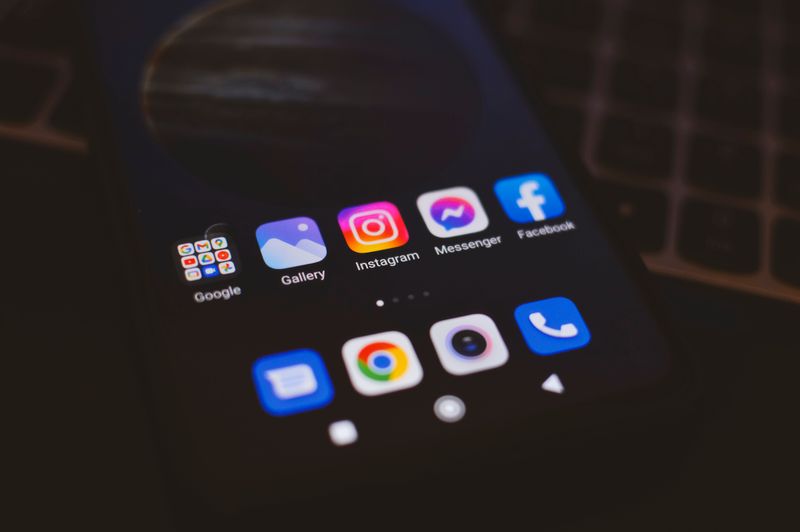
An app is a small program you add to your phone or tablet to do one particular job, the same way a single kitchen tool does one job well. The weather app shows the weather, the camera app takes photos, and the banking app shows your balance. The word "app" is just short for "application," which is the longer, older word for a computer program.
Your phone already came with a dozen or so apps built in, so you have been using them without thinking of them by that name. Once you understand what an app is and where they come from, adding new ones stops feeling mysterious and starts feeling like picking a tool off a shelf.
Where apps live: the home screen and the App Store
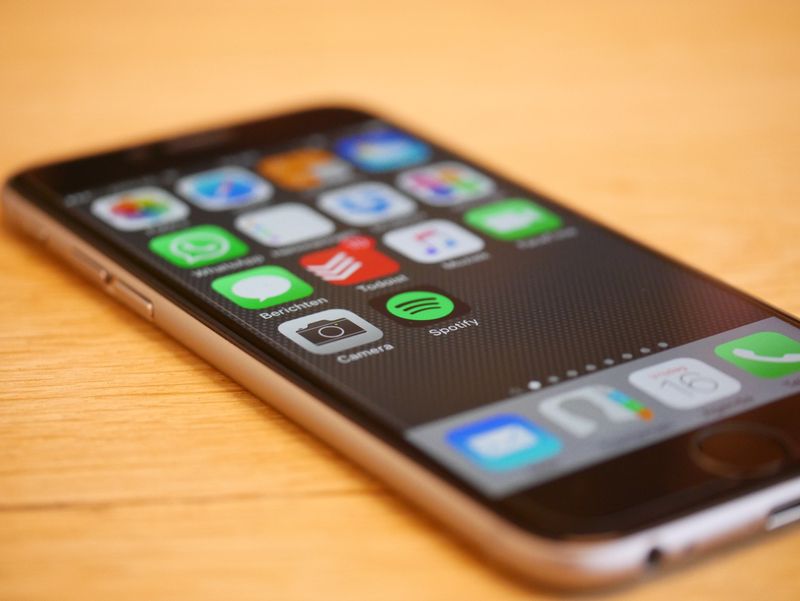
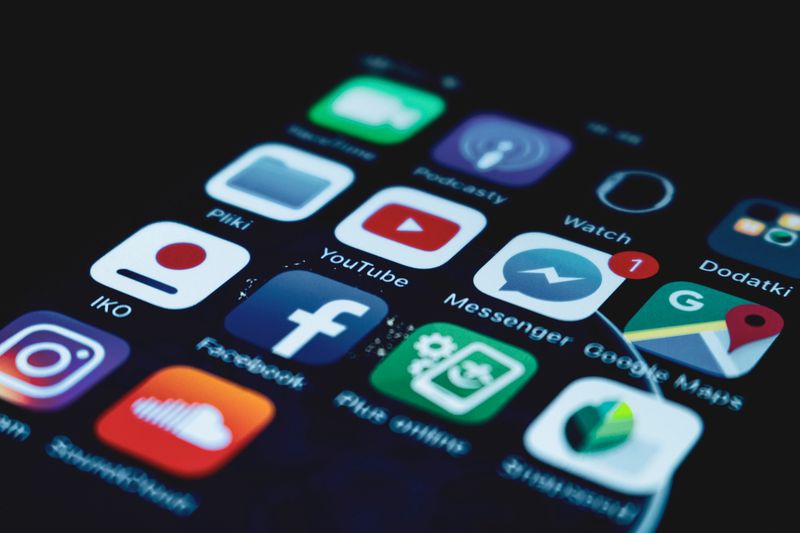
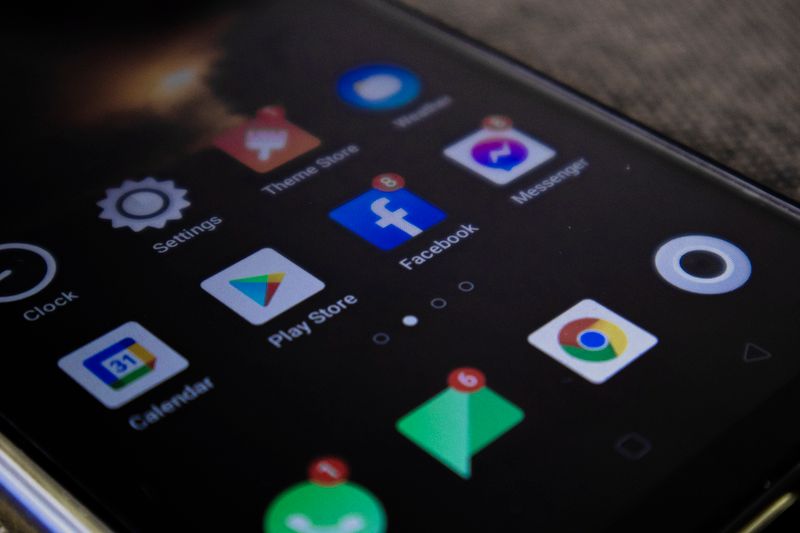
The home screen is the page of small square pictures you see when you unlock your phone. Each square is called an icon, and each icon is one app. Tapping an icon opens that app. That is the whole interaction. There is nothing to install in the moment and nothing that will charge you for opening something already on the phone.
New apps come from one place, and that place is called a store. On an iPhone or iPad it is the App Store, a blue icon with a white letter A made of brush strokes. On an Android phone it is the Google Play Store, a colorful triangle. The word "store" is a little misleading, because most apps in it are completely free. Think of it as a library you can borrow from, where some books happen to cost a few dollars.
Both stores work the same way. You search for what you want, you tap a button to add it, and a moment later the new icon appears on your home screen, ready to use. You only ever get apps from these official stores, never from a link in an email or a pop-up promising a free game.
What apps can do for you
Apps cover almost any everyday task you can think of, which is exactly why phones became so useful. Below are the kinds most people reach for, grouped by what they help you do.
| What you want to do | App that does it | Cost |
|---|---|---|
| Video call the grandchildren | FaceTime (iPhone) or WhatsApp (any phone) | Free |
| Send messages and photos | WhatsApp, Messages | Free |
| Find your way driving | Google Maps, Apple Maps | Free |
| Watch films and shows | Netflix, YouTube, BBC iPlayer | Free or subscription |
| Check your bank balance | Your bank's own app | Free |
| Read the news | Your newspaper's app | Free or subscription |
The pattern across all of them is the same. One app, one job, done with a tap. You do not need to understand how an app works under the hood any more than you need to understand a car engine to drive to the shops. You just need to know which one does the job you want.
Free apps, paid apps, and the catch to watch for
Most apps are free to download, and a great many stay free forever. Others are free to start and then ask for money once you are using them, which is where a little care pays off. There are three money models, and knowing them protects your wallet.
- Free outright: the app costs nothing and asks for nothing. Many of the best apps work this way.
- Paid once: you pay a small one-time price, often $1 to $10, to download it, and that is the end of it.
- Subscription or in-app purchase: the app is free to get but charges a monthly fee, or sells extras inside it. Netflix and Spotify work this way.
The catch to watch for is the subscription that signs you up automatically after a free trial. Before you tap to add anything, look just under the button. If it says "In-App Purchases" or shows a price followed by "per month," that app will want money later. A free app shows the word "Get" (on iPhone) or "Install" (on Android) with no price beside it.
How to add your first app, step by step
Adding an app is a five-step routine that becomes second nature after one or two tries. Here it is on an iPhone, with the Android steps noted where they differ.
- Open the App Store by tapping the blue A icon on your home screen. (On Android, tap the colorful Play Store triangle.)
- Tap the search box, usually at the bottom right with a small magnifying glass, and type the name of the app you want, such as "WhatsApp."
- Find it in the list and check it is the real one. Look for a high number of reviews and the correct maker's name underneath.
- Tap the button that says "Get" or shows the price. You may be asked to confirm with your password, fingerprint, or face. That is normal and safe.
- Wait a few seconds while a circle fills in, then find the new icon on your home screen and tap it to open.
That is the entire process. If you ever add an app and decide you do not want it, you can remove it just as easily by pressing and holding its icon until a menu appears, then choosing "Remove" or "Delete." Removing an app does not cost anything and does not harm the phone.
Are apps safe? The reassuring truth
Apps from the official App Store and Google Play Store are checked by Apple and Google before they are allowed in, which weeds out most harmful ones. That is the single most important safety rule: stick to the official store and you avoid the overwhelming majority of bad apps. Trouble almost always starts when someone installs an app from a random website or a link sent in a message.
Two more habits keep you safe. First, glance at the reviews and the number of downloads before adding something unfamiliar. A messaging app used by millions is a safer bet than one with twelve reviews. Second, when an app asks for permission to use your camera, contacts, or location, pause and ask whether it really needs that. A flashlight app has no reason to read your contacts, so a request like that is a reason to back out.
Beyond those two checks, you can relax. Opening, using, and closing apps cannot damage your phone, run up bills on their own, or expose your bank details. The phone is built to let you tap around and explore. The worst that usually happens is you open something you did not mean to, and the fix for that is simply to close it again.
Apps versus the websites you already use
An app and a website often do the same job, which confuses many people who are new to a phone. Your bank, your newspaper, and a shop like Amazon all have a website you can reach in your browser, and most of them also have an app. The app is simply a tidier, faster door to the same thing. It lives as its own icon on your home screen, so you tap it directly instead of opening a browser and typing an address.
The practical difference is convenience. An app remembers you are signed in, loads more quickly, and can send you a gentle alert, such as your bank telling you a payment arrived. A website asks you to type the address and often to log in each time. Neither is more dangerous than the other when it comes from a place you trust, so you can use whichever feels easier on the day.
| App | Website | |
|---|---|---|
| How you open it | Tap its icon on the home screen | Type the address in a browser |
| Speed | Usually faster | A little slower |
| Stays signed in | Yes, usually | Often asks each time |
| Can send you alerts | Yes | No |
How to remove an app you no longer want
Removing an app is just as safe and easy as adding one, and it tidies a cluttered home screen. Press and hold your finger on the app's icon until the icons begin to wiggle or a small menu pops up. On an iPhone, tap "Remove App" and then "Delete App," and the icon disappears. On Android, press and hold, then drag the icon to the word "Uninstall" at the top, or tap "Uninstall" in the menu.
Deleting an app does not cancel any subscription you may have started inside it, which catches a few people out. If you paid for a monthly service through an app, removing the app does not stop the charge. To stop a subscription you go into your account settings in the App Store or Play Store and cancel it there. For ordinary free apps, though, deleting is the whole job, and you can always add the app back later at no cost.
An app, then, is nothing more frightening than a tool you keep on your phone for a single job. They live as little square icons, they come from one trusted store, most cost nothing, and you cannot break anything by trying them. Once that clicks into place, the phone in your pocket turns from a puzzle into a drawer full of helpful gadgets you can reach for whenever you need one.
🛠️ Free tools for this topic
No sign-up. They do the calculating and checking for you.
Published by the TechGranddad editorial team. Published September 21, 2026.
Editorial responsibility: see Imprint.
Spotted an error or have something to add? corrections@techgranddad.com
Simple Tech Tips, Weekly
One practical tip every week — video calls, smartphone tricks, and how to stay safe online. No jargon, no overwhelm.
🎁 Free bonus: The Senior Tech Starter Guide (PDF)
You might also like
How to Use the Weather App on Your Phone (Step by Step)
A simple step-by-step guide to using the weather app on iPhone and Android, from reading the forecast to adding towns and turning on storm alerts.

How to Use YouTube: A Calm, Step-by-Step Guide for Beginners
A calm, step-by-step beginner's guide to using YouTube: opening the app, searching, playing videos, skipping adverts and saving the ones you love.
How to Make a Video Call on Facebook Messenger
A simple step-by-step guide to making free video calls on Facebook Messenger from your phone or tablet, including the in-call buttons and group calls.
📖 All articles on TechGranddad →
Browse our other articles