How to Block Spam Calls on Your Phone (iPhone and Android)
This article may contain affiliate links. If you make a purchase through these links, we may earn a small commission at no extra cost to you. This helps us keep creating free content.

A spam call cannot reach you if your phone sends it straight to voicemail, and every modern phone has a built-in setting that does exactly that. Most unwanted calls fall into two groups: outright scams pretending to be your bank or the tax office, and pushy sales calls about car warranties or solar panels. Both can be slowed to a trickle using tools already on your phone, with no app to buy and no monthly fee.
You have three layers of defence. You can block a single number after it calls. You can switch on a phone-wide filter that silences any caller not in your contacts. And you can sign up for a free national do-not-call list. Used together, they cut the noise dramatically. Below are the exact steps for both iPhone and Android, plus what to do when a scammer slips through anyway.
Block a single number on iPhone
The fastest moment to block a nuisance caller is right after they ring. Open the green Phone app, then tap "Recents" at the bottom to see your call history. Find the offending number, and tap the small blue letter i in a circle to its right.
That opens a page about the call. Scroll to the bottom and you will see red text reading "Block this Caller". Tap it, then tap "Block Contact" to confirm. From then on, calls and texts from that exact number are silenced and pushed to voicemail. You can undo it on the same page, where the red text now reads "Unblock this Caller".
- Open the green Phone app.
- Tap "Recents" at the bottom.
- Tap the blue i next to the number.
- Scroll down and tap "Block this Caller".
- Tap "Block Contact" to confirm.
Block a single number on Android
Apple iPhone SE
The most affordable iPhone, with a familiar feel and the longest software support.
As an Amazon Associate we earn from qualifying purchases.
Android phones vary a little between brands like Samsung, Google Pixel, and Motorola, but the path is close to the same on all of them. Open the Phone app, tap "Recents" or the clock icon to see recent calls, and find the number you want gone.
Tap and hold the number, or tap the three dots in the corner, until a menu appears. Choose "Block" or "Block number". Most Android phones then offer a tick box to "Report as spam", which warns other people about the same caller. Tap it if you like, then confirm. The number is now blocked, and you can reverse it later under Settings inside the Phone app.
Silence all unknown callers
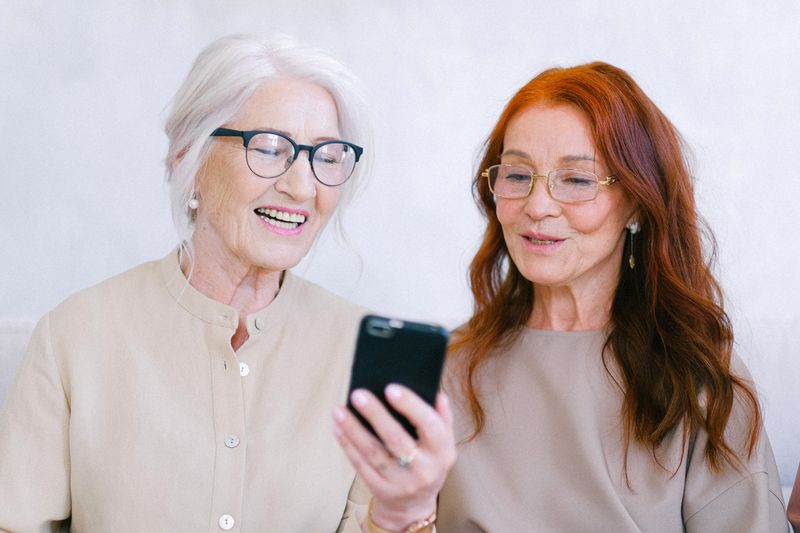
Blocking numbers one at a time helps, but scammers change their number constantly, so a stronger move is to silence every caller you do not already know. Your phone still logs these calls and lets them leave a voicemail; it just does not ring out loud for them.
On an iPhone, open Settings, scroll down to "Phone", tap it, then tap "Silence Unknown Callers" and switch it on. On most Android phones, open the Phone app, tap the three dots, choose "Settings", then "Block numbers", and turn on "Block unknown" or "Unknown callers". The exact wording shifts by brand, but the option lives in the Phone app's own settings.
How the two approaches compare
For most people, switching on "Silence Unknown Callers" is the better default because it handles the endless stream of new scam numbers without any effort on your part. Block individual numbers on top of that only for a persistent nuisance you keep hearing from.
| Method | Stops | Effort | Risk |
|---|---|---|---|
| Block one number | That exact caller only | A few taps, each time | None, but scammers switch numbers |
| Silence unknown callers | Every caller not in contacts | Set once, forget | May silence wanted new numbers |
| Do-not-call registry | Legitimate sales calls | Sign up once | Does not stop scammers |
Sign up for the do-not-call registry
The United States runs a free National Do Not Call Registry that bars legitimate telemarketers from ringing you. It does not stop criminals, who ignore the law anyway, but it does cut the lawful sales calls that come from real companies. Registration is free and lasts permanently.

Add your number at donotcall.gov, or call 1-888-382-1222 from the phone you want to register. It can take a few weeks for the calls to drop off, so do not expect silence overnight. There is never a charge for this, and any caller claiming you must pay to be added to a do-not-call list is itself a scam.
What to do when a scam call gets through
No filter is perfect, so some scam calls will still reach you. The most important rule is simple: hang up. You owe an unsolicited caller nothing, and ending the call is never rude when someone is pressuring you about money, gift cards, or your bank account.
Never give out your bank details, card numbers, passwords, or one-time codes over the phone to someone who called you. Your real bank already has your details and will never phone to ask for them. If a caller claims to be your bank and you feel unsure, hang up, wait a minute, then ring the number printed on the back of your bank card. That way you know who you are really talking to.
Pressure is the tell-tale sign of a scam. Real organisations do not demand you act this second or threaten arrest if you hang up. If a caller rushes you, that urgency is the scam working on you, and the safest response is to put the phone down and walk away.
Common scam calls and how to spot them
Most scam calls follow a handful of well-worn scripts, and knowing them makes the next one easy to dismiss. A caller claiming to be from the tax office demanding immediate payment by gift card or bank transfer is always a scam, because no tax authority collects debts that way or threatens arrest by phone. A call about a "problem with your computer" from someone claiming to be Microsoft or Apple is also a scam; those companies do not phone you out of the blue.
Another common one is the "car warranty" or "extended warranty" call, which is a sales pitch rather than a true emergency, even when the recorded voice sounds urgent. Calls promising you have won a prize you never entered, or offering to lower your credit-card interest if you "press 1", are designed to pull you into a conversation. Pressing any key tells the system your line is live, so the safest move is to hang up without pressing anything.
Let your phone screen calls for you
Newer phones can answer suspicious calls on your behalf and ask the caller who they are before your phone even rings. On a Google Pixel, the "Call Screen" feature does this automatically, showing you a typed transcript of what the caller says so you can decide whether to pick up. Samsung and other Android phones offer similar spam-protection settings inside the Phone app.
On an iPhone, a feature called "Live Voicemail" shows you what a caller is saying as they leave a message, so you can grab the phone if it turns out to be someone you want. You will find it under Settings, then "Phone", then "Live Voicemail". These tools let a genuine caller through while keeping you a safe step back from the ones you would rather avoid.
Frequently asked questions
Does blocking a number cost anything? No. Blocking, silencing unknown callers, and the do-not-call registry are all free and built into your phone or run by the government. You should never pay for basic call blocking.
Will the scammer know I blocked them? No. They get no message and no alert. Their call simply rings out or goes to voicemail, so blocking is completely private on your end.
Why do I still get spam after registering? The do-not-call list only restrains lawful telemarketers. Criminals running scams break the law already, so a registry will not stop them. Combine it with silencing unknown callers for the best result.
Should I answer to tell them to stop calling? No. Answering tells an automated system that your number reaches a real person, which often leads to more calls. Let unknown callers go to voicemail instead.
What if it might be a real call I am waiting for? Check your voicemail and missed-call list. Anyone with a genuine reason to reach you, such as a clinic or delivery driver, can leave a message even when your phone silenced the ring.
🛠️ Free tools for this topic
No sign-up. They do the calculating and checking for you.
Published by the TechGranddad editorial team. Published October 28, 2026.
Editorial responsibility: see Imprint.
Spotted an error or have something to add? corrections@techgranddad.com
Simple Tech Tips, Weekly
One practical tip every week — video calls, smartphone tricks, and how to stay safe online. No jargon, no overwhelm.
🎁 Free bonus: The Senior Tech Starter Guide (PDF)
You might also like
How to Back Up an Android Phone So You Never Lose a Photo
A clear, step-by-step guide to backing up an Android phone, covering photos, contacts, texts, and WhatsApp, plus how to restore everything onto a new phone.
Doro Phone Review: Are These Senior-Friendly Phones Worth Buying?
A plain-English Doro phone review covering button phones and Android smartphones, US prices, the emergency button, strengths, weaknesses, and who each model suits.

How to Back Up Your iPhone: A Step-by-Step Guide
Step-by-step instructions to back up your iPhone with iCloud or a computer, fix full storage, check it worked, and restore everything to a new phone.
📖 All articles on TechGranddad →
Browse our other articles