Apple Pencil: Do You Actually Need One for Your iPad?
This article may contain affiliate links. If you make a purchase through these links, we may earn a small commission at no extra cost to you. This helps us keep creating free content.
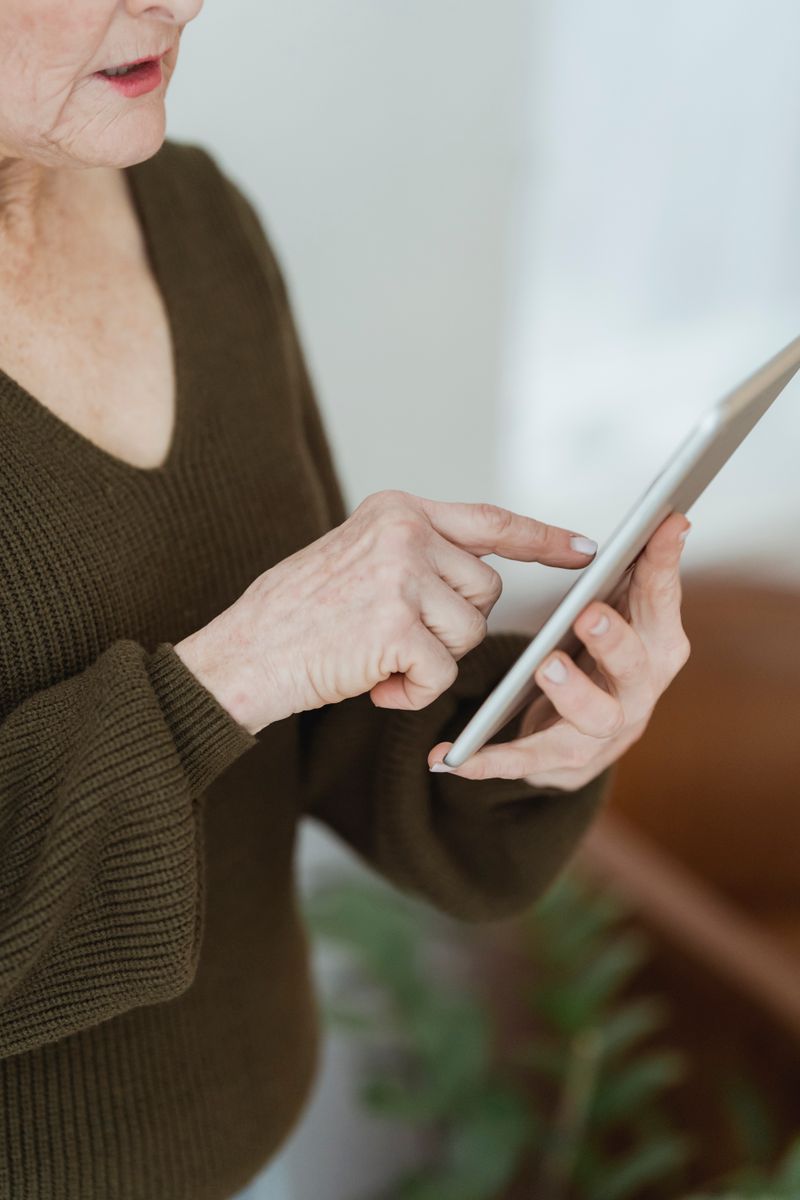
An Apple Pencil is worth buying if you write notes by hand, draw, mark up documents, or struggle to tap small things accurately with a finger. For watching videos, browsing the web, video calls, and reading, you do not need one at all. The Pencil is a precision tool, not a basic requirement, and plenty of people use an iPad happily for years without ever owning one.
It is a slim white stylus, about the size of a real pen, that lets you write and draw on the iPad screen as if it were paper. It connects only to iPads, not iPhones, and only to certain iPad models. Before spending the money, it helps to be clear about what it adds for the way you actually use your tablet.
What the Apple Pencil is good at
Handwriting is where the Pencil shines. In the free Notes app that comes with every iPad, you can write by hand exactly as you would in a paper notebook, and the iPad can even turn that handwriting into typed text you can search later. For anyone who thinks better with a pen than a keyboard, this alone can justify the cost.

Marking up documents is the other strong use. When a family member emails a form, a contract, or a photo, you can open it, sign it with the Pencil, circle the important bit, and send it back, all without printing anything. The Pencil is also far more accurate than a fingertip for fiddly tasks like editing a photo or selecting one small word in a block of text.
When you can comfortably skip it
Universal Tablet Stylus (10-pack)
A soft-tip stylus is easier than fingertips on a touchscreen, and a 10-pack means spares around the house.
As an Amazon Associate we earn from qualifying purchases.
If your iPad is mostly for watching television, video-calling the grandchildren, reading the news, or browsing, your finger does everything you need and the Pencil would sit in a drawer. There is no feature locked behind it for those tasks. Spending the money would buy you a tool you rarely pick up.
Typing is another reason to pause. If you write long emails or messages, a keyboard, whether the on-screen one or a clip-on physical keyboard, is faster than handwriting for most people. The Pencil and a keyboard solve different problems, so think about which one matches the way you like to work before you choose.
Which Pencil works with which iPad
There are several versions of the Apple Pencil, and they are not interchangeable. The single most important step before buying is to check which one your exact iPad model supports, because the wrong one simply will not connect. You can find your iPad model in Settings, under General, then About.
| Apple Pencil version | Rough US price | Best for |
|---|---|---|
| Apple Pencil (USB-C) | around $79 | The affordable choice for notes and markup on newer iPads. |
| Apple Pencil (2nd generation) | around $129 | Snaps onto the iPad's edge to charge; for Pro and Air models. |
| Apple Pencil Pro | around $129 | The newest, with extra pressure features for the latest iPads. |
| Apple Pencil (1st generation) | around $99 | Older entry iPads; charges through the tablet's port. |
Ad · Model names link to Amazon. As an Amazon Associate we earn from qualifying purchases.
For most people who want handwriting and markup on a current standard iPad, the USB-C version at around $79 does the job well and costs the least. The pricier versions add pressure sensitivity and convenient magnetic charging that artists value, but a note-taker will rarely notice the difference. Buy the cheapest one your iPad supports unless you specifically want to draw seriously.
Setting one up takes seconds
Connecting an Apple Pencil is refreshingly simple, and you do not need to download anything. For the versions that snap onto the side of the iPad, you just place the Pencil on the magnetic edge and a small box pops up asking you to connect; tap Connect and you are done. It charges in that same position whenever it is attached.
- For a USB-C or older Pencil, plug it into the iPad's charging port using the small adapter or cable that came with it.
- A message appears on screen offering to pair; tap Connect.
- Open the Notes app and start writing to test it.
- Leave the Pencil connected, and the iPad keeps it topped up so it is ready when you are.

Once paired, the Pencil works across many apps automatically. You can write in Notes, sign a document in Mail, edit a photo, or scribble on a screenshot, all with no further setup. If it ever stops responding, charging it for a few minutes almost always brings it back to life.
Little extras that make it nicer to use
A double-tap on the side of the newer Pencils switches between the pen and the eraser, so you can rub out a mistake without hunting through a menu. It feels close to flipping a real pencil over. If the double-tap does nothing on your model, check Settings, then Apple Pencil, where you can choose what the tap does or whether it is on at all.
The tip is replaceable, which is worth knowing because it does wear down with heavy use over a year or two. Spare tips cost only a few dollars for a pack and screw on in seconds, so a worn nib never means buying a whole new Pencil. A simple sleeve or clip also stops the rounder versions rolling off the table, which is the most common way they get lost or damaged.
If your hand tends to rest on the screen as you write, you will be glad to know the iPad ignores your palm and only reads the Pencil tip. This is called palm rejection, and it means you can write naturally with your hand flat on the glass, just as on paper. There is nothing to switch on; it simply works the moment the Pencil is connected.
So, is it worth it for you?
Buy the Apple Pencil if you picture yourself writing notes by hand, signing and marking up documents, or finding small on-screen targets easier to hit with a fine point. For those uses it earns its place quickly, and the cheaper USB-C version keeps the cost modest. Skip it if your iPad is for watching, reading, calling, and browsing, because your finger already handles all of that.
If you are unsure, there is no harm in waiting. The Pencil works just as well bought later as bought today, and you may find after a few weeks with the iPad that handwriting and signing documents matter more to you than you expected, or that they do not come up at all. Borrowing one from a family member for an afternoon is a cheap way to find out before you spend anything. Whatever you decide, the iPad itself loses none of its usefulness without one.
🛠️ Free tools for this topic
No sign-up. They do the calculating and checking for you.
Published by the TechGranddad editorial team. Published October 13, 2026.
Editorial responsibility: see Imprint.
Spotted an error or have something to add? corrections@techgranddad.com
Simple Tech Tips, Weekly
One practical tip every week — video calls, smartphone tricks, and how to stay safe online. No jargon, no overwhelm.
🎁 Free bonus: The Senior Tech Starter Guide (PDF)
You might also like

How to Connect an iPad to a Bluetooth Speaker
A simple, step-by-step guide to pairing your iPad with a Bluetooth speaker, including pairing mode, connecting, passcodes and fixing common issues.

How to Use an iPad for Reading Books, Comfortably
A step-by-step guide to reading books on an iPad: finding free titles, enlarging the text, a restful night page and having the iPad read aloud.

How to Charge Your iPad Correctly to Keep the Battery Healthy
You cannot overcharge a modern iPad overnight. Here are the simple charging habits that keep your iPad battery healthy and lasting for years.
📖 All articles on TechGranddad →
Browse our other articles