How to Connect an iPad to a Bluetooth Speaker
This article may contain affiliate links. If you make a purchase through these links, we may earn a small commission at no extra cost to you. This helps us keep creating free content.
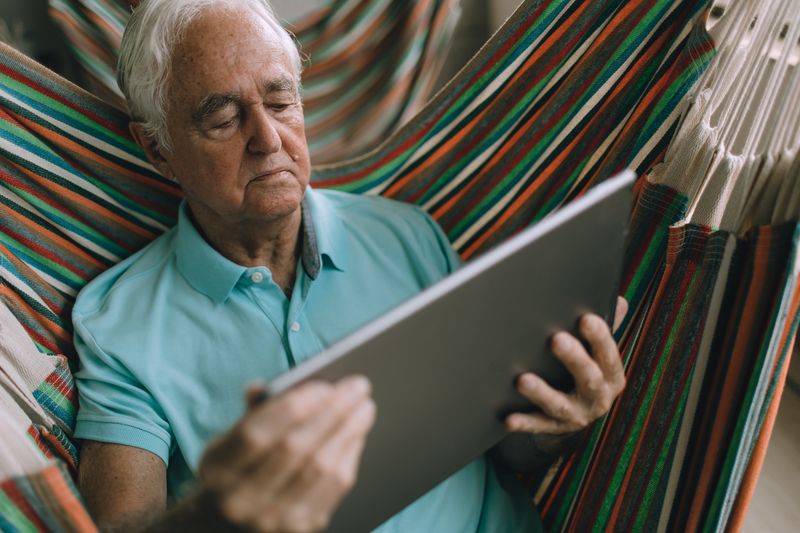
Connecting an iPad to a Bluetooth speaker takes under two minutes, and once it is done the two devices recognise each other for good. Bluetooth is just a way for gadgets to talk wirelessly over a short distance, usually up to about 30 feet in the same room. After this first setup, your music, videos and FaceTime calls play through the speaker instead of the iPad's small built-in one.
The only thing you need is the speaker switched on and ready to pair. Most speakers have a small button with a Bluetooth symbol, a sideways bowtie shape, that you press until a light flashes. That flashing light means the speaker is waiting to be found, which is exactly what the steps below do.
Put the speaker into pairing mode
The iPad can only find a speaker that is actively asking to be found, which is called pairing mode. Switch the speaker on, then press and hold its Bluetooth button, usually the one with the sideways bowtie symbol, for a few seconds. A light will start flashing, often blue, and some speakers play a little chime or say "ready to pair".
If you cannot find the button, the power button doubles as the pairing button on many small speakers. Hold it a little longer than a normal switch-on until the light changes its pattern. The speaker's quick-start leaflet shows the exact button, and you only need to learn it once.
Open Bluetooth settings on the iPad
Apple iPad (10th generation)
The standard iPad is smooth, long-lived and the simplest tablet for most people.
As an Amazon Associate we earn from qualifying purchases.
Find the grey Settings icon on your home screen, the one shaped like gears, and tap it once. In the list down the left side, tap Bluetooth. Make sure the switch at the top is green, which means Bluetooth is turned on. If it is grey, tap it once to turn it green.
- Tap the grey Settings icon on your home screen.
- Tap Bluetooth in the list on the left.
- Check the switch at the top is green (on).
- Wait a few seconds for your speaker's name to appear under Other Devices.
- Tap your speaker's name to connect.
Tap the speaker's name to connect
Within a few seconds the speaker's name appears under a heading called Other Devices. The name is usually the brand and model, such as "JBL Flip" or "Bose SoundLink", though some show a string of letters and numbers. Tap the name once. After a moment it moves up under My Devices and shows the word Connected.

That green or grey "Connected" label is the finish line. Play any song, video or call and the sound now comes from the speaker. If nothing plays through it, raise the iPad's volume with the buttons on its side, because the iPad and the speaker can have separate volume levels.
| What you see | What it means | What to do |
|---|---|---|
| Speaker not in the list | Not in pairing mode | Hold the speaker's Bluetooth button again |
| Name shows but won't connect | Paired to another device | Turn off the other phone's Bluetooth |
| Connected but no sound | Volume down or wrong output | Raise iPad volume, replay the audio |
| Connects then drops | Too far or low battery | Move closer, charge the speaker |
Asking for a code (only some speakers)
A few speakers ask for a passcode the first time. If a box appears asking for a number, try 0000 or 1234, which are the standard codes nearly every speaker uses. Most modern speakers skip this step entirely and connect with a single tap, so do not worry if no code box ever appears for your speaker.
You only ever do this once per speaker. After the first successful pairing, the iPad and the speaker remember each other. Turn the speaker on near the iPad another day and the connection forms again on its own, with no settings to open.
Switching back to the iPad's own speakers
To go back to the iPad's built-in sound, you do not have to undo anything. Either switch the Bluetooth speaker off, or swipe down from the top-right corner of the iPad to open Control Centre, hold your finger on the music box, and choose the iPad from the list of output devices. The sound returns to the iPad at once.
If you want to stop a speaker reconnecting for good, go back into Settings then Bluetooth, tap the small letter i in a circle next to the speaker's name, and choose Forget This Device. That clears the pairing completely, and you would set it up fresh next time. For everyday use, leaving it paired is simplest.
Using the speaker for video calls and audiobooks
A Bluetooth speaker is not only for music. On a FaceTime or video call, a speaker makes the other person's voice fill the room, which helps if your hearing is not what it was or several people are gathered round the screen. The iPad's microphone still picks up your voice as normal, so the speaker simply handles what you hear.
Audiobooks and the radio benefit too. Apps like the Books app, Audible, BBC Sounds and Spotify all send their sound to the paired speaker without any extra setup. Once the speaker is connected, every app on the iPad uses it, so you set it up once and forget about it. The kitchen becomes a radio, the lounge becomes a small cinema.
When a connection refuses to work
If the speaker will not connect after a few tries, turn the iPad's Bluetooth off and on again with the switch at the top of the Bluetooth settings, then put the speaker back into pairing mode. This clears most stubborn cases. A speaker with a low battery also drops out, so a quick charge often solves a connection that keeps breaking.
Distance and walls weaken Bluetooth, so keep the speaker in the same room and within about 30 feet of the iPad for steady sound. With the speaker paired, an iPad becomes a capable little music player for the kitchen, the garden or a family gathering, filling a room with sound that its own speakers never could. If a speaker simply refuses to behave one day, turning both the iPad and the speaker fully off and on again clears almost any glitch, the same way it does with most gadgets. After that fresh start, the pairing you set up earlier is still remembered and reconnects on its own.
🛠️ Free tools for this topic
No sign-up. They do the calculating and checking for you.
Published by the TechGranddad editorial team. Published October 5, 2026.
Editorial responsibility: see Imprint.
Spotted an error or have something to add? corrections@techgranddad.com
Simple Tech Tips, Weekly
One practical tip every week — video calls, smartphone tricks, and how to stay safe online. No jargon, no overwhelm.
🎁 Free bonus: The Senior Tech Starter Guide (PDF)
You might also like
How to Use an iPad for Reading Books, Comfortably
A step-by-step guide to reading books on an iPad: finding free titles, enlarging the text, a restful night page and having the iPad read aloud.
How to Charge Your iPad Correctly to Keep the Battery Healthy
You cannot overcharge a modern iPad overnight. Here are the simple charging habits that keep your iPad battery healthy and lasting for years.
How to Watch TV and Movies on Your iPad
A step-by-step guide to watching TV and films on your iPad: downloading apps like Netflix and YouTube, signing in, playing a show, free options, and sending it to a bigger TV screen.
📖 All articles on TechGranddad →
Browse our other articles