How to Use an iPad for Reading Books, Comfortably
This article may contain affiliate links. If you make a purchase through these links, we may earn a small commission at no extra cost to you. This helps us keep creating free content.
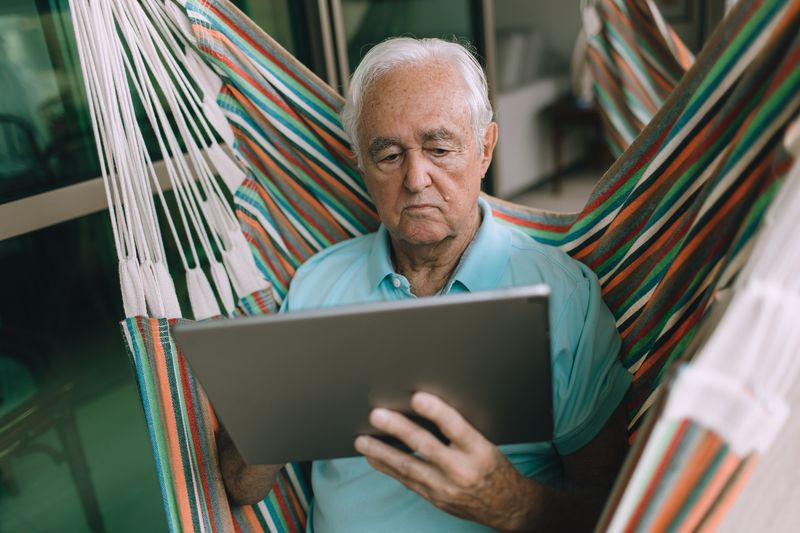
An iPad can hold thousands of books, make the text as large as you like, and read a page aloud when your eyes are tired. The screen is bright enough to read in a dim room without a lamp, and a single charge lasts for many evenings of reading. Setting it up for comfortable reading takes about ten minutes and you only do it once.
There are two free apps already on most iPads for reading: Books (Apple's own, with a white book icon) and the Kindle app from Amazon, which you may need to download. Both work in the same way once you are inside a book. The steps below get you reading and then make the page kind to your eyes.
Open the Books app and find your library
Find the white Books icon on your home screen and tap it once. The app opens to a shelf called Library, shown along the bottom of the screen. Any book you have bought or downloaded appears here as a cover you can tap to open. If the shelf is empty, that is normal for a new iPad and the next step fills it.
- Tap the Books icon on your home screen.
- Tap Library at the bottom to see your shelf.
- Tap Book Store at the bottom to browse new titles.
- Tap a cover, then tap Get for a free book or the price for a paid one.
- The book downloads and appears on your Library shelf.
Get free and low-cost books
Apple iPad (10th generation)
The standard iPad is smooth, long-lived and the simplest tablet for most people.
* Affiliate link. We may earn a commission at no extra cost to you.
Tap Book Store at the bottom of the Books app and you can search for any title or author. Many out-of-copyright classics, from Dickens to Austen, are free, and they are clearly marked with the word Get instead of a price. Paid bestsellers usually run from about $8 to $15, often cheaper than the printed version.
Your local library is the hidden treasure here. Most US libraries offer free ebook borrowing through an app called Libby, which you download from the App Store and link to your library card. Borrowed books appear on your iPad for a couple of weeks, then return themselves with no late fees. It is the closest thing to a free bookshop, and the choice is large because most US library systems share their digital shelves.
Make the text large and easy on your eyes
Open any book and tap once in the middle of the page. A small toolbar appears at the top. Look for the letters AA in the corner and tap them. This is the menu that controls how the page looks, and it is where most of the comfort comes from.
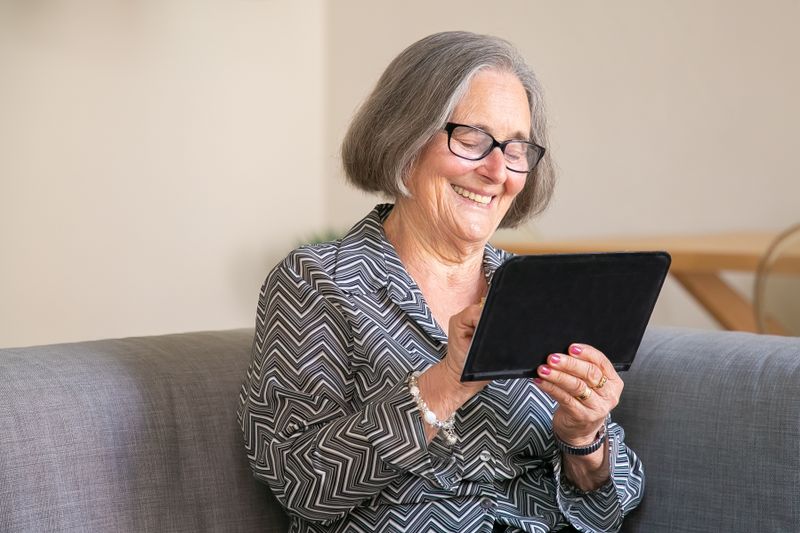
In that menu you can drag the text larger with the big A, change the typeface to one you find clearer, and adjust the brightness with the slider. There is no wrong setting. Make the words as large as a road sign if that suits you, because larger text on an iPad never costs you a page, it simply flows onto more screens.
| Setting | Where to find it | What it does |
|---|---|---|
| Text size | AA menu, the two A letters | Makes words bigger or smaller |
| Background colour | AA menu, Themes | White, sepia or dark page |
| Brightness | AA menu, the sun slider | Dims the screen for evening |
| Font | AA menu, Fonts | Switches to a clearer typeface |
Switch to a dark page for night reading
Reading white pages in a dark bedroom can feel harsh. In the same AA menu, tap Themes and choose the black option, which shows light grey text on a dark background. Many people find the sepia (soft cream) theme the most restful of all, sitting between bright white and full dark.
The whole iPad screen can also warm its colours in the evening through a feature called Night Shift, which reduces the blue light some people find keeps them awake. It lives in Settings, under Display & Brightness, and you can set it to turn on by itself at sunset.
Let the iPad read the book aloud
When your eyes need a rest, the iPad can read a book to you. Turn on the feature in Settings, then Accessibility, then Spoken Content, and switch on Speak Screen. After that, opening a book and swiping down from the top of the screen with two fingers starts the narration from where you are.
The voice is computer-generated, so it sounds steady rather than dramatic, but it is clear and you can slow it down or speed it up. This turns any ebook into a kind of audiobook at no extra cost. It is a gift on the days when reading small print feels like hard work.
You can pick the voice and accent in the same settings, choosing a British or American voice and a tone you find pleasant. A small floating control appears on screen with pause, skip and speed buttons, so you stay in charge of the pace. Pair this with the iPad propped on a stand and you can listen to a chapter with your eyes closed and your feet up.
Borrow library books with Libby
Libby connects your iPad to your local library so you can borrow ebooks and audiobooks at no cost. Download Libby from the App Store, open it, and tap Sign in with my library card. It searches for nearby libraries by name or by your location, and once you enter your card number and PIN you are linked. A library card is free to get if you do not have one.
Inside Libby you tap a book, then Borrow, and choose to open it in the Kindle app or Libby's own reader. Popular titles sometimes have a waiting list, the same as a physical library, and Libby tells you roughly how long the wait is. When the loan ends the book simply disappears from your iPad, so there is nothing to return and never a late fee.
Keep your place and read across devices
The Books app remembers exactly where you stopped, so you can close the iPad mid-sentence and reopen to the same line days later. If you also have an iPhone signed in to the same Apple account, the book and your place travel between them by themselves. Start on the sofa, continue in the waiting room.
For longer titles you can add a bookmark by tapping the small ribbon icon in the top corner, and you can highlight a sentence by holding your finger on it and choosing a colour. These notes stay with the book. An iPad set up this way is lighter than a hardback, holds an entire shelf, and adjusts to your eyes in a way paper never can.
🛠️ Free tools for this topic
No sign-up. They do the calculating and checking for you.
Published by the TechGranddad editorial team. Published September 24, 2026.
Editorial responsibility: see Imprint.
Spotted an error or have something to add? corrections@techgranddad.com
Simple Tech Tips, Weekly
One practical tip every week — video calls, smartphone tricks, and how to stay safe online. No jargon, no overwhelm.
🎁 Free bonus: The Senior Tech Starter Guide (PDF)
You might also like

How to Charge Your iPad Correctly to Keep the Battery Healthy
You cannot overcharge a modern iPad overnight. Here are the simple charging habits that keep your iPad battery healthy and lasting for years.

How to Watch TV and Movies on Your iPad
A step-by-step guide to watching TV and films on your iPad: downloading apps like Netflix and YouTube, signing in, playing a show, free options, and sending it to a bigger TV screen.

iPad Mini vs Regular iPad: Which One Is Right for You?
The iPad mini is small and pocketable; the regular iPad has a bigger, easier-to-read screen and costs less. Here is how to pick the right one.
📖 All articles on TechGranddad →
Browse our other articles