Amazon Fire Tablet Setup Guide: From the Box to Watching in 20 Minutes
This article may contain affiliate links. If you make a purchase through these links, we may earn a small commission at no extra cost to you. This helps us keep creating free content.
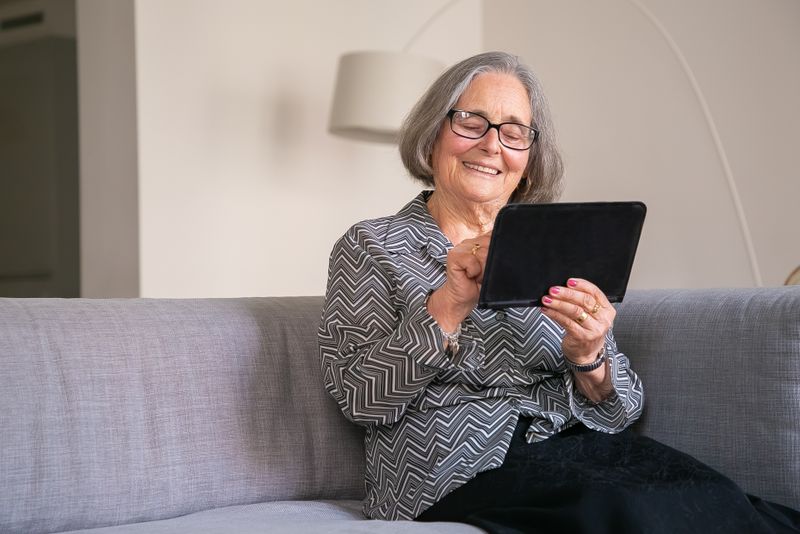
Setting up an Amazon Fire tablet takes about 20 minutes, and you only do it once. The tablet walks you through each step on screen, asking one thing at a time. You will need your home Wi-Fi password and the email and password for your Amazon account, and nothing else.
A Fire tablet is Amazon's own tablet, with prices that usually run from around $60 for the small Fire 7 to about $150 for the larger Fire HD 10. It is built around reading, watching and shopping, so the setup leans on your Amazon account. If you don't have one yet, you can create it during setup at no cost.
What's in the box and the first charge
Inside the box you will find the tablet itself, a charging cable, and a small power plug. Some bundles add a case or a stand. There is rarely a printed manual beyond a tiny start card, because the real instructions appear on the screen once you switch it on.
Plug the small end of the cable into the slot on the edge of the tablet and the large end into the power plug, then into a wall socket. A battery symbol shows it is charging. You can begin setup right away even at a low charge, though letting it reach roughly half-full first means it won't die partway through.
Choose your language and join Wi-Fi
Amazon Fire HD 10 tablet (newest model) built for relaxation, 10.1" vibrant Full HD screen, octa-core processor, 3 GB RAM, 64 GB, Lilac
10.1-inch Full HD screen, octa-core, easy for first-time tablet users.
As an Amazon Associate we earn from qualifying purchases.
The very first screen asks for your language. Tap your language in the list, then tap the arrow or Continue at the bottom to move on. If you tap the wrong one, there is usually a back arrow at the top left to return.
Next the tablet looks for nearby Wi-Fi networks (your home internet connection) and shows them in a list. Find the name of your home network, which is printed on the underside of your router or on a card from your internet provider. Tap that name, then type the password exactly, watching the letters as the upper-case and lower-case must match. Tap Connect.
A tick or the word Connected confirms it worked. This step matters because almost everything else, from downloading apps to playing video, needs that connection. If the password is rejected, tap the eye icon in the password box to reveal what you typed and check for a stray space or wrong letter.
Sign in to your Amazon account
The tablet now asks for your Amazon account, the same email and password you would use to shop on Amazon. Type your email, tap Continue, then type your password and tap Sign in. This links the tablet to your account so your books, apps and any Prime subscription appear automatically.
If you have never used Amazon, tap Create account instead and follow the prompts to enter your name, an email and a new password. It is free to make an account, and you do not have to add a payment card or buy anything to use the tablet for free apps and the web.
Decide on the optional extras
After signing in, the tablet runs through a short list of optional settings. You can switch each one on or off, and none of them is a wrong choice. Take them slowly, because this is where people often tap Yes to everything without realising what it does.
The main offers are location services (lets maps and weather know roughly where you are), saving your Wi-Fi passwords to your account, and a free trial of a service such as Kindle Unlimited or a games pass. Free trials can turn into paid monthly charges later, so only accept one if you mean to use it and remember to cancel before the trial ends.

You may also be asked to set a screen lock, which is a PIN or pattern that stops other people opening the tablet. For a device that stays at home this is optional, but it is sensible if you carry it out or want privacy. You can add or change a lock at any time later in Settings.
Find your way around the home screen
When setup finishes you land on the home screen, the main page you return to again and again. Along the top is a row of words such as Home, For You, Books, Games and Apps; tapping a word filters the tablet to that kind of content. The square pictures on the screen are apps and items you can tap to open.
At the very bottom are three navigation marks. The triangle is Back, which steps you to the previous screen. The circle is Home, which jumps you to this main page from anywhere. The square shows everything you currently have open, so you can switch between them or close them. These three controls work the same in every app.
Swipe down from the very top of the screen to reveal quick switches for Wi-Fi, brightness, and aeroplane mode, plus a shortcut to all Settings. Swipe back up to hide it. Spending five minutes tapping each row along the top is the fastest way to feel at home, and you cannot harm anything by exploring.
Add the apps you actually want
Fire tablets get their apps from the Amazon Appstore, Amazon's own version of an app shop, rather than from Google. Tap the Appstore icon, then tap the search box at the top and type the name of what you want, such as a news app or a game. Tap Get or the cloud icon next to a free app and it downloads to your home screen.
Popular apps such as Netflix, Disney+, Spotify, Facebook, and Zoom are available this way. One common gap catches people out: some Google apps, including YouTube and Gmail, are not always in the Appstore. The simple fix is to open the built-in Silk browser, go to the website (for example youtube.com), and use it there, which works perfectly well.
First settings worth changing, plus profiles for family
Two settings make a Fire tablet noticeably more comfortable from day one. Open Settings (the gear icon, or swipe down from the top and tap the gear), then Display, and adjust Font Size to make text larger and easier to read. On the same Display screen you can lengthen the time before the screen dims, so it does not go dark while you are reading.
It is also worth turning off the rotating Lock Screen ads on cheaper models, where Amazon shows offers on the lock screen. On models that include them, you can pay a small one-time fee, often around $15, to remove them, found under Settings and then Apps & Notifications or a similar menu depending on your model. This is optional and the ads are harmless, just a little distracting.
Finally, check for a software update so the tablet has the latest fixes. Go to Settings, then Device Options, then System Updates, and tap Check Now. If an update is found, let it download and install while the tablet is plugged in. After that, your Fire tablet is fully set up and ready for books, video, calls and everything else.
Set up the tablet for a grandchild or guest
Fire tablets can hold separate profiles, so a grandchild can have their own space with only the apps and content you allow, kept apart from yours. Open Settings, tap Profiles & Family Library, and follow the prompt to add a child profile. You choose which apps and which videos appear, and you can set daily time limits so the tablet locks itself after an agreed amount of use.
To switch between profiles, swipe down from the top of the screen and tap the small person icon, then choose the name you want. Your own apps and any payment details stay hidden inside your profile, so a child cannot wander into them or buy anything by accident. When they are finished, switch back to your own profile the same way.
If the tablet will be shared between two adults, you do not need profiles at all. Instead, sign in to the apps that matter, such as email or Netflix, under your own account, and let the other person sign in to theirs within each app. Keeping one Amazon account on the tablet itself keeps the device simple while still letting each person reach their own things inside the apps they use.
🛠️ Free tools for this topic
No sign-up. They do the calculating and checking for you.
Published by the TechGranddad editorial team. Published August 4, 2026. Updated October 4, 2026.
Editorial responsibility: see Imprint.
Spotted an error or have something to add? corrections@techgranddad.com
Simple Tech Tips, Weekly
One practical tip every week — video calls, smartphone tricks, and how to stay safe online. No jargon, no overwhelm.
🎁 Free bonus: The Senior Tech Starter Guide (PDF)
You might also like
iPad vs Amazon Fire Tablet: Which Should You Actually Buy?
iPad vs Amazon Fire tablet compared on price, apps, screen and lifespan, with a clear recommendation for everyday reading, video and family calls.

How to Update Your iPad (Safely and for Free)
A simple step-by-step guide to updating your iPad safely and for free, why updates protect you, and how to fix it when an update will not install.

How to Video Call Your Grandchildren: A Simple Guide
A warm, step-by-step guide to video calling your grandchildren using FaceTime, WhatsApp or Google Meet, with simple tips for clear sound, good lighting and steady picture.
📖 All articles on TechGranddad →
Browse our other articles